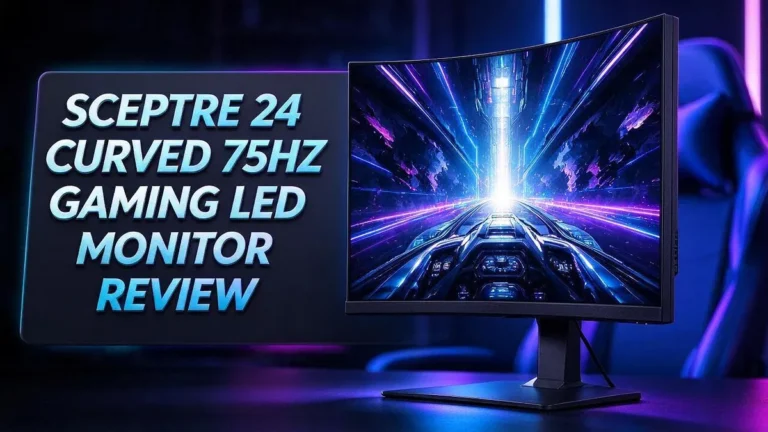
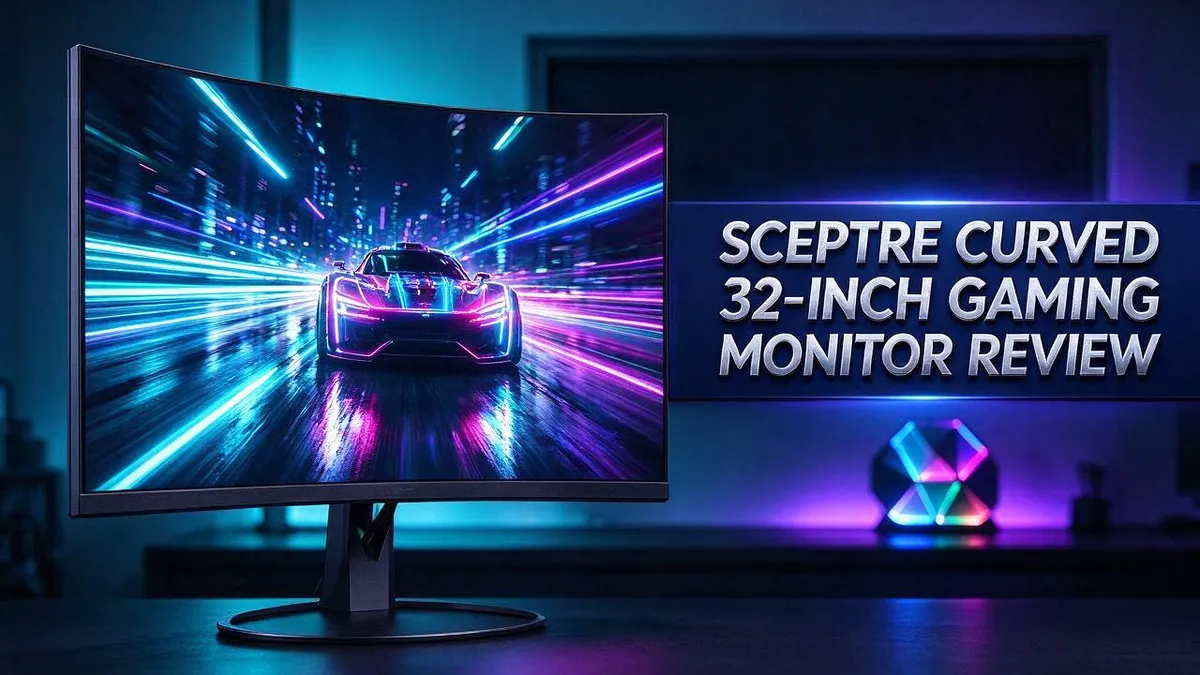
Sceptre 32-Inch Curved Gaming Monitor Review: Should You Buy This?
Gamers always want a screen that feels fast and immersive. The Sceptre curved 32 inch gaming monitor aims to deliver both. Its curved display wraps around your view, and a 240Hz refresh rate keeps motion smooth during fast action.
Many players ask one simple question: is this monitor a good fit for their setup? In this review, we look at the design, the image quality, and real gaming performance. We also cover where the screen shines and where it falls short.
Here is the short answer. The curve pulls you into the game, and high frame rates help you react quickly. However, the VA panel can show dark smearing in fast scenes. Knowing this before you buy helps you decide if it suits your play style.
In a Nutshell
- Screen size: The 32 inch display gives you a wide view of your game world. You can spot enemies and small details near the edges of the screen.
- Panel and speed: This model uses a VA panel with a 240Hz refresh rate. Smooth motion helps fast scenes look clean, which suits shooters and racing titles.
- Known weak spot: Owners report black smearing and slow response times on VA screens. Dark scenes may look blurry, so this matters for horror games and night maps.
- Multiple screen setups: The curved shape can work well if you run more than one monitor side by side. Matching curves help the edges blend into one wide picture.
- Rival options: The Samsung Odyssey G7 and G8, the MSI MPG 322URX, and the AOC C32G2ZE2 are common alternatives. Each one offers a different mix of panel type, speed, and resolution.
- Research gaps: Most reviews cover 27 inch or 30 inch versions, not this exact 32 inch unit. Check the model number and panel type before you buy.
Display and Image Quality
No products found.
Picture quality matters just as much as speed. A clear image helps you spot enemies in dark corners and read small details on screen.
Panel type shapes almost everything you see. The VA panel in this model gives deep blacks and strong contrast, which many players enjoy in dim rooms.
The tradeoff shows up in motion. Fast scenes may look smeary, so the picture can blur when enemies move quickly across the screen.
Viewing angles deserve attention too. VA screens often lose some colour when you sit off to the side, so sit close to the centre for the best look.
A separate Sceptre review covers a 75Hz IPS curved panel. IPS screens usually offer wider viewing angles and more natural colour. However, the model match is not confirmed, so check the exact model number before you buy.
Colour accuracy suits most games. Vivid tones make fantasy worlds and shooters look lively, though colour professionals may want extra calibration tools.
Brightness changes the experience too. A bright room can wash out dark scenes, so match the screen brightness to your lighting. Matte screens also cut glare from windows.
Sharpness depends on resolution. Check the spec sheet to confirm the pixel count, since higher resolutions show finer text and textures.
Sports and racing fans often notice motion more than anything else. Smooth frames make steering feel precise, so motion clarity matters for these genres.
Dark games show the biggest difference. Shadows can look muddy on weaker panels, so test a dark scene in a store or a friend’s setup if you can.
Sharp text matters for menus and chat windows too. Clean edges make small labels easy to read during long sessions without eye strain.
Overall, image quality should guide your choice as much as speed. Pick the panel that matches your games and your room.
Gaming Performance
Gaming performance depends on more than raw speed. Your graphics card matters just as much as the screen. To see high frame rates, you need a PC that can push enough frames each second.
Start with your resolution. Lower settings in demanding titles help you reach smoother motion. Competitive shooters often run well at lower detail, while open world games need more power.
Adaptive sync is worth checking before you set up. Matching the monitor with your graphics card helps stop screen tearing. Look for FreeSync or Nvidia variable refresh support in your card settings.
Input lag is the delay between your click and the action on screen. Game mode settings on many monitors can reduce that delay. Turn it on, then test your favourite game to see how it feels.
Overdrive settings change how fast pixels shift colour. Set it too high and you may see bright halos around moving objects. Set it too low and motion can look soft. Try a few levels and pick the cleanest look.
Motion blur reduction is another option. It can sharpen fast action, but it often lowers brightness. Use it in fast shooters, then turn it off for story driven games.
Frame pacing matters as much as average frame rate. A steady 120 frames can feel smoother than a jumpy 200. Watch for stutters in your favourite game and adjust your graphics settings.
Console players can use this monitor too. Check that your ports support the refresh rate you want. Older cables may limit speed, so use a modern cable for the best results.
Smooth gameplay comes from balance. Pair the screen with a capable PC, tune a few settings, and test your favourite titles. Your play style decides which features matter most, so think about the games you play most often.
Design and Build
Good design starts with the frame. A slim border around the screen helps the picture feel bigger. Look for narrow edges on the top and sides, especially if you plan to place two screens side by side.
The curve also changes how the monitor feels in daily use. It wraps around your field of view. This can feel natural when you sit close to the screen, but some players prefer a flat panel for straight lines in desk work.
Stand design matters just as much as the panel. A sturdy base keeps the screen steady when you tap the desk or adjust your chair. Check whether the stand offers height changes, tilt, and swivel. These options help you find a comfortable eye level after long sessions, especially if you switch between gaming and reading.
Ergonomics deserve a closer look. Many players sit for hours, so a stand that lifts the screen can ease neck strain. Test the tilt range before you commit.
Rear controls can cause trouble. Some owners of the 27 inch version say the buttons sit in an awkward spot and feel hard to reach. Since this 32 inch unit may use a similar layout, press the buttons in a store if you can, or watch a video demo first.
Cable routing is another practical detail. Look for a stand with cable channels or clips. Tidy cables reduce clutter on your desk and make it easier to move the monitor later.
Mounting options add flexibility. If the back has a standard VESA pattern, you can swap the stand for a monitor arm. This helps when you need more desk space or want to position the screen at a different angle.
Overall, the build should feel solid and easy to adjust. Spend a few minutes testing the stand and controls before you set up. Small details like these can make everyday play far more comfortable.
Top 3 Alternatives
Looking for a different curved screen? These three options deliver smooth motion and a comfortable curve for long gaming sessions.
Samsung Odyssey G5

- Samsung’s 32" Odyssey G5 (G51F) Gaming Monitor offers QHD resolution (2560x1440) and boasts incredibly detailed...
- HDR10 ensures lifelike visuals with enhanced contrast and color

Last update on 2026-11-24 / Affiliate links / Images from Amazon Product Advertising API
The Samsung Odyssey G5 offers a fast refresh rate for smooth gameplay. Its curve wraps the image around your view. It also supports adaptive sync, so the picture stays steady during busy scenes. Gamers who want deep immersion will enjoy this model. The stand adjusts for height and tilt, which helps you find a comfortable position.
AOC C32G2

- 32-inch (31.5" viewable) AOC Gaming monitor with 1920x1080 Full HD Resolution (1080p) and 1500R curvature to put...
- Super Rapid 0.5ms SmartResponse time (MPRT) and 240Hz super-high refresh rate to hit moving targets and get you...
Last update on 2026-11-24 / Affiliate links / Images from Amazon Product Advertising API
The AOC C32G2 keeps things simple and fun. It has a tight curve that many players love. Its fast refresh rate makes shooters and racing games feel responsive. The screen also works well for watching movies and streaming. It is a good fit for players who want strong value.
MSI G32C4

- Curved Gaming display (1500R) – The best gameplay immersion.
- 165Hz Refresh Rate – Real smooth gaming
Last update on 2026-11-24 / Affiliate links / Images from Amazon Product Advertising API
The MSI G32C4 brings a sharp look and a smooth display. Its curved panel draws you into the action. Gamers get quick response times that help reduce blur. The stand offers easy tilt control, and the clean design fits well on most desks. It suits anyone who wants a well rounded gaming screen.
Each of these monitors gives you a strong curved gaming experience. Pick the one that matches your games, your space, and your style.
Connectivity and Setup
Connecting this monitor takes only a few minutes. Start by checking the video ports on your PC or console.
Most PC players use a DisplayPort cable. Consoles often need an HDMI connection instead.
Use the cable that came in the box. A weak cable can limit the refresh rate you see.
If the image looks slower than expected, swap the cable first. It is a quick fix.
Next, select the correct input source. Press the input button and pick the port you used.
Wrong input choices cause most blank screens. Check this step before you panic.
Plug the power cable into a wall outlet first. Then turn on the monitor and your computer.
Give the monitor a minute to wake up before you troubleshoot. Many screens need a short moment.
Windows users should open display settings after the first boot. Find the refresh rate option and choose the highest value listed.
Many people skip this step. Without it, the monitor runs below its full speed.
Use the monitor menu to check your setup. Look for an information page.
It shows the current resolution, refresh rate, and input source.
This page helps you spot errors fast. It saves time during your first session.
Console players should also check the output settings on the console. Match the resolution to the monitor. Then enable the highest refresh mode your console supports.
If the monitor has USB ports, check which one links to your PC. Plug only the devices you use daily into the hub.
Finally, run a short test game. Watch the motion and check the colours.
Adjust brightness after you see your room lighting. A quick test saves time later.
A clean setup makes gaming feel easier from day one. Take your time with each step. Good connections lead to smoother play.
Value for Money
Think about how you will use this monitor every day. A 32 inch screen gives you plenty of room for games, streams, and open windows. The curve wraps the image around your eyes, so the edges feel closer during long sessions.
The panel type matters more than most people expect. The 240Hz VA panel gives you fast refresh for competitive games. However, dark scenes can show black smearing, so fast moving shadows may blur in shooters. If you mostly play slow strategy games or watch films, the IPS model mentioned in reviews may suit you better because it delivers richer colour.
Your daily tasks count too. The curve helps with spreadsheets, coding, and video editing because you see more of the timeline at once. Open your favourite work apps and check that text stays sharp at this size.
The curve also suits multiple monitor setups. Side screens sit at a similar angle, so the whole desk feels connected.
Compare the competition by specs, not hype. The Samsung Odyssey G7 and G8 use mini LED backlighting for bright highlights and deep contrast. The MSI MPG 322URX uses an OLED panel with a 0.03 millisecond response time, which is far faster than most LCD screens. The AOC C32G2ZE2 offers a 250Hz refresh rate, so it edges past this Sceptre on paper.
Look at the warranty and support options too. A longer warranty gives you more peace of mind over time. Good support also helps you fix a faulty panel quickly.
Keep your expectations realistic. Most published feedback covers 27 inch or 30 inch models, not this exact 32 inch unit. That gap means you should read recent owner posts before you decide. Look for comments about panel uniformity, brightness, and long term durability.
Pros and Cons
Pros
– Fast 240Hz refresh rate helps shooters and racing games feel responsive.
– Sleek design looks clean on a gaming desk.
– The IPS model shows vivid colours for movies and story games.
– Many owners praise the brand for reliable performance.
Cons
– The VA panel can smear dark scenes during fast motion.
– Slow response times may frustrate competitive players.
– Panel types differ between models, so check the exact model number first.
Who Should Buy It
This 32 inch curved gaming monitor suits people who want a large screen for play. It also fits anyone who sits a little farther from the desk.
Shared family PCs are a good fit. Everyone can use the screen for games, videos, and homework without changing much.
Students and remote workers who game after hours will value the space. A wide display leaves room for notes or chat windows beside a game.
Fast shooter fans should look closely at the panel type first. Competitive players who care most about motion clarity may prefer a different model.
Casual gamers who enjoy single player adventures will feel right at home. They rarely notice small delays, so the screen suits their pace.
Photo editors and video creators should not rely on this monitor alone. A dedicated color calibration tool or a pro display will serve them better.
Buyers who plan to keep a monitor for many years should compare newer models first.
Gamers who sit at a standard desk should measure first. A 32 inch screen is large, so check the depth and width of the desk before ordering.
Households with children may enjoy the extra space. Two players can sit side by side for local split screen games.
Buyers with a small room should think twice. A large curved screen can dominate a compact space and feel crowded.
People moving up from a smaller screen will notice more room for windows.
Streamers should also plan for capture cards and a strong PC.
Read several reviews before you decide, and compare what owners say about daily use. A little research now saves time later. It helps you pick the right screen for your needs.
Think about your room, your habits, and your desk size. A clear match makes the decision easy.
Final Verdict
Our final verdict leans positive. This Sceptre curved 32 inch monitor suits players who want a large, curved screen without a complicated setup.
Confirm the exact model first. Our research points to two different panels, and they do not perform the same way. Check the model label before you commit.
Your favourite games should guide your choice. Someone who mostly plays story games will likely enjoy the colour strength of an IPS panel. Someone who spends most evenings in fast multiplayer lobbies should put motion clarity first.
Plan for the controls. One listing notes that the rear buttons sit in a hard spot to reach. Since most sources cover the 27 inch or 30 inch models, the 32 inch unit has less public feedback. Test the menu early during setup so you know how it feels.
Compare the main rivals. The Samsung Odyssey G7 and G8 offer 32 inch mini LED screens for players who want deeper contrast. The MSI MPG 322URX pushes resolution and speed further with QD OLED. The AOC C32G2ZE2 focuses on very high refresh rates in a simple design. Each rival serves a different need, so match the screen to your habits.
Our verdict: The Sceptre earns a spot on the shortlist for casual players and mixed use households. Competitive players should test motion performance or look at stronger rivals first. With the right model in hand, this monitor can deliver a satisfying large screen experience.
Frequently Asked Questions
Will a 32 inch screen fit my desk?
A 32 inch screen needs more room than a smaller monitor. Measure your desk width and depth first. Leave space behind the stand for cables and speakers.
Can I connect a game console to this monitor?
Most consoles work with a monitor like this. Check the ports on the back before you buy. Then pick a cable that matches your console.
Does the curve bother some people?
Some players need a short time to adjust to the curve. The screen wraps around your view. Sit about an arm length away for the best fit.
Why do reviews feel limited for this model?
Many reviews cover the 27 inch or 30 inch versions instead. Read the specs for the exact 32 inch unit. Ask the seller for the full model details before you order.

Hi, I’m Simmy — the founder and voice behind AI Gadgets Insight. I’m a tech enthusiast who loves exploring the latest AI gadgets, smart devices, and innovative tech products. I started this blog to help people make smarter tech choices with honest reviews, easy-to-follow comparisons, and practical buying guides.