Sceptre 30-Inch Curved Gaming Monitor Review: Is It Worth Trying?
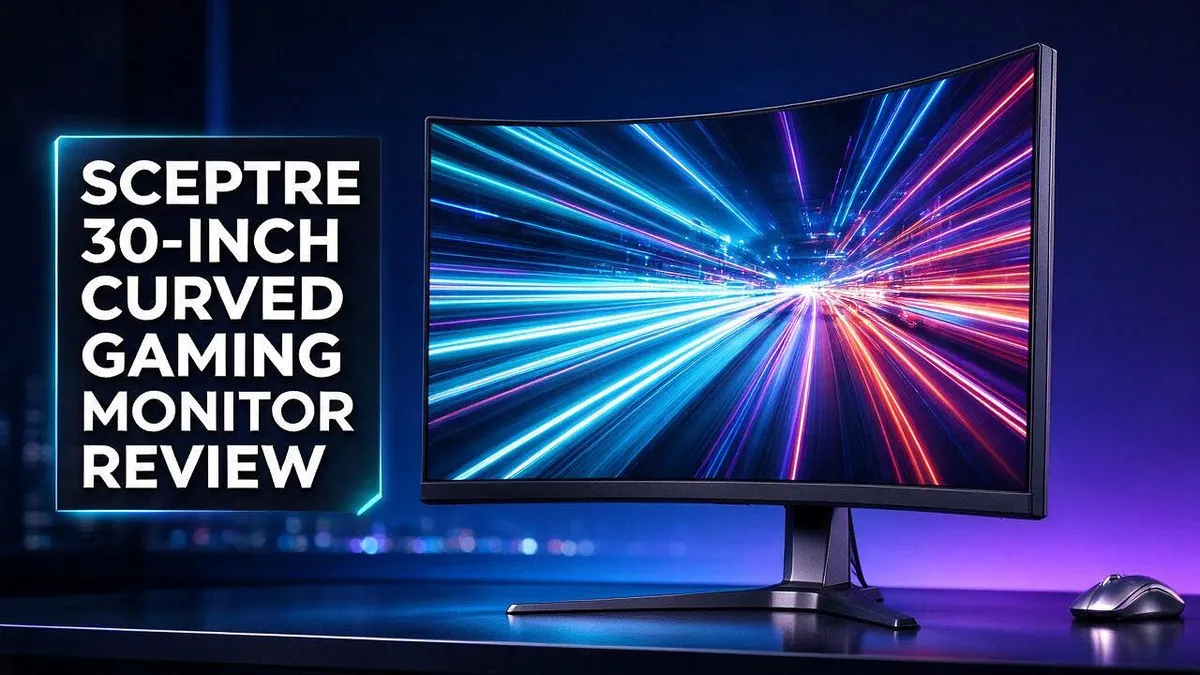
Looking for a wider view for games and movies? The Sceptre 30 inch curved gaming monitor promises a big, immersive screen. Its 21:9 ultrawide format stretches across your field of view.
Many gamers want more space than a standard display offers. This monitor answers that need with a curved VA panel. It also runs at 200Hz through DisplayPort, which keeps motion smooth.
But the picture comes with compromises. The resolution is 2560 x 1080, and the refresh rate drops when you connect through HDMI. Brightness sits at a modest 250 typical level.
Is this model worth your time? Real owners give it a low 2.3 out of 5 rating. In this review, we break down the specs, the strengths, and the weak spots, so you can decide with confidence.
In a Nutshell
Here is a quick look at the key points.
- Wide 21:9 shape: The 2560×1080 panel adds side space for racing games and long films.
- Fast 200Hz on DisplayPort: Motion stays smooth when you connect through DisplayPort.
- Slower HDMI speeds: The refresh rate drops over HDMI, so check your cable setup first.
- Wide 170 degree viewing angles: Colors stay clear even when friends sit off to the side.
- Modest brightness: A 250 typical brightness rating may look dim in a sunny room.
- Split reviewer opinions: One reviewer calls it a 24 inch panel stretched sideways, so set your expectations early.
Overall, this monitor suits players who want width and can accept some give and take. If you need strong brightness or full speed over HDMI, you may want to compare other options like the Acer SB272 EBI or the KOORUI 27 inch curved monitor.
Display Panel and Image Quality

- 30" Curved Gaming Monitor 2560 x 1080 Full HD Resolution. Response Time- 5ms GTG.Aspect Ratio: 21:9. Viewing Angle...
- DP Up to 200Hz Refresh Rate / HDMI 2. 0 Up to 120Hz Refresh Rate: More than double the standard refresh rate, 200Hz...

Last update on 2026-11-24 / Affiliate links / Images from Amazon Product Advertising API
Dark scenes are where this panel shines. VA technology typically delivers deeper blacks than many basic screens. Night scenes in movies look more moody and layered.
Contrast controls how bright objects pop against shadows. Strong contrast makes glowing lights and explosions look vivid. Shadows also keep more visible detail than on a simple screen.
Curvature changes how the picture feels. The bend keeps edges at a similar distance from your eyes. That makes the image feel wrapped around you.
Viewing position changes the feel of the image too. Sitting too close can make the outer edges feel stretched. Leave enough room so the curve wraps around your view.
Motion clarity depends on more than the response time. The 5ms rating sounds quick on a spec sheet. VA panels can still leave faint trails behind fast objects.
Ghosting can appear in dark scenes with quick movement. Overdrive settings in the monitor menu may reduce it. Test a few modes to find the best balance.
Pixel density deserves attention too. Text may look softer than on many 27 inch 1440p displays. Sit a little farther back for cleaner edges.
Panel uniformity can vary between units. Some owners may notice faint glow near the corners in dark scenes. Check the screen soon after delivery.
Game genre changes the experience a lot. Bright strategy maps may look flat on this screen. Dark horror titles and night races usually look their best.
Colour settings deserve a quick check. Adjust contrast and gamma in the menu after setup. Small changes can make a dim room feel brighter.
Colour accuracy matters for photo editing too. This panel suits casual viewing more than detailed creative work. Creators may want a dedicated tool for exact results.
Trust your eyes over the numbers. Test with a favorite movie or game scene before you decide. Your own view matters most.
Refresh Rate and Motion Handling
A high refresh rate only helps when your PC can feed the monitor enough frames. At 2560×1080, many modern games can reach well past 100 frames per second with a capable graphics card.
Set the refresh rate by hand. Windows often starts new monitors at 60Hz. Open the display settings and choose 200Hz so the screen uses its full speed.
Steady frames matter more than peak numbers. A game that jumps between 90 and 150 frames can feel uneven. Lowering one heavy setting often gives a smoother result than chasing maximum speed.
Try a frame rate cap next. A limit set a little below your average frame rate keeps timing even. It also keeps your graphics card cooler and quieter.
Genre decides how much speed you need. Fast shooters and racing titles show the biggest gains.
Slower adventure games look great at lower rates. You can spend that extra headroom on visual detail instead.
Movies and videos behave differently. Most films run at 24 or 30 frames per second.
The high refresh rate will not make them look faster. The wide curve still adds a sense of depth during long watching sessions.
Check your settings after every driver update. Graphics drivers sometimes reset the refresh rate or the port mode. A quick look at the display panel takes less than a minute and keeps your setup correct.
Give your PC room to grow. A strong processor and graphics card keep the monitor busy. Older hardware may never reach the top speed, so the extra refresh rate goes unused.
Test motion with a fast game scene. Move the camera quickly across a detailed wall and watch for smearing. Note whether the image stays crisp at each speed setting you try.
Keep background downloads paused during play. Network spikes can cause frame drops that look like display lag, even though the screen itself is fine.
Ultrawide Format and Screen Real Estate
The 21:9 shape gives this Sceptre screen a long, wide canvas. Compared with a standard 16:9 display, it adds extra space on both sides. Many players notice this change right away.
Screen real estate matters most when you multitask. You can keep a chat window, a guide, and a web page open together. Each one sits in its own space without covering the game.
Extra width also helps with everyday work. Spreadsheets show more columns on one line. Video editors can place a timeline and a preview next to each other.
Gamers get a different benefit. Racing games and flight sims fill the edges of your vision. Strategy players can view a larger map without constant panning.
Wider does not always mean sharper. The total pixel count spreads across a broad area, so fine details may look softer in some apps. Text and small menu icons deserve a close look.
Window management takes some setup. Windows may snap apps to odd sizes by default. Built in tools or third party utilities let you create zones for each app.
Ultrawide gaming also depends on game support. Some titles stretch the view nicely, while older games may show black bars or a cropped image. Check each game’s menu for an aspect ratio setting.
Desk space matters too. A 30 inch curved panel takes up real room, so measure your desk depth and width first. A stable stand and clear cable space help keep the setup tidy.
Setup takes only a few minutes. Open the display settings, choose the right resolution, and arrange your windows once. After that, your layout stays ready for each session.
Bottom line: the wide format suits people who value side by side work and immersive views. If you mostly play tight shooters or need very crisp text, a standard screen may serve you better.
Top 3 Alternatives
If the Sceptre curved monitor does not fit your setup, these three options are worth a look.
Samsung Odyssey G5

- Samsung’s 32" Odyssey G5 (G51F) Gaming Monitor offers QHD resolution (2560x1440) and boasts incredibly detailed...
- HDR10 ensures lifelike visuals with enhanced contrast and color
Last update on 2026-11-24 / Affiliate links / Images from Amazon Product Advertising API
The Samsung Odyssey G5 is a curved gaming monitor that many players enjoy. It has a fast refresh rate that keeps motion smooth. It works well for shooters and racing games.
LG UltraGear 34GP63A

- Great for gaming, this ultra-wide QHD (3440 x 1440, 21:9 aspect ratio) curved monitor immerses you in the action...
- A high native 160Hz refresh rate with 1-millisecond Motion Blur Reduction (MBR) keeps you firmly in the action...
Last update on 2026-11-24 / Affiliate links / Images from Amazon Product Advertising API
This model has an ultrawide curved screen. You get extra space for gaming and multitasking. Its quick response time helps reduce blur during fast action scenes. Gamers who want a wider view often choose this option.
Acer Nitro ED270R

- 27" WQHD (2560 x 1440) 1500R Curved Widescreen Gaming Monitor | AMD FreeSync Premium Technology
- Refresh Rate: 180Hz | Response Time: Up to 1ms (VRB) | HDR Ready | Pixel Pitch: 0.233mm
Last update on 2026-11-24 / Affiliate links / Images from Amazon Product Advertising API
The Acer Nitro ED270R offers a classic curved panel with a simple design. It has a fast refresh rate that suits competitive play. It is a good fit for gamers who want a solid display without extra features.
Real-World User Feedback
Owners rate this Sceptre screen lower than many shoppers expect. The average user score sits at 2.3 out of 5 stars, so the feedback deserves a closer look. Reading reviews well takes some care. Look for comments that mention the connection type, the PC used, and the games played. Vague complaints offer less help than detailed reports.
Many critics focus on how the picture feels overall. One reviewer called it essentially a 24 inch panel stretched horizontally. That remark suggests the wide shape may look spread thin rather than crisp.
Connection type changes the experience a lot. The 200Hz rate only works over DisplayPort. Owners who connect through HDMI see a lower refresh rate, which can disappoint anyone hoping for smooth motion. Check the cable and port before you start gaming.
Brightness also draws attention. The listed 250 typical brightness sounds modest for such a large panel. Bright rooms may wash out the image, so dim spaces suit it better.
Comparisons help set expectations. The Acer SB272 EBI offers a 27 inch Full HD IPS display, but the research measures it against Sceptre’s 24 inch model, not this 30 inch version. That gap matters for a fair comparison. KOORUI’s 27 inch curved monitor also appears in roundup lists. Those rivals may suit people who want a sharper, more familiar picture. Shoppers can weigh several similar sizes side by side.
A low star average does not decide the choice alone. Compare the reported strengths, like the 200Hz rate and wide viewing angles, against the weak points. Think about the games you play most, because that shapes how much each strength matters.
Buyers who mainly use DisplayPort and want a wide canvas may still find the format useful. Everyone else should check ports and read recent owner comments first.
Value for Money
Start with the features on the spec sheet. This screen offers a 200Hz refresh rate on DisplayPort, a 5ms response time, and 170° viewing angles. Those specs help most when they match your daily habits.
Next, think about the resolution. The 2560×1080 panel gives you a wide canvas, but the pixel count is modest for a screen this large. Fast games may still look smooth. Detailed photo editing may ask for more sharpness.
Ratings also deserve a look. Owners give this Sceptre an average of 2.3 out of 5 stars. One reviewer even described it as a 24 inch panel stretched wide. Read recent feedback before you decide.
Compare it with other options too. One comparison pits the Acer SB272 EBI against the 24 inch Sceptre model, not the 30 inch one. The KOORUI 27 inch curved monitor ranks fifth on a 2026 list of curved monitors.
Your best choice depends on your setup. If your PC supports DisplayPort and you want a wide view, this model may suit you well. If you need a sharper image or a higher rating, look at other screens first.
Test the screen before the return window closes. Use your own games, films, and documents in your own room. A short trial shows whether the wide format feels natural to you. Keep the packaging until you are sure, so returns stay simple.
Think about what matters most to you. The Sceptre suits people who want a long, curved canvas and a fast DisplayPort connection. It may not suit anyone who expects top ratings or crisp detail. Honest expectations lead to happier owners.
Read the full spec list again before checking out. Compare the resolution, the refresh rate, and the ports on your own desk. That quick review helps you choose with confidence.
Pros and Cons
Pros
– Fast 200Hz motion stays smooth during quick scenes when you use DisplayPort.
– The 5ms response time helps moving objects look clear.
– Viewers sitting off to the side still see a clear picture thanks to the wide viewing angles.
– The curve keeps the outer edges of the screen in easy view.
– Friends can watch along without crowding around your desk.
Cons
– Consoles and other HDMI devices cannot reach the top refresh rate.
– Some buyers feel the picture looks stretched rather than sharp.
– Rooms with strong light may wash out the image.
– The overall rating from owners sits well below what many shoppers hope for.
Who Should Buy It
This monitor suits a specific type of buyer. It works best for people who play games on a PC with a DisplayPort cable. Without that cable, the top refresh rate stays out of reach.
Racing and flight sim fans often gain the most. A curved wide panel fills the view around the cockpit. Players can spot rivals or clouds without turning their heads.
Strategy players also make good matches. They can keep maps, menus, and stats open at once. Less switching means more time playing.
Office workers who run video calls and spreadsheets can benefit too. A wide canvas keeps chat windows visible while the report stays open.
Students and writers may find it helpful as well. Long research pages or documents can sit side by side. The text may look soft, though, since the resolution is modest for a screen this large.
Console players should look elsewhere. Consoles connect through HDMI, so the smooth 200Hz mode stays locked. A 1080 pixel height also limits detail for those who expect crisp visuals from a console.
Shoppers with bright rooms need extra care. The 250 typical brightness may struggle near large windows. Placing the desk away from direct sunlight helps the image hold its color.
Anyone who plays fast action games should check motion closely. Run a few scenes with quick camera turns during the first session. Look for smear at the edges and comfort after long hours.
A deep desk matters for this size. Measure your space before you order. The curve needs room to sit at a comfortable distance from your eyes.
Finally, consider your own habits. If your PC, cable, and desk match this profile, the monitor can serve you well. If not, another screen may fit your needs better.
Final Verdict
So, is this curved screen the right pick for your desk? The answer depends on your setup. The Sceptre offers a wide and fast picture, yet it has clear limits.
Your PC connection matters more than many people expect. Plug in through DisplayPort, and the monitor shows its best side. Skip that cable, and the strong specs lose much of their punch.
Also check the stand before ordering. A sturdy base keeps the wide panel steady when you lean in during a tense match. Look for height and tilt adjustments so the top edge sits at eye level.
Size comparisons deserve extra thought. The Acer model in our research was judged against a smaller 24 inch Sceptre, not this 30 inch version.
That matchup does not show how this screen really stacks up. Compare it with other 30 inch options side by side before you decide.
Think about the rest of your room too. Settings menus let you tweak brightness, contrast, and colour modes. Small changes can help the picture hold up under softer lamps. Adjusting them early saves frustration later, so set aside an evening for this step. Good setup choices turn a fair monitor into a pleasant daily companion.
Lists also change quickly. The KOORUI model appears fifth in a 2026 ranking, which shows that many strong curved options exist. Check recent reviews, since newer models may match your needs better. Read the newest reviews with care, and note the dates on each one.
Before you buy, write down your top three uses. If gaming sits at the top, the speed and curve may please you. If sharp text ranks higher, look again before you commit.
In short, this monitor suits gamers who want speed through DisplayPort and a wide, curved view. Buyers who need a sharp, bright, or console friendly display should look elsewhere. Your daily routine will guide the final call.
Frequently Asked Questions
What does the VA panel mean for picture quality?
A VA panel usually shows deeper blacks than many other panel types. Dark scenes in movies and games often look richer. Colors may shift a little when you view the screen from far off angles.
Can I watch movies on this monitor?
Yes, the wide 21:9 shape suits films well. Widescreen movies fill the screen with fewer black bars. Older videos in a standard shape will still show bars on the sides.
How do I turn on the full 200Hz refresh rate?
Connect the monitor with a DisplayPort cable first. Then open your display settings on your PC and select 200Hz from the refresh rate menu. If the option does not appear, update your graphics driver and check again.
Can this screen replace a dual monitor setup?
Many people use it as one main screen. One wide display can hold two windows side by side. Pairing it with a second monitor may look uneven because the sizes and shapes differ.

Hi, I’m Simmy — the founder and voice behind AI Gadgets Insight. I’m a tech enthusiast who loves exploring the latest AI gadgets, smart devices, and innovative tech products. I started this blog to help people make smarter tech choices with honest reviews, easy-to-follow comparisons, and practical buying guides.