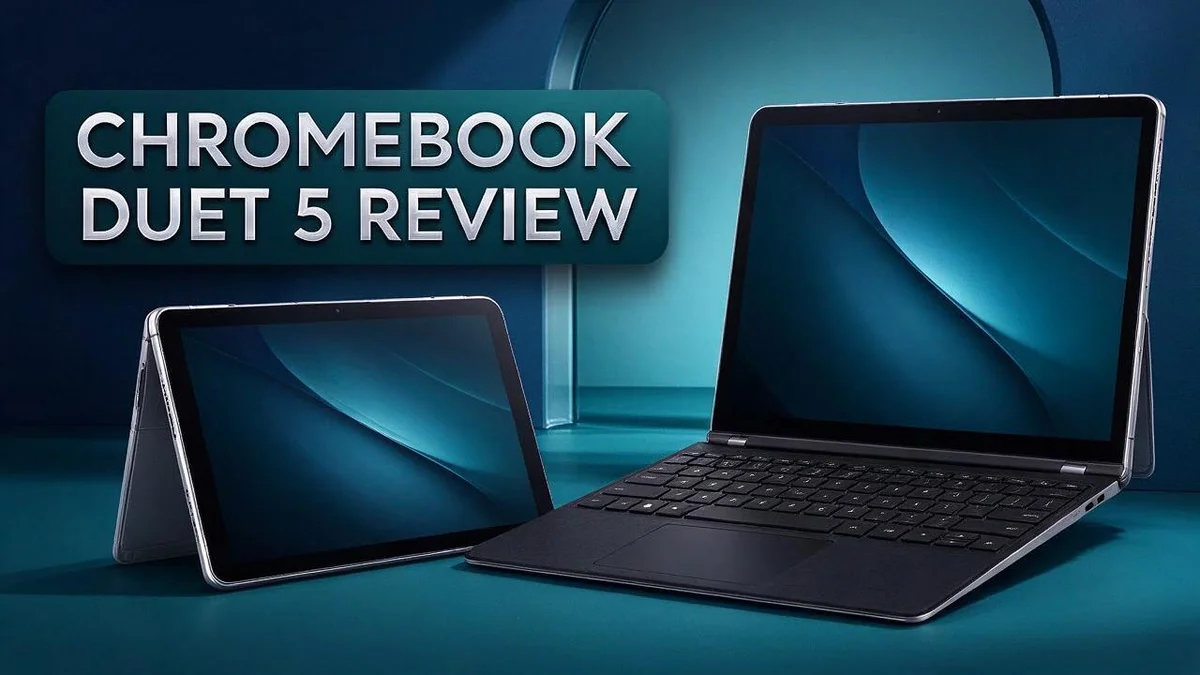
Chromebook Duet 5 Review: Is It Worth The Hype?
Looking for a laptop that doubles as a tablet? The Chromebook Duet 5 could be your match. It pairs a sharp screen with long battery life and a detachable keyboard.
Many people struggle to choose between a tablet and a laptop. This device lets you switch between both. It feels like having two devices in one.
Under the hood, you get a Qualcomm Snapdragon 7c Gen 2 chip, 8GB of RAM, and 128GB of storage. The 13.3 inch OLED screen looks vivid, and stylus support adds extra fun.
This review covers the display, battery life, typing comfort, and weight. We also compare it with the original Lenovo Chromebook Duet, the Lenovo Chromebook Duet 3, and a smaller HP Chromebook.
Keep reading to see if this device fits your daily routine.
In a Nutshell
-
Stylus support adds creative options: You can take notes, sketch ideas, or mark up documents with the stylus. It suits students and creative users who like to write by hand.
-
The detachable keyboard adds flexibility: You can remove the keyboard and hold the screen like a tablet. This helps when you read, browse, or watch videos on the couch.
-
Bluetooth 5.1 keeps accessories connected: You can pair headphones, a mouse, or a keyboard with ease. Wireless connections stay steady for everyday tasks.
-
Chrome OS keeps things simple: The system is easy to learn and focuses on web apps and cloud tools. Most of your daily work happens inside a browser.
-
A great match for Google users: If you already use Gmail, Google Drive, or Google Docs, the Duet 5 feels familiar right away. Your files and settings sync across devices.
-
Compare it with close rivals: The Lenovo Chromebook Duet 3 and a smaller HP Chromebook are strong alternatives. Check screen size and portability before you decide.
Display and Visual Experience

- The Lenovo IdeaPad Duet 5 Chromebook is the ultimate 2-in-1 device, powered by Chrome OS and cloud computing and...
- This versatile touch screen Chromebook has a detachable fabric folio keyboard and stylus support, plus an...
Last update on 2026-11-22 / Affiliate links / Images from Amazon Product Advertising API
The screen is the star of the Chromebook Duet 5. Its OLED panel makes colors pop on every page.
OLED works differently from standard LCD screens. Each pixel creates its own light, so true black levels look deep and clean.
Dark scenes in movies and photos gain real depth. Contrast feels sharp during everyday browsing.
Eye comfort matters during long sessions. The display cuts blue light by about 70 percent, according to reported testing. Your eyes may feel less tired after hours of reading or writing.
Switching modes changes how you use the screen. In laptop mode, the bright panel suits spreadsheets and web pages.
In tablet mode, the touch display feels smooth and easy to use. Videos and comics look great when you hold the screen upright.
Reading long articles becomes more pleasant on this panel. Text stays crisp at normal sizes.
Bright windows can cause reflections. Place the screen at an angle that reduces glare.
Video streaming shines on this device. Shows on popular platforms display rich colors and deep shadows.
Pairing the screen with headphones creates a full media session. Clear sound and bright visuals work together well.
Watching short clips, photos, and presentations all look sharp on this panel.
Students, artists, and commuters who watch media get the most from this screen. They can adjust brightness and color settings to suit their room.
Overall, the display gives the Duet 5 a strong visual identity that stands out in its class.
Performance and Chrome OS Experience
Performance feels smooth for daily tasks. Most people open a few tabs, check email, and watch videos. This device handles those jobs with ease. Chrome OS keeps the workload light, so the system rarely feels slow.
Split screen makes multitasking simple. You can place a document on one side and a web page on the other. Snapping windows takes only a moment. This helps students compare notes with research pages.
Quick wake and sleep keep things moving. Closing the lid puts the device to sleep. Opening it again brings you back to your work in seconds. This saves time between classes or meetings.
Android apps add extra range. The Google Play Store lets you install many Android apps. Note apps, reading apps, and simple games all run here. Check app support before you buy if you need a specific program.
Heavy software has limits. Professional video editing or demanding games may struggle. Light editing apps usually run well. Think of this device as a tool for browsing, writing, and light creative work.
Updates happen in the background. Chrome OS installs security fixes automatically. You do not need to hunt for update files. The system restarts only when you allow it, which keeps your work safe.
Keyboard shortcuts speed up daily work. Alt and Tab switch between open windows. The Search key opens the app launcher quickly. Small habits like these save minutes every day.
Offline mode also helps. You can open saved documents without internet access. Google Docs and Google Drive let you edit files while offline, then sync later once you reconnect. This matters on trains, flights, or in areas with weak signals.
Storage works differently on a Chromebook. Many files live in the cloud. Local space mainly holds apps and downloads. Keep an eye on your downloads folder so the drive does not fill up.
Battery Life and Portability
Battery life is one of the strongest reasons to pick this device. A review by Sean Riley reported more than 13 hours of use on a single charge. That kind of runtime covers a full school day or a long working shift.
You can leave the charger at home more often. Many people find this freedom useful on busy days. Plan your schedule without hunting for a wall socket.
Battery results depend on how you use the device. Streaming video and bright screens drain power faster. Light tasks like reading documents and writing notes help the battery last longer.
Battery saver mode can stretch the charge even further. Lower the screen brightness and close extra tabs. These small changes help on long trips when no charger is nearby.
Portability is the other side of the story. The Duet 5 works well on a desk, but it adds weight to your bag. Compared with a smaller HP Chromebook, it feels noticeably heavier when you carry it all day.
Think about your daily route before you buy. If you walk to class or ride public transport, weight matters a lot. Short walks are easy, but long commutes feel heavier.
Most standard backpacks hold the device with room to spare. Slide a padded sleeve inside to protect the glass screen from bumps.
Charging habits also matter on the go. Keep the charger in a small pouch so it never gets forgotten. A short top up before you leave can add extra hours to your day.
Overall, the Duet 5 suits people who value long runtime over the lightest possible load. Test the weight in your own bag before you commit. Check the weight spec for your model, since details can vary. Your daily routine should guide the final choice.
Top 3 Alternatives
Looking for a good swap? These three options work well for school, work, and everyday browsing. Each one offers something a little different.
Lenovo Chromebook Duet 3

- LIFE TRANSFORMING – The Lenovo Chromebook Duet is where power meets portability. Amazingly durable, the 2-in...
- ALWAYS READY TO GO – With its perfectly portable size, folio keyboard, and all-day battery life, the lightweight...
Last update on 2026-11-22 / Affiliate links / Images from Amazon Product Advertising API
The Lenovo Chromebook Duet 3 is a light and compact device. It comes with a detachable keyboard, so you can type like a laptop or use it like a tablet. Its battery lasts a long time, which helps during a busy day. This model suits students and anyone who wants simple setup and easy carrying.
Acer Chromebook Spin 713

- 2 in 1 Chromebook Laptop Touchscreen: acer Chromebook tablet 2in1 with 360° flip convertible design allows you to...
- acer Chromebook Plus Spin 514 Laptop Touchscreen: acer Chromebook Touchscreen Laptop 14inch FHD IPS Display with...
Last update on 2026-11-22 / Affiliate links / Images from Amazon Product Advertising API
The Acer Chromebook Spin 713 has a large 13.5 inch touchscreen. Its hinge folds all the way back, so you can use it as a laptop, tablet, or tent mode for watching videos. The metal body feels solid and sturdy. This option fits people who want a bigger screen for streaming, note taking, or web browsing.
Samsung Galaxy Chromebook 2

- Aspect Ratio:16:9.Voltage:4.0 volts
- Awarded Best Chromebook by CNN Underscored
Last update on 2026-11-22 / Affiliate links / Images from Amazon Product Advertising API
The Samsung Galaxy Chromebook 2 stands out with its bright QLED display. Colors look vivid, and text looks sharp. It has a sleek design and a comfortable keyboard. If you value screen quality and style, this device is worth a close look.
Each of these models brings a unique mix of portability, screen size, and design. Think about how you plan to use your device most often. Then pick the one that fits your daily routine best.
Keyboard, Stylus, and Typing Experience
The Chromebook Duet 5 keyboard makes typing feel natural. Many users say the typing experience improved over earlier Lenovo models. Your fingers settle in fast, so you can focus on your words.
The detachable keyboard gives you two ways to use the device. Attach it for a laptop style setup at a desk. Remove it when you want to hold the screen like a tablet.
Place the device on a flat surface for the steadiest typing. A firm base keeps each key easy to press. Avoid typing on a soft bed or couch for long periods.
Stylus support adds a second way to write. You can jot quick notes, circle key ideas, or mark up documents right on the screen. The pen feels direct because you write on the same surface you read.
Handwriting input is another useful feature. Chrome OS can turn handwritten words into typed text. This helps when you want neat notes without retyping everything.
Voice typing offers a hands free option. Speak clearly in a quiet room for the best results. It works well for quick emails or rough drafts.
Long writing sessions feel comfortable with this setup. Reports, essays, and blog posts flow quickly from your fingers. You can keep your attention on the content instead of the device.
Switching between typing, writing, and speaking takes only seconds. You never need a separate tool for each task. Your workflow stays simple and focused.
Mixing methods keeps long sessions fresh. Type the main text, then use the pen for edits. Try each input style for a few days and note which one feels most natural for your work.
Overall, the keyboard and stylus give you flexible input options. Choose the method that fits each task.
Value for Money
Think about what you get from this device over the long run. A good machine should fit your daily routine for years, not just a few weeks.
Many shoppers compare the Duet 5 with its own family. The original Lenovo Chromebook Duet and the Lenovo Chromebook Duet 3 both offer detachable designs. The Duet 5 gives you a bigger canvas for media, notes, and reading.
The smaller HP Chromebook takes a different path. It favors a lighter frame over screen space and tablet fun. If you carry your laptop everywhere, that trade may matter more than anything else.
Think about where you spend your time. A student who reads, writes, and sketches gets more from this large display than someone who only checks email. The extra room gives your sketches and reading material space to breathe.
One device can replace several gadgets. You can read textbooks on the couch, sketch ideas in tablet mode, and type reports at a desk. That flexibility means fewer items to pack each morning.
Long term ownership matters too. Your files and bookmarks sync through your Google account, so moving to a new Chromebook later feels simple. This setup also keeps your work safe if the device gets lost or damaged.
Some readers ask whether a larger device fits their lifestyle. Choose the Duet 5 if you spend most of your day at a desk or on a sofa. Pick a smaller model if you move between classes or meetings all day.
Ask yourself a few simple questions. Do you need a screen for drawing? Do you want a tablet for reading? Are you comfortable carrying extra weight? Your answers show whether this model matches your habits.
If the screen, stylus, and everyday tools match your needs, the Duet 5 makes a smart pick for the long haul.
Pros and Cons
Pros
- The 13.3 inch OLED touchscreen shows bright, vivid colors.
- Reports cite about 70% less blue light, which many readers find easier on the eyes.
- You can switch between laptop and tablet modes in seconds.
- The 8GB RAM and 128GB storage keep multiple tabs and apps running smoothly.
- Chrome OS starts quickly and updates itself in the background.
Cons
- Reviews disagree on the wireless standard, with some saying Wi-Fi 5 and others Wi-Fi 6.
- Chrome OS runs fewer heavy desktop programs than Windows does.
- Some users may miss full support for specialized software used for design or video editing.
Who Should Buy It
Not everyone needs the same kind of device. This model suits people who spend most of their day inside a web browser. It also fits anyone who likes to stream shows or join video calls from the couch.
Households with shared needs can benefit too. A bright screen makes movies, family photos, and online games easy to enjoy together. Kids can switch to tablet mode for reading and learning apps.
Remote workers who rely on Google tools will feel at home here. Docs, Sheets, and Gmail open quickly. Files save to the cloud, so you can pick up your work on another device later.
Frequent travelers should think carefully. The device is noticeably heavier than a smaller HP Chromebook. If you carry your device across town every day, a lighter option may suit you better.
Desk workers often get the most from this setup. Propping up the screen and attaching the keyboard creates a comfortable workspace. Tablet mode works well when you want to lean back and read.
Most daily tasks happen online. Chrome OS handles email, shopping, news, and social media with ease. You rarely need to install large programs to get everyday work done.
Ask yourself where you will use it most. A kitchen counter, a living room sofa, and a school desk each suit a different routine. Matching the device to your habits makes the decision much simpler.
If you value a bright display, flexible modes, and simple everyday tasks, this device fits your needs well. Think about your daily routine first, and the choice will feel clear.
Final Verdict
The Duet 5 earns a spot on the shortlist for many buyers. It blends reading, writing, and light creative work into one device. Most people will find it useful for daily life.
Think about how much you will hold it. The tablet feels noticeably heavier than a smaller HP model. Long reading sessions in bed may feel tiring, so plan for that.
Battery life stays strong through a full school day or a long workday. You can leave the charger in your bag and focus on your tasks.
The stylus turns handwritten notes into a natural part of your routine. Margins, diagrams, and quick sketches feel simple to add during a lecture.
Some tasks will push this device to its limits. Heavy editing, complex spreadsheets with desktop macros, and niche professional tools need a different machine.
Notes saved online appear on your other signed in devices. Nothing gets lost between classes or meetings.
A sturdy case adds protection and makes the heavier frame easier to hold. It also helps the device survive a busy backpack.
The smaller HP Chromebook suits a different kind of user. It fits people who want lighter carrying and fewer screen features. Compare how you move through your day before you decide.
Look at your habits before you buy. Count how often you read, write, draw, or stream video. Write down three tasks you repeat every week and let those guide your choice.
If possible, ask a friend who owns one for a short hands on test. A few minutes with the keyboard and screen can reveal comfort issues that specs never show.
In the end, the Duet 5 makes sense for people who want variety. It handles everyday tasks well, offers a generous canvas for creativity, and adapts to many routines. Choose it with confidence if those needs match yours.
Frequently Asked Questions
How does typing compare with earlier Lenovo Duet models?
Typing feels better on the Duet 5 than on earlier Lenovo models. The keys feel more comfortable during long writing sessions. Many people find it easier to write emails, reports, and essays on this device.
Can I use the Duet 5 on my lap?
Yes, you can use it on your lap. A flat, firm surface works best for steady typing. Place the device on a soft cushion or a folded blanket, so the keyboard stays stable and the frame stays comfortable on your legs.
Does the Duet 5 run Android apps?
Yes, it can run many Android apps from the Google Play Store. This gives you more choices beyond web apps. Note takers, reading tools, and simple games often work well with the touchscreen and stylus.
Is the Duet 5 a good first Chromebook?
It can be. The simple Chrome OS layout makes the basics quick to learn. The touchscreen gives new users a clear and direct way to tap, swipe, and scroll. Most first-time users feel comfortable after a few days of regular use.
How do I clean the OLED screen safely?
Use a soft microfiber cloth and a small amount of water or screen-safe cleaner. Avoid harsh chemicals, paper towels, and spray directly on the display. Gentle wiping keeps the colors bright and protects the screen from scratches over time.

Hi, I’m Simmy — the founder and voice behind AI Gadgets Insight. I’m a tech enthusiast who loves exploring the latest AI gadgets, smart devices, and innovative tech products. I started this blog to help people make smarter tech choices with honest reviews, easy-to-follow comparisons, and practical buying guides.