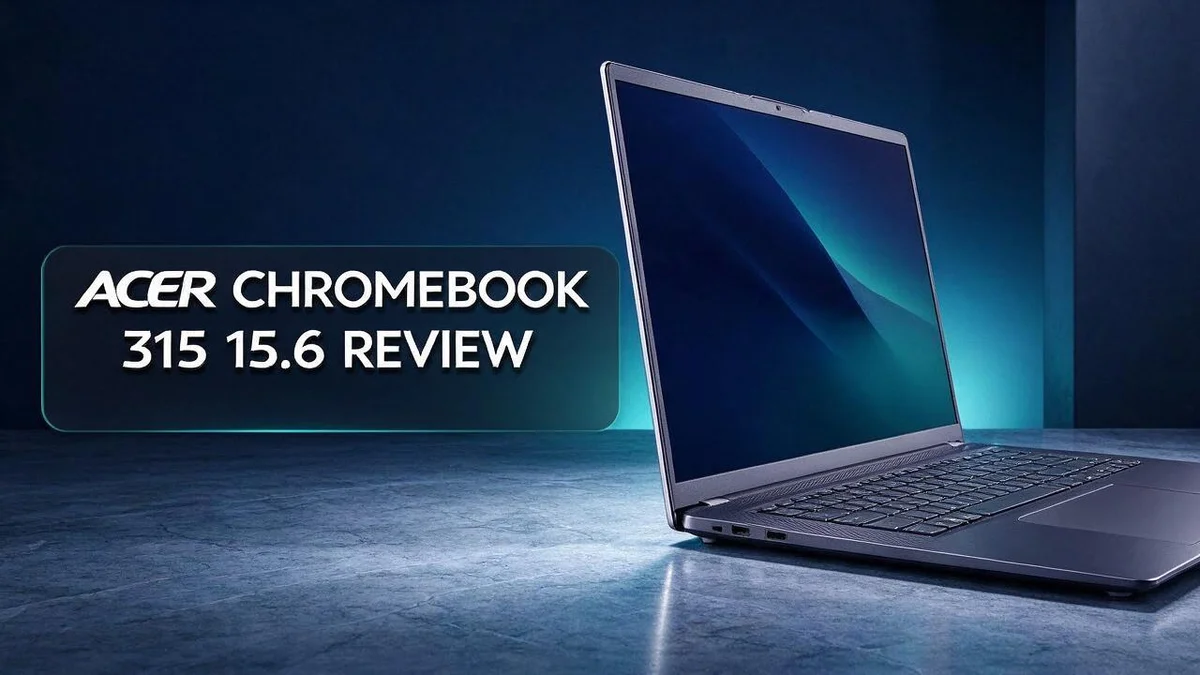
Acer Chromebook 315 15.6-Inch Review: Should You Buy This?
Need a laptop with plenty of room for work, school, or streaming? The Acer Chromebook 315 offers a large 15.6 inch screen that makes everyday tasks feel easy.
Specs change from one variant to another, so it helps to know what you are getting. Many versions come with 4GB of memory and 64GB of storage. Reviewers also often note its quiet operation and solid battery life.
In this review, we walk through the design, performance, battery life, and the parts that may frustrate you. You will also learn who this laptop suits best. Let’s dive in and see if it fits your needs.
In a Nutshell
- Quiet all day: This laptop runs silently, so it fits well in quiet classrooms, libraries, and shared offices. Nobody gets distracted by a loud fan during a lecture or a late night study session.
- Long days away from a charger: Reviewers praise the battery life, which helps you stay productive through back to back classes or a long commute. You can keep working without hunting for an outlet.
- Cloud first workflow: The 64GB eMMC storage works best when you save files online. Store large videos, photos, and game downloads in the cloud so your drive does not fill up fast.
- Everyday tasks run smoothly: Web browsing, document editing, email, and video calls suit this Chromebook well. It handles the daily jobs that most students and remote workers need.
- Screen clarity may disappoint: The base HD resolution looks less sharp than full HD panels. If you edit photos or watch detailed films, look for a model with a sharper display.
- Check the exact model first: Processors, displays, and storage options change between variants. Compare the listing details closely so you get the setup that fits your needs.
Design and Display

- Processor: Intel Processor N50, Up to 3.4 GHz
- Screen: 15.6 inch(1920 x 1080) Full HD AntiGlare Touchscreen Display
Last update on 2026-11-23 / Affiliate links / Images from Amazon Product Advertising API
The design of the Acer Chromebook 315 keeps things simple and practical. You will not find flashy extras here. Instead, the focus stays on daily use.
A wide body gives your hands space to rest. Long typing sessions feel more relaxed on a spacious layout. Try the keyboard in person if you can, because key feel varies from person to person.
The display options change by variant, so the panel type matters. IPS panels usually keep colors steady when you view the screen from the side. This helps when you share videos with a friend or a classmate.
Touchscreen models add another layer of control. You can tap links, scroll pages, and drag items without a mouse. Touch input works well for sketching notes or marking up documents.
Glare depends on the panel finish and your room lighting. Bright windows may reflect off the glass and make text harder to read. Sit near a lamp or adjust the lid to find a comfortable angle.
Size also shapes how you use the laptop. A 15.6 inch frame tends to feel heavier than smaller models, so it suits a desk better than frequent travel. Plan your setup around where you will work most.
Cable and port layout also matter for desk setups. Check the sides for the connections you need, such as a mouse, charger, or external monitor. Good placement keeps your workspace neat and tidy.
A simple finish fits classrooms, libraries, and home offices. Plain surfaces also make the laptop easy to match with your desk.
Think about your daily routine before you decide. A large screen helps with split windows and long documents. If you move between rooms often, a smaller model may feel easier to carry.
In short, the design and display suit everyday tasks well. Pick the panel type and touch option that match your habits. This small choice makes a big difference after many hours of use.
Performance and Storage
Performance depends on the exact processor inside your model. Some versions use Intel Celeron chips, while others use AMD or MediaTek processors. Check the chip name before you buy.
Memory affects how smoothly you switch between tabs. With limited memory, many open tabs can slow things down. Close the tabs you no longer need.
Chromebooks start quickly and wake from sleep without long waits. This helps when you need to join a class or meeting fast. The system also updates in the background.
Storage works differently on a Chromebook than on a Windows laptop. The internal drive holds the system, apps, and a small set of files.
Most of your important documents should live in your Google Drive account. Save them there so you can reach them from any device.
Need more room for photos or videos? Plug in a USB flash drive or external hard drive. External drives give you extra space without changing the laptop.
Offline work needs a little planning. Download key files and course materials before you leave home. Then you can keep working when your connection drops.
Android apps from the Google Play Store run on many Chromebooks. They add note taking, reading, and creative tools. Confirm that your model supports them first.
Chrome OS keeps background tasks light. This helps the system feel steady during daily use. Too many heavy extensions can still slow things down. Remove the ones you rarely use.
Heavy tasks such as video editing or large design files may feel slow. Light writing, research, and classroom apps run with far fewer issues. Match the laptop to your daily workload.
Test performance before you commit to a purchase. Open your usual apps and tabs in a store or on a demo unit. Notice how quickly pages load and menus respond.
A good fit depends on your daily routine and file types. Students often need steady browsing and document work. Creators may need more power for large media projects.
Battery Life and Connectivity
The battery number is a best case. The maker says this laptop can run up to 12.5 hours. Your actual time depends on screen brightness, open tabs, and video streaming.
Small habits stretch your charge. Lower the screen brightness when you work near a window. Close tabs you do not need. Pause background videos when you step away from the desk.
Chrome OS also offers a battery saver mode in its settings. Turn it on during long meetings or lectures. It limits background activity, so the charge lasts longer.
Wireless options vary by variant. Some models include the newer 6E wireless standard. It handles crowded networks better, such as busy libraries or full classrooms. Older variants may lack it, so confirm the wireless specs on your model’s listing.
Bluetooth connects your accessories. You can pair a mouse, headphones, or keyboard in a few clicks. Wireless accessories give you more freedom to move around the room. Your desk also stays tidy. Bluetooth devices draw a little power too, so turn off pairing when you do not use an accessory.
Phone hotspots fill the gaps. When Wi-Fi is weak or missing, you can share your phone connection. Look for your phone in the network menu and select it. Your work continues while you travel.
Watch your data use. Tethering uses your phone plan’s data. Stream less video and download large files on Wi-Fi when possible. This keeps your plan from running out early.
Test the signal in your space. Walk around your home or school with the laptop open. Watch for drops near thick walls or far from the router. Move closer to the router if pages stutter. Real tests show more than any spec sheet.
Connectivity depends on your setup. Check your wireless variant, plan your charging, and test your usual spots first. Small steps lead to smooth daily use.
Top 3 Alternatives
Looking for a different laptop? These three options offer strong choices. Each one brings something useful to the table.
HP Chromebook 15

- EFFICIENT CHROMEBOOK PERFORMANCE - HP 15.6 Chromebook with 8GB DDR5 Memory boots up quickly and has the power you...
- POWERFUL PERFORMANCE - Powered by an Intel N200 Processor with 4-cores for superior efficiency and speed, 8GB of...
Last update on 2026-11-23 / Affiliate links / Images from Amazon Product Advertising API
The HP Chromebook 15 gives you a large 15.6-inch screen. It suits students and families who spend long hours on web apps and documents. Chrome OS keeps things simple and starts up quickly. You also get a comfortable keyboard for typing essays or emails.
Lenovo IdeaPad Slim 3

- Web vision Including Word, Excel, OneNote, Outlook, PowerPoint, Publisher, Access
Last update on 2026-11-23 / Affiliate links / Images from Amazon Product Advertising API
The Lenovo IdeaPad Slim 3 runs Windows, so it works well with desktop software. Its slim body fits easily into a backpack. If you need more software choices, this laptop is a great pick. It handles everyday tasks like streaming, video calls, and office work with ease.
ASUS Chromebook CX1500

- THE BEST OF GOOGLE, IN A LAPTOP Chromebooks run ChromeOS, the fast, secure operating system from Google, with...
- GET GOOGLE AI PRO, 5TB OF STORAGE, AND MORE FOR 3 MONTHS AT NO COST Boost your productivity and creativity with...

Last update on 2026-11-23 / Affiliate links / Images from Amazon Product Advertising API
The ASUS Chromebook CX1500 offers a 15.6-inch display and a sturdy build. It works well for school and home use. Chrome OS updates install automatically, so you stay protected without extra effort. This model is a smart choice for shared family use. Everyone in the house can log in and get started fast.
Keyboard, Ports, and Everyday Use
The keyboard is where you will spend most of your time. Good typing feels smooth and quiet. Pay attention to how the keys respond under your fingers.
Long typing sessions reveal small problems fast. Essays, emails, and class notes add up over a week. If the keys feel mushy or stiff, your wrists may ache sooner than expected.
Some people prefer light keys for quick notes, while others like firmer keys for long writing. Try both feels if you can. Then pick the one that feels most comfortable for your hands.
If you often work in dim rooms, test how well you can read the key labels under lamp light. Glare and shadows can make small letters harder to see.
Learn a few shortcuts, such as copy, paste, and undo, to save time. Practice them for a few days until they feel natural.
The trackpad works alongside the keyboard every day. Smooth clicks help you switch between tabs quickly. Practice Chrome OS gestures for a few minutes to speed up scrolling.
Ports decide how easily you connect other gear. Think about what you plug in most often. Common examples include a mouse, a projector, or an external monitor.
Make a short list of devices before you plan your desk. Compare that list with the ports on the side of the laptop. A small USB hub can cover any gaps.
Everyday use in a classroom or shared office brings different needs. Students may swap files with classmates on school days. Eject any USB drive before you pack up to protect your files.
Good habits keep the laptop feeling fresh. Restart the device once a week so system updates can install. Clear old downloads to keep space open.
Keep your elbows near your sides and the screen at eye level. Good posture makes long typing sessions feel lighter.
Finally, test everything in one session. Type, click, plug in a device, and open a few sites. If every task feels easy, this laptop may fit your routine well.
Pros and Cons
Pros
– The roomy 15.6 inch screen gives you space to work side by side.
– It runs very quietly, so it fits well in classrooms and libraries.
– Some versions offer a sharper full HD display.
– The large body makes it easy to use on a desk all day.
Cons
– The standard HD screen looks less sharp than full HD panels.
– 4GB of RAM can slow down when you keep many tabs open.
– Processor details vary by variant, so check your exact model.
– Our research found few other drawbacks, so read recent reviews too.
Who Should Buy It
This laptop suits people who spend most of their day in a web browser. If you use email, Google Docs, and streaming sites, this machine handles those tasks well.
Students are a strong match. Many schools already use Chromebooks, so the setup feels familiar. Teachers can manage the device through school accounts, and students can sign in and start work fast.
Parents shopping for a first laptop often like this model too. Kids can browse, read, and finish homework without much help. Setup takes only minutes, and the system stays simple to use.
Writers and note takers also gain from it. A large screen paired with a clean system keeps distractions low. Cloud storage saves drafts automatically, so your files stay safe if the laptop gets lost or damaged.
Remote workers with light tasks can use it for video calls, spreadsheets, and team chat. It fits a home office or a shared family desk without taking over the space.
People who need a second laptop benefit as well. It works as a travel companion or a spare machine for guests. Pack it in a bag with the charger, and it handles emails and maps with ease.
Gamers and video editors will feel the limits quickly. Heavy programs and modern games need more memory and a stronger processor than this model offers. Those users should look at higher options.
Also, people who need Windows only programs should check compatibility first. Chrome OS runs web tools and Android apps, but some desktop software will not run here.
Before you decide, check your exact variant. Processor and storage differ across versions, so match the specs to your daily tasks. A short list of your top five apps can settle the choice quickly.
Final Verdict
The Acer Chromebook 315 earns a solid spot on the shortlist for everyday computing. It handles browsing, documents, and video calls with ease.
It works best as a dependable daily machine. It does not try to do everything, and that focus feels refreshing for simple tasks.
The 64GB storage asks you to rely on the cloud. Save your files to Google Drive so your work stays safe and easy to reach.
A Google account sets up the laptop in minutes. Your bookmarks, settings, and apps sync across devices, which helps people who switch between screens.
Chrome OS also updates itself in the background. This keeps the system current without extra steps on your part.
Android apps add more options for many users. Check that your model supports the Google Play Store before you buy, because support varies by variant.
Heavy multitasking remains the main weakness. Power users will notice slowdowns sooner than they expect.
Think about your habits two years from now. If your needs grow, this laptop may feel limiting, so choose with the future in mind.
People who work mostly offline should look elsewhere. Chrome OS shines when the internet is available, so spotty connections can cause frustration.
Think of the screen and keys as a comfortable base for daily tasks. Bigger jumps in power may require a different machine.
The overall balance feels fair. You get a pleasant daily driver, but you accept clear compromises on speed and storage. Knowing these limits in advance makes the decision easier.
Ask yourself one question before buying. Will my daily tasks fit inside a web browser? If the answer is yes, this laptop deserves a close look.
Buy this model if your day lives in the browser. It offers a calm, simple experience for school or home.
Before you commit, read recent reviews and confirm your exact variant. A quick check now can save you from surprises later.
Frequently Asked Questions
How long does the battery last in daily use?
The vendor claims up to 12.5 hours, but real results vary. Screen brightness, open tabs, and video streaming all drain the charge faster. Light browsing and document work stretch the battery the furthest.
Can I keep the laptop running fast over time?
Yes, a few habits help a lot. Close tabs you no longer need. Restart the laptop once a week to clear memory. Keep Chrome OS updated so performance fixes arrive on time.
Is it safe for kids to use?
Yes, Chromebooks work well for children. Parents can use Google Family Link to set screen time limits and filter websites. You can also approve or block apps from a phone.
Can I print from this laptop?
Yes, most printers work with it. Open the Chrome print menu and pick your printer from the list. Wireless printers on the same network usually appear on their own.

Hi, I’m Simmy — the founder and voice behind AI Gadgets Insight. I’m a tech enthusiast who loves exploring the latest AI gadgets, smart devices, and innovative tech products. I started this blog to help people make smarter tech choices with honest reviews, easy-to-follow comparisons, and practical buying guides.