Sceptre 24″ Curved 75Hz Gaming Monitor Review: Worth Your Money?
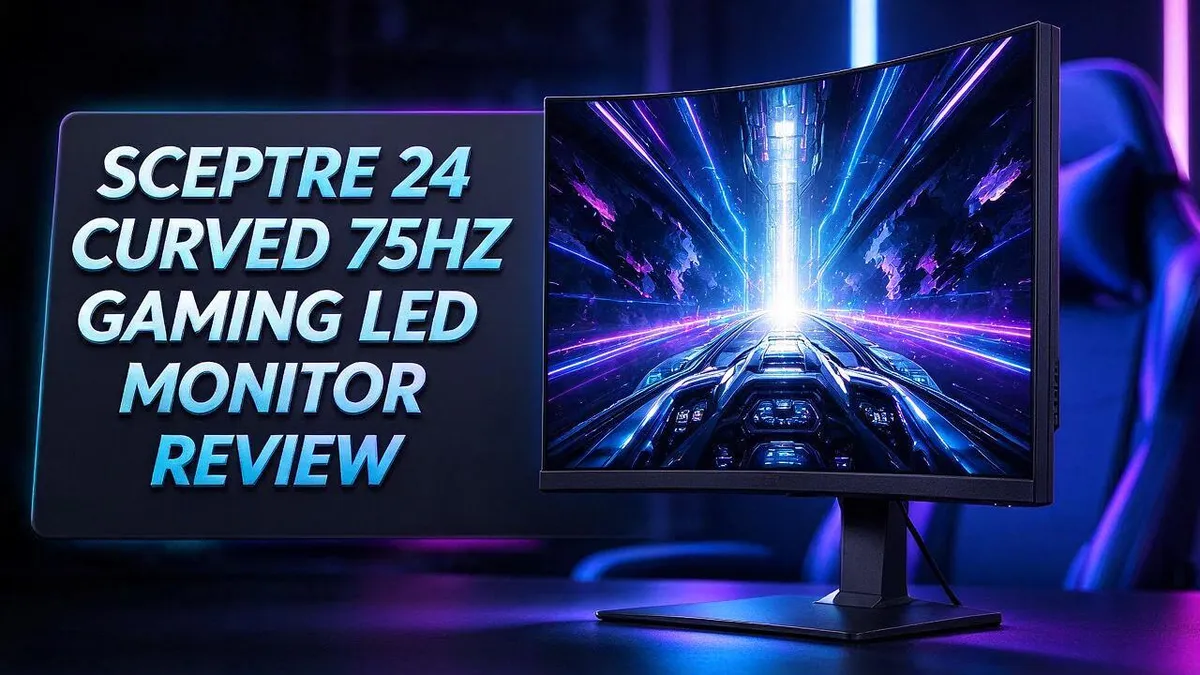
Looking for a screen that makes every game feel more immersive? The Sceptre 24 inch curved 75Hz gaming LED monitor could be the right pick. Its 1800R curve wraps around your field of view, so you feel closer to the action.
Smooth motion matters in fast games. This monitor offers a 75Hz refresh rate, so fast scenes look fluid. Many reviewers also praise its vibrant colors, which make both games and movies more engaging.
No screen suits every player, though. This guide covers the key specs, the real strengths, and a few honest drawbacks. You will also see how it compares with other curved monitors. Keep reading to decide if this model fits your setup.
In a Nutshell
- Sharp picture: The 1920×1080 Full HD resolution keeps text and game scenes clear on a 24 inch panel. One review rated this resolution as good.
- Smooth refresh: The 75Hz panel offers a clear step up from standard 60Hz screens, so motion looks fluid in many titles.
- Deep contrast and lively color: A 3000:1 contrast ratio adds depth to dark scenes. The panel covers 85% sRGB, which suits casual play but may fall short for precise color work.
- Response time concerns: The 8ms response time earned a poor rating in one review. Fast action may show some ghosting or blur.
- Easy setup: Both VGA and HDMI cables come in the box, so connecting to a PC or console takes little effort.
- Rivals to consider: Samsung CF390, AOC C24G1A, and KOORUI 24 inch curved models compete in this same group. Check the model name because some listings show other Sceptre versions with different specs.
Display Panel and Curvature

- 1800R curve monitor the curved display delivers a revolutionary visual experience with a leading 1800R screen...
- Hdmi, VGA & PC audio in ports

Last update on 2026-11-24 / Affiliate links / Images from Amazon Product Advertising API
The curve does more than add style. It wraps the picture toward your eyes, so the screen edges fill more of your peripheral vision. Your eyes move less to follow action across the display.
The 1800R curvature follows an arc with a radius of 1800 millimeters. That gentle bend suits a desk where you sit about an arm’s length from the screen.
Viewing distance matters. Sit too far away and the curve loses its impact. Sit too close and the outer edges can feel stretched.
Curves work best when you sit centered. Off to one side, the bend can make the image look skewed. Solo players usually get the best result.
Panel curvature also helps most in racing and flight games. Wide tracks and open skies stretch across the bend, which makes depth feel natural.
For fast shooters and strategy titles, the benefit is smaller. Some competitive players prefer flat screens because straight lines stay even from edge to edge.
Text near the edges can look slightly bent when you sit off center. Reading documents or chat windows works best when the window sits in the middle of the screen.
Bottom line: The curve gives a wrap around feel that suits immersive single player games. Players who want a flat view may prefer another style.
Good habits help too. Dim the room a little, take short breaks, and blink often. These steps keep the screen comfortable during long sessions.
Many people find that placing the monitor at eye level feels easier on the neck. Check your desk and wall space before setup. A curved panel needs a clear area in front so the arc is never blocked.
Refresh Rate and Motion Handling
Refresh rate tells you how many times the screen redraws the image each second. This monitor runs at 75Hz, so it shows 75 fresh frames every second.
Many people never change the default setting. Windows often starts at 60Hz, so the extra smoothness stays hidden. Open the display settings, find the advanced options, and select 75Hz. This one step makes a real difference.
Your graphics card also plays a part. A game that runs at 50 frames per second cannot fill every refresh on this screen. The motion can still look uneven. Aim for a steady frame rate that stays near 75 for the best results.
Frame rate and refresh rate must work together. When the frame rate goes above the refresh rate, the image can tear. Tearing looks like a sharp split across the picture during quick camera pans. Many players turn on vertical sync to prevent it. Others use an adaptive sync feature, so check the spec sheet to see if this model supports one.
Consoles add another layer. Most consoles send out fixed frame rates such as 60 or 120 frames per second. A 75Hz panel may not match those numbers neatly. A PC gives you far more control over the output, so PC players will likely get the most from this screen.
Game genre matters too. Slow exploration titles, city builders, and story games rarely push the monitor hard. Competitive shooters and racing games show the biggest gains when the frame rate stays high and steady.
Small settings choices shape the final picture. Check your refresh rate, match your frame rate where you can, and test a few games. You will quickly see how the screen performs in your own setup.
Color Accuracy and Image Quality
Color accuracy describes how closely the colors on screen match the original source. This monitor covers 85% of the sRGB color space. That means it shows most everyday colors well but misses some deep shades.
For most games, this range looks pleasing. Bright greens and warm skin tones still appear natural to most eyes.
Designers and photo editors may notice the gap. Colors in their work might not match the final print or web output exactly.
Gamma controls how light and dark tones blend together. Many players never touch this setting, but a small change can reveal hidden detail in shadows.
Brightness also shapes the picture. Raise it in a bright room so the image stays visible without washing out the colors.
Color temperature changes the overall tint. A warmer setting adds yellow tones, while a cooler setting pushes toward blue.
Try the preset modes in the menu. Test each one with a game you know well, then pick the look that feels most natural.
Viewing angle matters too. Colors can shift when you sit far to the side, so keep your seat near the center line.
Ambient light plays a big role. Close the blinds during daytime play to reduce glare and keep dark scenes readable.
Calibration tools offer another option. Hardware kits give the most precise results, while simple software tests still help.
Text clarity can shift with color settings too. Bright whites may look harsh, so lower the level until the page looks comfortable.
Consistency across the screen matters for competitive play. Watch a plain gray scene to spot uneven tones near the corners.
Game developers design scenes for specific ranges. Adjusting settings helps match their intended look.
Overall, this screen delivers a pleasing picture for gaming and media. Expect vivid results, and tune the settings to match your room and taste.
Top 3 Alternatives
AOC C24G1

- SHARP CLARITY: This 24'' class (23.8″ viewable) AOC gaming monitor delivers crisp Full HD visuals. Enjoy games...
- SPEED INTO VICTORY: Lightning-fast 200Hz refresh rate and rapid 1ms MPRT response time lets you target moving...
Last update on 2026-11-24 / Affiliate links / Images from Amazon Product Advertising API
Looking for a curved screen that feels smooth? The AOC C24G1 is a strong pick. Its 1800R curve wraps around your field of view, so games feel more immersive. The fast refresh rate keeps motion clear during quick scenes. It is a simple way to upgrade your gaming desk without a complicated setup.
Samsung Odyssey G5

- Samsung’s 32" Odyssey G5 (G51F) Gaming Monitor offers QHD resolution (2560x1440) and boasts incredibly detailed...
- HDR10 ensures lifelike visuals with enhanced contrast and color
Last update on 2026-11-24 / Affiliate links / Images from Amazon Product Advertising API
The Samsung Odyssey G5 brings a deep curve and a responsive panel. Its curve helps you focus on the action in racing and shooter games. Colors look bright, and fast-moving objects stay sharp. This model works well for players who want a larger, more cinematic screen. It also suits users who switch between gaming and video streaming.
LG UltraGear 24GN650

- Vivid Color, Fast Response, Total Control - The 24" UltraGear FHD gaming monitor delivers vivid HDR10 color...
- Vivid Color That Puts You in the Action - Step onto the battlefield with HDR10 visuals and up to 99% sRGB color...
Last update on 2026-11-24 / Affiliate links / Images from Amazon Product Advertising API
The LG UltraGear 24GN650 focuses on speed and clear visuals. Quick response times reduce blur when objects move fast on screen. Its compact 24-inch size fits smaller desks easily. Many players choose it for competitive games where every frame counts. If you want smooth motion in a space-saving design, this monitor is worth a look.
Stand and Ergonomics
A stable stand makes long gaming sessions feel easier. The stand holds the screen steady while you aim and move. A shaky base can distract you during fast moments.
Most stands offer a few basic moves. You can tilt the screen, raise or lower it, and sometimes turn it from side to side. Each move helps you find a comfortable view.
Tilt controls the angle of the screen. A small tilt back can reduce glare from overhead lights. A slight forward tilt can help when you sit low in your chair.
Height affects your posture more than you think. If the screen sits too low, you may lean forward and hunch your shoulders. If it sits too high, you may tip your head back.
Try a few heights during a real session. Pick the one that keeps your shoulders relaxed.
Swivel helps when others share the view. Turning the panel slightly lets a friend see the game from the side. It also helps you line up with your chair.
Desk space deserves a look too. A compact stand leaves more room for your keyboard, mouse, and controller. Check that the cables reach the back of the monitor without pulling tight.
Cable management keeps your setup tidy. Clip the cords to the stand or the back edge of your desk. Loose wires can catch your arm during intense moments.
A VESA mount offers another path. A VESA mount lets you attach the monitor to a wall or a desk arm. Arms free up space and allow fine adjustments. Confirm the mount pattern in the product listing before you order any arm.
Your body position sets the final result. Keep your feet flat on the floor and your back supported. Rest your wrists lightly on the desk.
Take short breaks every hour. Stretch your neck and shoulders, and rest your eyes for a few seconds.
Check the product listing to confirm which stand adjustments this model includes. That step keeps your expectations accurate and your setup simple.
Ports and Connectivity
Connecting your monitor is the first step to smooth gaming. The box includes both VGA and HDMI cables, so you can start right away.
HDMI is the better choice for most setups. It carries a clear digital signal that suits modern graphics cards, game consoles, and laptops with HDMI output. Use it whenever your device offers the port.
VGA is an older analog connection. It still works with older computers, but it can show softer edges and less sharp text at 1920×1080. Keep it as a backup for systems that lack HDMI.
Check your device before you plug in. Look at the back of your graphics card or PC first. Many newer cards skip VGA entirely, so you may need a converter. Some converters add lag or fail to pass the full signal, so test them carefully.
Consoles usually connect through HDMI. Run the cable straight from the console to the monitor. Avoid long chains of adapters, because each one can reduce image quality.
Cable length matters too. Measure the distance between your desk and your tower before you start. A cable that is too short forces you to move your whole setup. Use cable clips to keep wires tidy and out of your way during intense matches.
Once everything is connected, select the correct input on the monitor menu. Press the input button and choose HDMI or VGA. If the screen stays black, the monitor may be reading the wrong source. Switch inputs and try again.
Good connections keep your setup stable. A solid cable gives you a steady picture and fewer surprises mid game. Take a minute to test each port, and you will spend more time playing instead of troubleshooting.
Pros and Cons
Pros
- Smooth 75Hz motion keeps fast scenes easy to follow.
- The 1920×1080 resolution gives a clear picture for most games.
- The 1800R curve wraps the view around you and pulls you into the action.
- Vibrant colors make games look lively and fun.
- The box includes VGA and HDMI cables for a quick setup.
Cons
- The 8ms response time may leave some blur in fast action scenes.
- Dark scenes can look less deep than on some rival screens.
- The 85% sRGB color range may feel limited for some games.
- The 1080p resolution may look less sharp on a larger desk setup.
Who Should Buy It
This monitor fits some players better than others. Let’s look at who gets the most from it.
Casual gamers are a great match. If you play a few evenings each week, this screen meets your needs.
Console players who sit close to a desk setup will find it handy. The curve suits racing and adventure titles.
Shooter fans may enjoy the extra smoothness. Quick turns feel cleaner than on a standard 60Hz screen. Serious esports players may still want a faster panel.
Students and first time buyers often need one screen for everything. This monitor handles homework, streaming videos, and light games with ease.
Upgraders get a clear jump in feel. If your current screen runs at 60Hz, you will notice smoother motion right away. Older monitors can feel stiff by comparison.
Small room owners gain a lot here. The curve makes a 24 inch screen feel bigger than it is.
Family PC users share this screen with ease. Kids and adults alike can enjoy the lively, bright view.
Streamers who need a polished look should think twice. Viewers notice color depth and sharpness on the stream.
Night owls play late into the evening. The curve may help you stay focused, though the screen may show some glow in a dark room.
People who want a simple setup should consider this model. It needs little time to get running and asks for few decisions.
Photo editors need wider color coverage, so they should look elsewhere. Competitive pros chasing the fastest response times may also look at other options.
In short, this monitor suits everyday players who want smooth motion and immersion. Think about your games and your desk before you decide. Then pick the screen that fits your daily play.
Final Verdict
The Sceptre 24 curved 75Hz monitor makes a sound choice for everyday gaming. It delivers smooth motion and an immersive view without asking for much. Still, it has clear limits that every buyer should understand.
Think of this screen as an all around performer. It does not chase top tier specs. Instead, it focuses on comfort, smoothness, and easy setup.
Compare it with rivals before you decide. The Samsung CF390, AOC C24G1A, and KOORUI 24 inch curved models target similar shoppers. Look at response time and color numbers first. Then compare each option side by side.
Pay close attention to the model number. Some listings show other Sceptre versions with different refresh rates. Confirm you get the 75Hz model before you order.
Do not forget the refresh rate setting. Windows and many consoles may default to 60Hz. Open the display settings and set the monitor to 75Hz. This step gives you the smooth motion you expect.
Place the screen at eye level. Sit about an arm’s length from the center of the curve. Keep glare off the panel by avoiding bright windows behind you. Dim room lighting also helps during long sessions.
Think about your upgrade path. This model fits current casual games well. Many buyers keep a monitor for several years. Heavy future upgrades may push you toward a larger and sharper panel later.
The bottom line is simple. This monitor suits relaxed gaming, console play, and everyday work on one screen. Anyone chasing razor sharp detail or rich color depth may want a higher tier model.
Overall, this curved screen earns a recommendation for casual players. Test it in your room, check your cable reach, and enjoy the wraparound view. A little planning leads to a happy setup.
Frequently Asked Questions
Can I connect this monitor to a console?
Yes, the HDMI cable in the box works with most consoles. Plug it in, then select the matching input on the screen. Next, set the console’s refresh rate to match the monitor.
Is 75Hz good enough for competitive play?
It gives a smoother view than a standard 60Hz screen. Serious esports players often prefer higher refresh rates. Casual and mid level play feel great at 75Hz.
Can I use it for office work and school tasks?
Yes, the screen handles documents, websites, and video calls well. The curve may feel odd at first. Give it a few days to adjust.
Will a 1080p screen run games smoothly on my PC?
Yes, 1080p is a lighter load on your graphics card than higher resolutions. Most mid range PCs can run popular games at comfortable settings. You may get better frame rates than on a 1440p or 4K display.
Should I choose the 75Hz model or a 144Hz version?
Pick the 75Hz model if you want a simple setup for everyday gaming. Choose a 144Hz version if fast shooters are your main focus. Check the exact product title before you decide.

Hi, I’m Simmy — the founder and voice behind AI Gadgets Insight. I’m a tech enthusiast who loves exploring the latest AI gadgets, smart devices, and innovative tech products. I started this blog to help people make smarter tech choices with honest reviews, easy-to-follow comparisons, and practical buying guides.