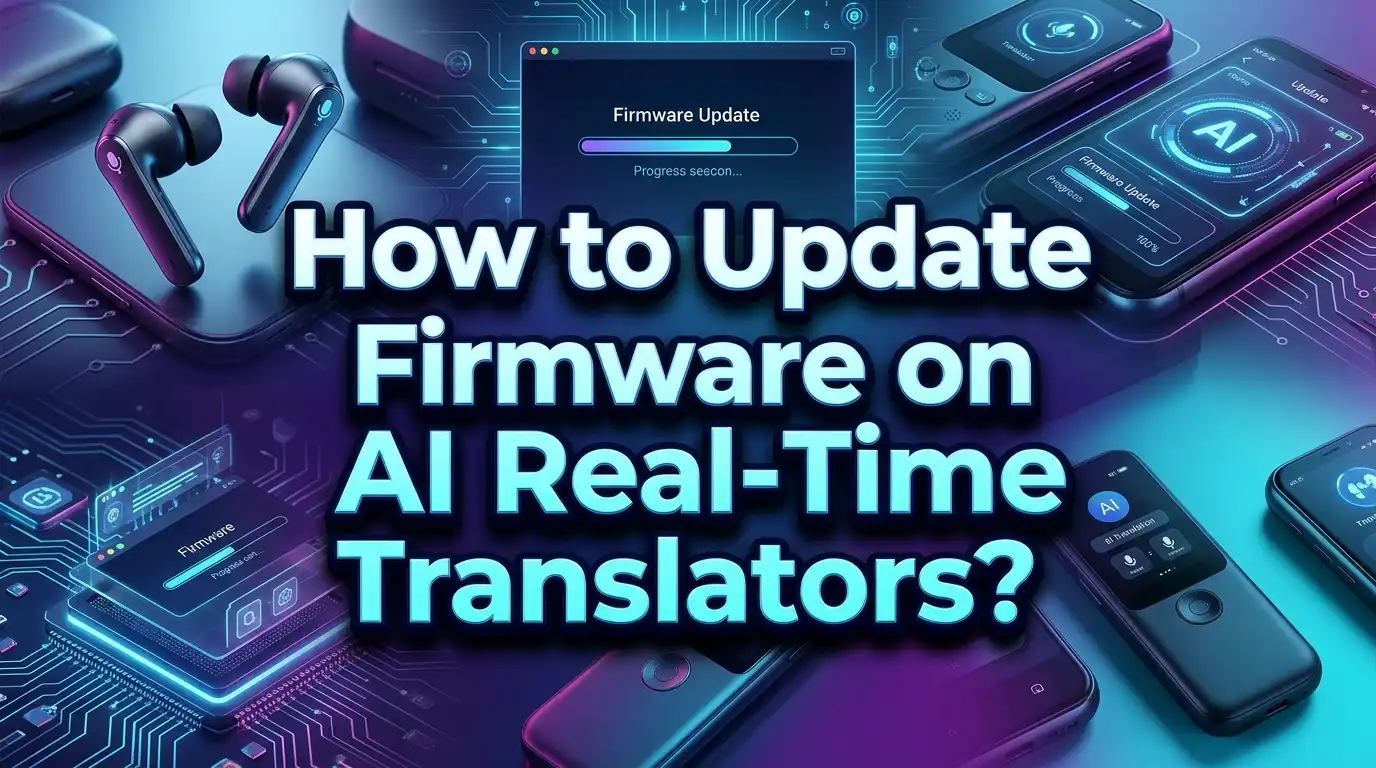
How to Update Firmware on AI Real Time Translators?
Your AI translator just stopped working mid conversation in a foreign country. The screen froze. The translations came out garbled. You stood there, stranded, unable to communicate. Sound familiar?
Outdated firmware is the number one reason AI real time translators lose accuracy, crash, or fail to support new languages. Firmware updates carry critical patches, improved translation engines, and expanded language packs that keep your device running at its best.
This guide walks you through every step of updating firmware on popular AI real time translators. By the end, you will know exactly how to keep your translator current, fast, and accurate.
Key Takeaways
- Firmware updates improve translation accuracy by patching bugs and upgrading the AI engine that powers your device. Skipping updates means your translator falls behind on language support and speed.
- Most AI translators update through a companion app on your smartphone. Brands like Timekettle, Soundcore, and Wooask use a Bluetooth or Wi Fi connection between your phone and the device to push new firmware.
- Some devices support direct Wi Fi updates. Pocketalk and Vasco translators let you check for updates directly from the device menu without needing a phone.
- Always charge your device to at least 50% before starting a firmware update. A dead battery during an update can brick your translator, making it permanently unusable.
- Failed updates are fixable in most cases. A simple restart, a stable internet connection, or a factory reset can resolve most firmware installation errors.
- Back up your settings and saved phrases before updating. Some firmware updates reset your device to default settings, which means you could lose custom preferences and saved translations.
Why Firmware Updates Matter for AI Translators
Firmware is the internal software that controls every function of your AI translator. It manages voice recognition, language processing, screen display, and connectivity. When manufacturers release a firmware update, they are sending you a direct upgrade to how your device thinks, listens, and speaks.
Translation engines improve constantly. New AI models get trained on larger datasets. This means your device can deliver faster and more natural translations after an update. Many users report a noticeable difference in accuracy after installing the latest firmware on devices like the Timekettle W4 Pro or Pocketalk S.
Firmware updates also fix security vulnerabilities. Your translator connects to Wi Fi networks, Bluetooth devices, and cloud servers. Without current security patches, your device could expose personal data. Updates seal these gaps and keep your conversations private.
New language packs often arrive through firmware updates as well. Pocketalk, for example, expanded its supported languages to over 91 with two way translation through a software update. If you skip the update, you miss out on these additions entirely.
How to Check Your Current Firmware Version
Before you update, you need to know what version your device currently runs. This step helps you confirm whether an update is available and whether the installation was successful afterward.
On handheld translators like Pocketalk or Vasco, go to the Settings menu. Look for an option labeled “About Device,” “System Info,” or “Software Version.” The firmware version number appears as a series of numbers, such as 1.6.0 or 3.2.1.
On translator earbuds from Timekettle or Soundcore, open the companion app on your smartphone. The app displays the current firmware version of the connected earbuds. You will usually find this under “Device Info” or “Settings” within the app.
Write down your current version number. Compare it against the latest version listed on the manufacturer’s website or app store listing. If your version is lower than the latest release, an update is available. This simple check takes less than a minute and prevents unnecessary troubleshooting later.
Preparing Your Device Before a Firmware Update
Preparation is the most important part of a successful firmware update. Rushing into an update without proper setup causes the majority of failed installations.
Charge your device to at least 50% battery. Many manufacturers recommend 60% or higher. A firmware update rewrites core system files. If the battery dies during this process, the device can become unresponsive. Some models, like the iFlytek translator, will refuse to begin the update if battery levels are too low.
Connect to a stable Wi Fi network. Avoid public hotspots or networks with weak signals. Firmware files range from 50 MB to over 500 MB depending on the device and update size. A dropped connection during download can corrupt the file and cause errors.
Close all running apps on both your translator and your smartphone. Background processes compete for memory and bandwidth. This competition can slow down or interrupt the update. Clear your translator’s cache if the option is available in settings.
Back up your saved phrases, translation history, and custom settings. Some updates reset these to factory defaults. Check your companion app for a backup or export option before you proceed.
Updating Firmware Through a Companion App
The most common method for updating AI translator firmware involves a companion smartphone app. Brands like Timekettle, Soundcore, Wooask, and many others use this approach.
Step 1: Download the latest version of the companion app from the Apple App Store or Google Play Store. Outdated apps sometimes fail to detect available firmware updates.
Step 2: Turn on your translator device and enable Bluetooth. Open the app and pair it with your device. Most apps show a pairing screen with your device name and a “Connect” button.
Step 3: Once connected, the app checks for available firmware updates automatically. If an update exists, a notification or banner appears on the home screen of the app. Tap “Update” or “Install.”
Step 4: The app downloads the firmware file and transfers it to your device over Bluetooth or Wi Fi. Do not disconnect the device, close the app, or turn off your phone during this process. The transfer can take anywhere from 2 to 15 minutes depending on file size and connection speed.
Step 5: Your translator device restarts automatically after installation. Verify the new version number in device settings.
Pros: Easy to use, guided interface, automatic detection of updates, works for most earbud and handheld translators.
Cons: Requires a smartphone, depends on Bluetooth stability, app version must be current, some apps are region locked.
Updating Firmware Directly Through Wi Fi
Several standalone translator devices allow you to update firmware without a smartphone. This method works well for users who prefer a direct approach.
Pocketalk devices use this method. Go to Menu, scroll down, and select “Software Update.” The device checks the server for new versions. If an update is available, a prompt appears on screen. Select “Continue” and follow the instructions. The device downloads and installs the update over Wi Fi.
Vasco translators follow a similar process. Connect your device to a Wi Fi network through the settings menu. Open the system update section and tap “Check for Updates.” The device handles everything from there.
iFlytek translators also support direct updates. Connect to Wi Fi, open settings, and look for “System Update” or “Firmware Update.” Some older iFlytek models display a popup notification when an update is available.
Pros: No smartphone required, straightforward process, updates download directly to the device, no Bluetooth pairing needed.
Cons: Requires a stable Wi Fi connection, larger devices need more time to download, some older models lack this feature, device screen can be small and hard to read during the process.
Keep your device plugged into a charger during this process if possible. Wi Fi updates tend to drain battery faster than app based transfers.
Updating Firmware via USB Connection
Some AI translator devices support firmware updates through a USB cable connected to a computer. This method is reliable and useful when Wi Fi is unavailable.
Step 1: Visit the manufacturer’s official website. Look for a “Support,” “Downloads,” or “Firmware” section. Download the correct firmware file for your specific device model. Double check the model number to avoid installing the wrong firmware.
Step 2: Connect your translator to your computer using the provided USB cable. The device should appear as a removable drive or connected device in your file manager.
Step 3: Some manufacturers provide a dedicated desktop updater tool. iFlytek, for instance, lets users connect the translator via USB and select “Update” from the device screen. The computer then transfers the firmware file directly.
Step 4: Follow any on screen instructions on both the computer and the translator. Do not unplug the USB cable during transfer. Wait for a confirmation message before disconnecting.
Step 5: Restart your device after the update completes. Check the firmware version to confirm success.
Pros: Works without Wi Fi or Bluetooth, reliable data transfer, good for large firmware files, useful in areas with no internet.
Cons: Requires a computer, needs the correct USB cable, firmware must be manually downloaded, wrong file selection can cause errors.
Troubleshooting a Failed Firmware Update
Firmware updates fail more often than most users expect. The good news is that most failures have simple fixes you can apply at home without technical expertise.
If the update stalls or freezes, do not panic. Wait at least 10 minutes. Some updates appear frozen but are still processing in the background. If the device remains unresponsive after 10 minutes, perform a forced restart by holding the power button for 7 to 10 seconds.
If the app says “Unable to connect to server,” check your internet connection. Switch between Wi Fi and mobile data. Restart your router. Some users on Reddit reported that switching to a different Wi Fi network resolved this error on devices from brands like JLab and Timekettle.
If the device restarts repeatedly after an update, the firmware file may have been corrupted during download. Delete the update file, redownload it, and try again. A stable connection is critical during the download phase.
If the device becomes completely unresponsive (often called “bricked”), look for a recovery mode option. Many translators have a hard reset combination, such as holding the power button and volume down button simultaneously for 15 seconds. Check your user manual for the exact combination.
Contact the manufacturer’s customer support if none of these steps work. Most brands offer warranty support for firmware related issues.
What to Do if Your Translator Gets Bricked
A “bricked” device is one that will not turn on or respond to any input after a failed firmware update. This situation feels alarming, but recovery is possible in most cases.
First, try a hard reset. Hold the power button for 15 to 20 seconds. Some devices require a combination of buttons. Pocketalk devices, for example, respond to holding the power button for 7 seconds to force a shutdown.
Second, connect the device to a charger and leave it for 30 minutes. Sometimes the battery drains completely during a failed update, and the device simply needs power to reboot.
Third, attempt a USB recovery. Connect the device to a computer while holding a specific button combination (check your manual). This boots the device into recovery mode, where you can reinstall the firmware from scratch using the manufacturer’s desktop tool.
Fourth, check online forums and the manufacturer’s support page. Many brands publish specific recovery guides for bricked devices. Reddit communities like r/heypocketai have active threads where users share solutions for specific models.
If nothing works, submit a warranty claim. Firmware update failures caused by official updates are typically covered under manufacturer warranty. Keep your purchase receipt and device serial number ready when contacting support.
Updating Firmware on AI Translator Earbuds
Translator earbuds like the Timekettle W4 Pro, Soundcore AeroFit 2, and other models have a slightly different update process compared to handheld devices. The earbuds themselves have limited interfaces, so the companion app handles everything.
Place both earbuds in the charging case. Open the case lid near your phone to activate Bluetooth pairing. Launch the companion app and confirm the connection. The app scans for available updates automatically.
During the update, keep the earbuds inside the case with the lid open. Closing the lid can interrupt the Bluetooth connection and cause the update to fail. The case also provides power to the earbuds during the firmware installation.
The process takes between 3 and 10 minutes for most models. You will see a progress bar in the app. Do not use the earbuds, close the app, or move your phone away from the case during this time. Once the progress bar reaches 100%, the earbuds restart inside the case.
After the restart, reconnect the earbuds through the app and verify the new firmware version. Test a quick translation to confirm everything works correctly.
Some users report that one earbud updates successfully while the other does not. In this case, unpair both earbuds, reset them, and repeat the process. The app usually updates each earbud sequentially.
Updating Firmware on Handheld AI Translators
Handheld AI translators with touchscreens, such as the Pocketalk S, Vasco V4, and iFlytek Smart Translator, offer the most user friendly update experience. The larger screen and built in Wi Fi make the process straightforward.
Start by connecting your device to a strong Wi Fi network. Open the main menu and look for “Settings.” Scroll to “Software Update,” “System Update,” or “About Device.” Tap the update option.
The device contacts the manufacturer’s server and checks for new firmware. If a new version exists, you see the version number and a brief description of what the update includes. This description often lists bug fixes, new languages, or improved translation speed. Tap “Download” or “Update” to begin.
The download time depends on your Wi Fi speed and the update file size. Most updates finish downloading in under 5 minutes. The installation phase follows immediately. Your device screen may go dark or show a progress indicator.
Do not press any buttons or turn off the device during installation. The translator restarts on its own when the process completes. You may need to re enter your Wi Fi password or accept new terms of service after the update.
Test the device by running a quick translation in two or three languages. Pay attention to speed and accuracy. If anything seems off, restart the device once more. Occasionally, a fresh restart after an update clears minor glitches.
How Often Should You Update Your AI Translator
Manufacturers release firmware updates at different intervals. Some brands push updates monthly. Others release them quarterly or only when significant improvements are ready. There is no universal schedule, so checking regularly is important.
Set a reminder to check for updates at least once every two weeks. This habit ensures you never fall too far behind on critical patches. Some companion apps offer automatic update notifications. Enable these alerts if the option is available.
Major updates often arrive alongside new product launches or seasonal travel periods. Brands like Timekettle and Pocketalk frequently release updates before major holiday travel seasons to improve performance and add popular language pairs.
You should always update before a trip abroad. New firmware can add offline language packs, improve battery management, and fix connectivity bugs that could cause problems in unfamiliar locations. A quick update at home saves you from dealing with a malfunctioning device overseas.
However, avoid updating while you are actively relying on the device. If you are in the middle of a business trip or a critical meeting, postpone the update. Some updates change settings or require reconfiguration that could disrupt your workflow. Update during downtime when you can test the device afterward.
Common Mistakes to Avoid During Firmware Updates
Several preventable mistakes cause firmware update failures. Knowing what to avoid saves you time and protects your device.
Disconnecting the device before the update finishes is the most common mistake. Even if the progress bar seems stuck, the device may still be writing files in the background. Wait for a clear confirmation message before unplugging or restarting.
Using a weak or unstable Wi Fi connection causes corrupted downloads. If you experience frequent disconnections on your home network, try connecting to a different network or using a mobile hotspot with strong signal.
Ignoring the companion app version leads to compatibility issues. An outdated app might not recognize the latest firmware file. Always update the app first, then update the device firmware.
Installing firmware meant for a different device model is a serious error. This can brick your device permanently. Always verify the model number on the download page matches your device exactly.
Skipping the restart after an update can cause instability. Many firmware updates require a reboot to apply all changes. If your device does not restart automatically, do it manually.
Updating multiple devices at the same time through the same app can cause conflicts. Update one device at a time, confirm success, and then proceed to the next one.
Understanding OTA Updates vs Manual Updates
AI translators receive firmware updates in two main ways: OTA (Over The Air) and manual installation. Each method has distinct advantages.
OTA updates are delivered wirelessly through Wi Fi or Bluetooth. The device or companion app detects the update, downloads the file, and installs it with minimal user input. This is the default method for most modern AI translators. Brands like Pocketalk, Timekettle, and Vasco all support OTA updates.
OTA updates are convenient and fast. They require no cables, no computers, and no file management. The process is largely automated. However, they depend entirely on a stable internet connection. If your Wi Fi drops during download, you may need to start over.
Manual updates involve downloading a firmware file from the manufacturer’s website and installing it via USB or SD card. This method gives you more control over the process. You can verify the file size and integrity before installation. You can also keep a copy of the firmware file as a backup.
Manual updates work well in environments with limited internet access. If you are in a remote area with no Wi Fi, a pre downloaded firmware file on a laptop can save the day. However, the process requires more technical knowledge and careful attention to file compatibility.
Most users should rely on OTA updates for convenience. Reserve manual updates for situations where wireless installation fails or is unavailable.
Keeping Your AI Translator in Top Shape After Updates
A firmware update is only the beginning. Post update maintenance ensures your device performs at its best over time.
After every update, run a full test. Try voice translations in at least two languages. Test both online and offline modes if your device supports them. Check that your saved phrases and custom settings survived the update.
Clear the device cache periodically. Cached data accumulates over time and can slow down translation speed. Most devices have a “Clear Cache” option under settings.
Keep your companion app updated alongside the firmware. App updates often include improvements to the pairing process, bug fixes, and new features that work in tandem with the latest firmware.
Store your device in a cool, dry place. Heat and moisture can damage internal components and cause firmware corruption over time. Avoid leaving your translator in direct sunlight or inside a hot car.
Register your device with the manufacturer if you have not already done so. Registered users often receive firmware update notifications by email. Some brands also offer early access to beta firmware for registered users who want the latest features first.
Frequently Asked Questions
How do I know if my AI translator needs a firmware update?
Check the firmware version in your device settings or companion app. Compare it with the latest version listed on the manufacturer’s website. If your version is older, an update is available. Many companion apps also display a notification badge or banner when new firmware is ready to install.
Can a firmware update damage my AI translator?
Firmware updates are safe when performed correctly. The risk of damage comes from interrupting the update process, such as unplugging the device or losing power mid installation. Always charge your device above 50% and maintain a stable connection throughout the update.
How long does a firmware update take on an AI translator?
Most firmware updates finish in 5 to 15 minutes. The download phase depends on your internet speed and the file size. The installation phase typically takes 2 to 5 minutes. Earbud translators may take slightly longer because Bluetooth transfers data more slowly than Wi Fi.
What should I do if the firmware update keeps failing?
Restart your device and your smartphone. Check your internet connection. Make sure the companion app is updated to the latest version. Try a different Wi Fi network. If the problem continues, delete the downloaded update file and redownload it. Contact the manufacturer’s support team if failures persist.
Do firmware updates add new languages to my AI translator?
Yes, many firmware updates include new language packs. Pocketalk expanded to over 91 languages through firmware updates. Timekettle and iFlytek also add language support through periodic updates. Check the update release notes to see which languages were added.
Can I roll back to a previous firmware version?
Most AI translators do not officially support firmware rollbacks. Once you install a new version, reverting to an older one requires manual installation of the previous firmware file, which is often unavailable from the manufacturer. If a new update causes problems, contact the manufacturer for a fix or wait for a corrective update.

Hi, I’m Simmy — the founder and voice behind AI Gadgets Insight. I’m a tech enthusiast who loves exploring the latest AI gadgets, smart devices, and innovative tech products. I started this blog to help people make smarter tech choices with honest reviews, easy-to-follow comparisons, and practical buying guides.