Acer Chromebook 317 Review: Is This Worth It?
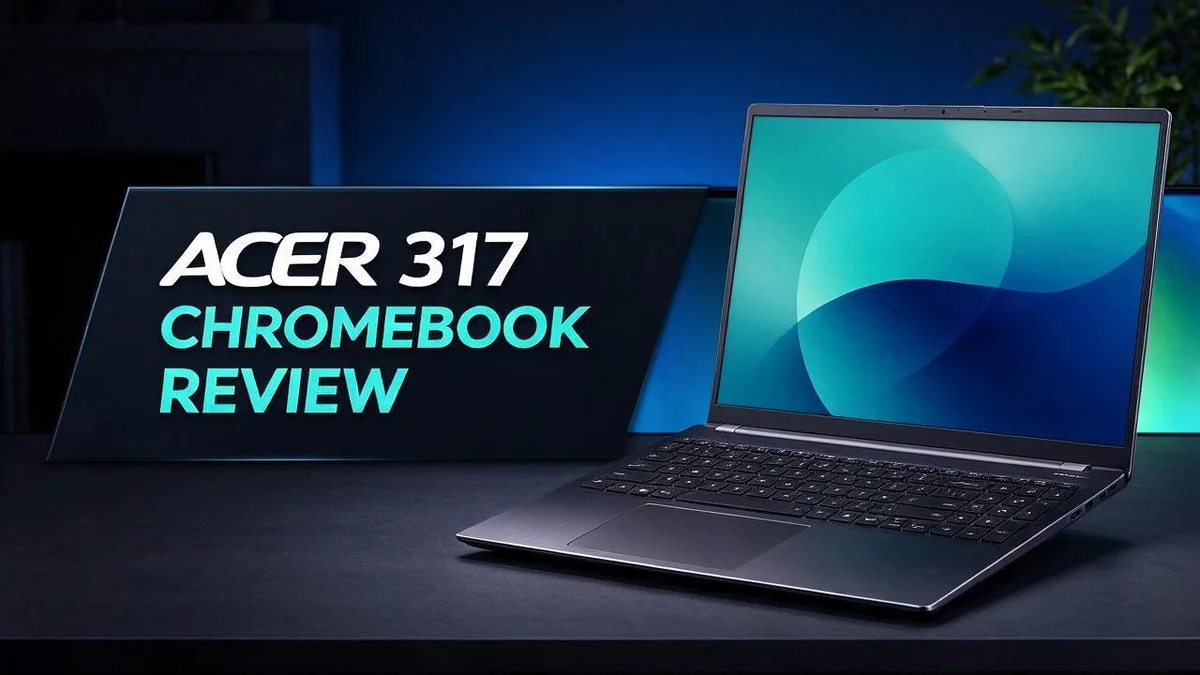
Are you searching for a Chromebook with plenty of screen space? The Acer Chromebook 317 could be the right fit. It features a 17.3 inch Full HD display on a laptop that runs Chrome OS.
A large screen helps you multitask. You can keep several tabs, documents, and videos open at once. The anti glare panel also cuts down on reflections, so you can work near a window.
Reviewers say this model works well for everyday tasks at home. The size does mean less portability, though. Frequent travelers may prefer a smaller laptop.
In this review, you will learn about the specs, the screen quality, and the main pros and cons. Keep reading to see if this big Chromebook suits your needs.
In a Nutshell
- Split screen work feels easy: The wide 16:9 display lets you place two documents side by side without feeling cramped. Students can keep notes open right next to a draft.
- Shared viewing works well: Family members can gather around the big screen to watch videos, follow recipes, or join a video call together.
- Storage needs a plan: The base model offers 128GB of eMMC storage, so you should rely on cloud storage for large files. The microSD card reader gives you a simple way to add more space.
- Size is the main tradeoff: Reviewers note that the bulk gives you utility but reduces portability. This laptop fits best on a desk or kitchen counter rather than in a crowded bag.
- Lighting shapes the experience: The anti glare panel cuts down on reflections from nearby windows. Still, the screen is only reasonably bright, so a sunny room may call for a shaded spot.
- Touch is optional: The touch version of this model adds touch input, which suits people who like tapping photos or sketching. Confirm which version you want before you choose.
Display Quality and Viewing Experience

- The Best of Google, in a Laptop: Chromebooks run ChromeOS, the fast, secure operating system from Google, with...
- Try Google AI Pro, with 5TB of Storage, and more for 3 Months at No Cost: Boost your productivity and creativity...

Last update on 2026-11-22 / Affiliate links / Images from Amazon Product Advertising API
The display is the star of this Chromebook. Its 17.3 inch panel uses Full HD resolution, which means 1920 by 1080 pixels.
Those pixels spread across a large area, so the density sits near 127 PPI. Text looks clear at a normal distance but may appear less sharp up close.
Narrow bezels make the screen feel bigger. The frame around the panel stays thin, so your eyes focus on content instead of edges.
Reviewers report good viewing angles, so the picture stays readable when someone sits off to the side.
Brightness is good but not outstanding. The panel measures 275 nits, which counts as reasonably bright for indoor rooms.
Strong direct sunlight can wash out the picture, so placing the laptop in shade helps.
Colors look pleasant for browsing and schoolwork. Users who edit photos for print may want more color precision.
Web pages and spreadsheets fit more rows and columns on this wide panel, so you scroll less during long sessions.
Most streaming content uses a 16:9 format, so the picture fills the screen with few black bars.
Photos look sharp on this screen. The large size also lets you check small details without zooming in as often.
Long work sessions feel easier when text sits at a comfortable size. You can keep documents open at full scale without squinting.
Chrome OS lets you change display scale and brightness in a few clicks. This helps you tune the picture for your room and your eyes.
Because the panel is large, scaling matters. Larger text helps if you sit farther from the screen.
In a dim room, the 275 nit panel looks comfortable, so evening use feels pleasant.
Compared with smaller Chromebooks, this 17 inch screen shows more of a page at once.
Overall, the display suits everyday viewing well. Keep brightness and sunlight in mind before you decide.
Performance and Storage
The Acer Chromebook 317 runs on an Intel Pentium Silver N6000 processor. This chip handles everyday work with ease. Think email, documents, and online video calls.
Chrome OS is light by design. It does not need powerful hardware to feel smooth. Most daily tasks run without much fuss.
Memory shapes multitasking. The base model includes 4GB of RAM. That amount suits a handful of browser tabs. Heavy sessions with dozens of tabs may slow things down.
Some versions offer 8GB of RAM. A reviewed variant paired that extra memory with 64GB of eMMC storage. More memory keeps many tabs and apps responsive at once.
Storage works differently here. The base model offers 128GB of eMMC storage. Chrome OS needs little space for its core system, so most of that room stays free for your files.
eMMC storage tends to be slower than a solid state drive. Large file transfers may take longer. Save big projects to an external drive when speed matters.
Expand with a microSD card. The card reader accepts microSD cards. Insert a card and move photos, videos, or music onto it. This gives you extra room without a new laptop.
Keep an eye on space. Open the Files app to see what takes up room. Delete old downloads and unused files now and then. A little upkeep keeps the laptop feeling quick.
Plan your files early. Sort school work, photos, and videos into folders from day one. Clear organization makes it easy to move files onto a card when space runs low.
Performance depends on your habits. Light browsing and writing feel smooth. Heavy editing or gaming will reach the limits of this chip.
Tips for smooth daily use. Close tabs you no longer need. Restart the laptop once a week. These small habits protect speed and free up memory.
Design, Size, and Portability
Think about where this laptop will live. It fits best as a home base rather than a travel companion. Most people set it on a desk or kitchen table and leave it there.
Carrying it around takes some planning. A 17 inch screen needs a large bag with enough room. Check the bag size before you leave home so the screen does not get squeezed.
Lap use is possible, but it feels different. A wide frame can crowd your legs on a couch. A table or desk gives you a steady surface and better posture.
Typing feels easier on a flat surface. The wide base leaves room around the keys for your wrists. Many people find this helpful during long writing sessions or homework blocks.
Chair height matters with a big screen. Sit so your eyes meet the top part of the display. This keeps your neck relaxed during long sessions.
Shared spaces make a big difference. Families often gather around the screen to watch a movie or follow a recipe together. Pull a chair close, and everyone can see without leaning in.
Plan your desk space too. You need room for the laptop, a mouse, and a notebook. An external mouse often feels better than the touchpad for longer tasks.
Classroom use depends on the desk. Some school desks are narrow, so measure the space before class starts. A wide laptop can take up most of a shared table.
Moving the laptop between rooms takes two hands. Lift it by the base and keep the lid closed. This protects the screen from bumps along the way.
Car trips work with some care. Set the laptop flat on the seat or floor, not on a loose surface that might slide. A padded sleeve helps protect the corners during the ride.
Cables need a little thought as well. Leave space behind the screen so the charger cord can run freely. A cramped corner can make the laptop sit at an awkward angle.
Finally, pick a spot away from harsh light. A bright window can throw glare across the screen, so position the desk to the side of it. Choose a place where you can sit comfortably for an hour or more.
Top 3 Alternatives
Looking for a different Chromebook? These three options offer strong choices for students, families, and everyday users. Each one runs ChromeOS and handles web browsing, video streaming, and document work with ease.
HP Chromebook 14

- 【Efficient 8-Core Performance for Everyday Productivity】 Powered by the MediaTek Kompanio 540 8-Core Processor...
- 【14" HD Display & Thin, Lightweight Design】 Enjoy everyday viewing on the 14-inch HD (1366 x 768) display...
Last update on 2026-11-22 / Affiliate links / Images from Amazon Product Advertising API
The HP Chromebook 14 is a compact laptop that fits easily into a backpack. It has a bright display and a comfortable keyboard for long writing sessions. It works well for school assignments and light video calls. Its lightweight body makes it a good pick for travel.
Lenovo Chromebook Plus

- 【Intel Core 3 N355 Processor】Equipped with the Intel Core 3 N355 processor (up to 3.9GHz, 8 cores, 8 threads...
- 【Touch Display】Featuring a 15.3-inch WUXGA touchscreen IPS LED display with a 1920 x 1200 resolution, 400 nits...
Last update on 2026-11-22 / Affiliate links / Images from Amazon Product Advertising API
The Lenovo Chromebook Plus brings extra power to the table. It supports Google apps and runs many Android apps smoothly. Users who want faster multitasking will appreciate its responsive performance. The sturdy build also handles daily wear and tear well.
ASUS Chromebook Plus

- POWERFUL INTEL PERFORMANCE: Powered by the Intel Core i5-1335U processor with 10 cores, 12 threads, up to 4.6 GHz...
- VIBRANT TOUCH DISPLAY: Enjoy a crisp, immersive viewing experience on the 14-inch Full HD (1920 x 1080) anti-glare...
Last update on 2026-11-22 / Affiliate links / Images from Amazon Product Advertising API
The ASUS Chromebook Plus stands out with a clear screen and a sleek look. It offers quick startup times and convenient storage for files and photos. Creators and home users can edit images and manage projects with less effort. It suits anyone who needs a dependable laptop for both work and play.
Take time to compare screen size, keyboard feel, and storage before you choose. Think about how you plan to use your device each day. The right Chromebook for you is easy to find once you know your needs.
Ports and Expansion Options
Ports shape how you use this laptop every day. Start by listing the devices you already own. Mice, flash drives, and external hard drives all need a place to connect.
Choosing the right microSD card matters. Look for a speed rating like U3 or V30 if you plan to store video. Slower cards can make file transfers feel sluggish.
Insert the card and wait a moment. The system needs a few seconds to recognize new storage. Then copy a test file to confirm it works.
Eject before you pull it out. Removing a card during a transfer can corrupt photos or school projects. Wait for the transfer to finish first.
A card that sticks out can catch on a bag. Many people leave the reader empty during travel.
Plan for extra connections. A small USB hub adds space for a mouse, a keyboard, and a flash drive at once. This helps when the laptop’s own options feel limited.
Check your display needs first. External monitors need the right port and cable. Read the spec sheet before you buy an adapter.
Keep a small accessory pouch. Store a microSD card, a short cable, and a hub together. Everything stays in one place, so nothing gets lost.
Think about daily habits. Students who carry files between home and class may prefer a card with plenty of space. Desk users might prefer a hub that stays plugged in.
Label your cards clearly. Write the contents on a sticker or use a name in the file folder. Clear labels save time when you swap cards often.
Keep the reader clean too. Dust and lint can collect in the slot and make a card fit loosely. A quick puff of air keeps it working well.
Good port planning keeps this large laptop flexible. With a few smart choices, you get more room for school, work, and fun.
Everyday Use on Chrome OS
Chrome OS feels simple from the first moment. Most daily tasks happen inside the browser. You can check email, read the news, and write documents with almost no setup.
Web apps do most of the work. Google Docs, Sheets, and Slides open quickly. They also save changes as you type, so you rarely lose progress.
Offline work is possible too. Turn on offline mode in Google Drive before you leave home. Then you can edit files on a bus or in a waiting room.
The large screen changes how you multitask. Two windows can sit side by side. Research on one side and write notes on the other. The screen resists glare, so near windows stays readable.
Android apps and the Play Store add more options. Many families use them for games, drawing, or note taking. Check that an app works well on a large display first.
Video calls and streaming look great here. The wide frame fits several faces during a family chat. Movies and shows fill the space with minimal effort. Streaming sites also look sharp on the Full HD panel.
Multiple profiles keep things tidy. Each person signs in with their own Google account. Bookmarks, extensions, and history stay separate.
Guest mode works well when a friend borrows the laptop. Parents can also set up a separate account for younger children.
Updates arrive automatically. Chrome OS checks for new versions in the background. A restart applies the latest features, so the system stays current with little effort from you. You do not need to hunt for patches.
Keyboard shortcuts speed things up. Press Alt and Tab to switch between windows quickly. Press Ctrl and a number to jump to a browser tab.
Overall, everyday use feels smooth and familiar. Chrome OS rewards people who live in the browser. Anyone who needs heavy editing power may need a different machine.
Pros and Cons
Pros
– Big screen space gives you room for many open windows.
– The Full HD display shows sharp text and clear images.
– The glare resistant screen keeps reflections low in bright rooms.
– The CB317-1HT model adds a touchscreen for tapping and swiping.
– The microSD slot adds extra room for photos and files.
Cons
– The large size makes it harder to carry around.
– The screen reaches only 275 nits, so it feels reasonably bright rather than very bright.
– Some versions offer just 4GB of RAM, which limits heavy multitasking.
– No direct rival exists in the 17 inch class, so comparing options takes extra research.
Who Should Buy It
The Acer Chromebook 317 suits a specific kind of buyer. It works best for people who keep their laptop on a desk most of the day.
Remote workers often find it useful. Long email threads and rows of numbers feel less cramped on a wide canvas. Many people also prefer to avoid constant scrolling.
Parents and students make a strong match too. Kids can spread out lessons side by side. Parents can read reports or help with homework without squinting at a small display.
Movie lovers may enjoy it as well. Many people stream shows from the couch or the kitchen table. A wide picture makes each episode feel more like a television night.
Shoppers who already live in Google apps will feel at home. Gmail and Calendar sit right in the browser. The switch from another system feels easy.
Travelers and frequent commuters should look elsewhere. The size makes it awkward in a backpack or on a crowded train. A smaller model fits those trips far better.
Heavy gamers and video editors may feel limited. This laptop is built for everyday tasks rather than demanding creative projects. Power users should review the specs closely first.
Anyone who reads for long stretches might appreciate the extra space. A larger canvas can reduce eye strain for some people. Text and images stay easy to follow during long sessions.
Think about your daily routine before you decide. If the laptop will mostly stay at home, this model offers plenty of room. If you need a laptop for travel, keep looking for a lighter option.
Final Verdict
The Acer Chromebook 317 earns a place on a short list for home use. It does not try to be everything to everyone. Instead, it gives you a large and calm workspace for daily tasks.
Overall, this laptop makes the most sense when space matters more than mobility. Most buyers notice the size first. Then they notice how much room it gives them for work and play. That tradeoff rarely feels like a loss at a desk.
Think about where the laptop will live. If it stays on a desk or kitchen table, the tradeoff feels small. If it travels every day, a lighter option will serve you better.
Set your expectations before you buy. This machine handles browsing, email, documents, and everyday school work with ease. It works more like a home base than a powerful workstation.
Ask yourself a few quick questions before you decide. Does the laptop stay in one place most days? Do you prefer a simple system that just works? Do you want more screen room than a typical laptop gives? If you answer yes to most, this model fits well.
Skip it if you need a light companion. Commuters and frequent travelers will feel the weight quickly. A smaller model suits life on the move far better.
If you like the Acer brand but need portability, look at smaller Acer models. They can offer a similar feel with far less bulk.
Families with shared space may find this laptop a helpful hub. It can support homework sessions, recipe searches, and weekly planning all in one spot.
The final call comes down to your daily routine. Pick this laptop when a big screen will improve your days. Choose something else when you need to carry your work everywhere.
Give it a clear role in your home, and it will reward you. It turns a simple desk into a comfortable workspace for the whole household.
Frequently Asked Questions
What processor runs the Acer Chromebook 317?
It uses an Intel Pentium Silver N6000 chip with Intel UHD Graphics. This chip handles web pages, documents, and video streaming well. Heavy tasks may slow it down, so keep only a few tabs open at once for the best speed.
How much storage will I get?
Standard versions offer 128GB eMMC storage, while one reviewed version had 64GB. Most people save files to Google Drive, which frees up space on the device. Keep important school work and photos in the cloud so you never run out of room.
Can I use it without an internet connection?
Yes. Chrome OS lets you turn on offline mode for Gmail, Google Docs, and Google Sheets. You can write notes on a bus or plane, then sync your work when you reconnect.
Is there a flip screen option from Acer?
Reviewers mention the Chromebook Plus Spin 514 as the best convertible you can buy. If you want a screen that folds back into a tablet, check that model first. The 317 works better when you want a large, fixed screen for a desk.

Hi, I’m Simmy — the founder and voice behind AI Gadgets Insight. I’m a tech enthusiast who loves exploring the latest AI gadgets, smart devices, and innovative tech products. I started this blog to help people make smarter tech choices with honest reviews, easy-to-follow comparisons, and practical buying guides.