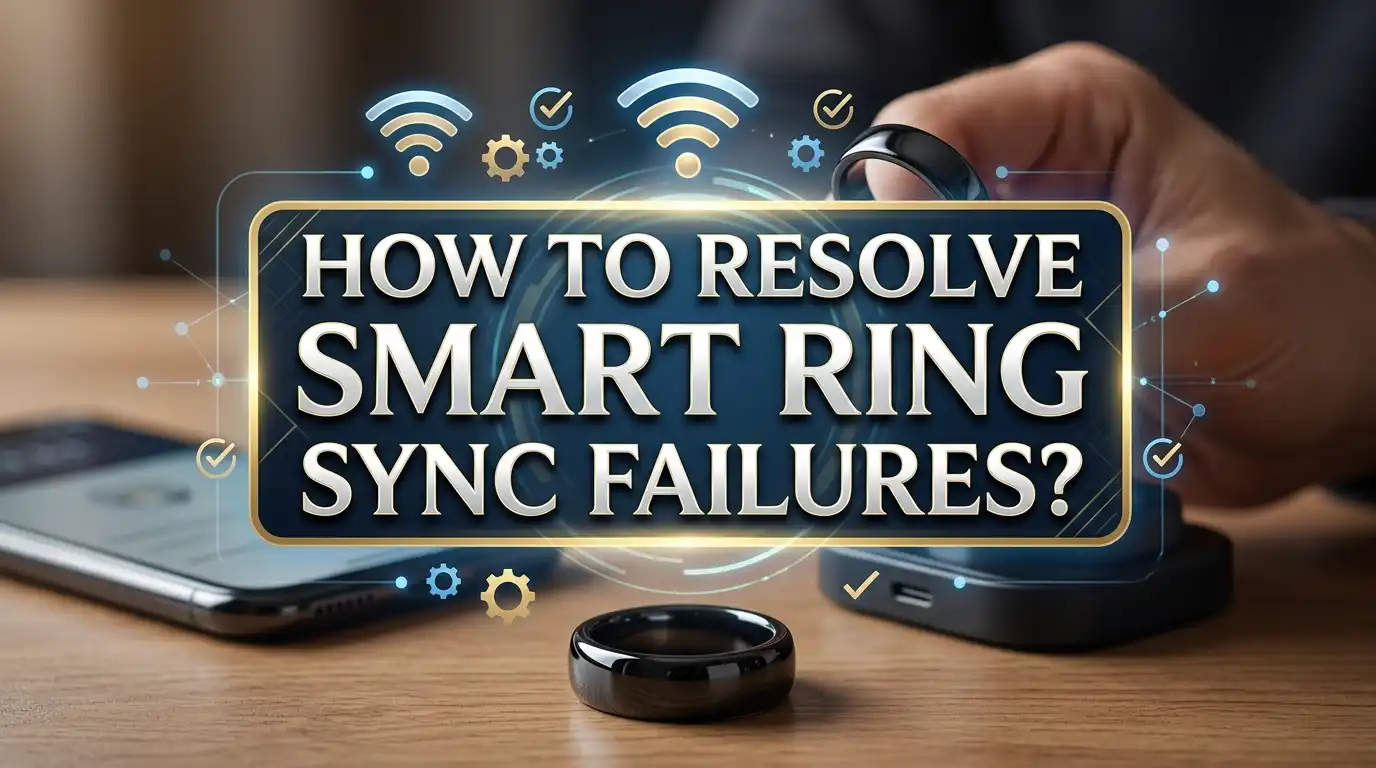
How To Resolve Smart Ring Sync Failures?
Smart rings from brands like Oura, Samsung Galaxy Ring, Circular, Ultrahuman, and RingConn all depend on a stable connection between the ring and your phone app. When that connection breaks, your health tracking data sits locked inside a tiny device on your finger with no way to reach your screen.
The good news? Most sync failures have clear, fixable causes. Low battery, outdated firmware, Bluetooth interference, and phone software conflicts account for the vast majority of these problems.
This guide will walk you through every solution, from quick fixes you can try in 30 seconds to advanced troubleshooting steps that resolve even stubborn issues.
Key Takeaways
- Bluetooth is the most common culprit. A simple Bluetooth reset on your phone often resolves sync failures instantly. Turn Bluetooth off, force close your ring’s app, turn Bluetooth back on, and reopen the app. This clears stale connections that block new data transfers.
- Keep your ring charged above 30%. Smart rings reduce or stop syncing when battery levels drop too low. Place your ring on its charger before attempting any troubleshooting steps. A fully charged ring connects faster and more reliably than a depleted one.
- Phone operating system updates can break sync. Major iOS and Android updates frequently change Bluetooth permissions and background app rules. After any phone update, check your ring app’s permissions, reinstall the app if needed, and re-pair the ring.
- Firmware updates fix known bugs. Smart ring manufacturers regularly release firmware patches that address sync problems. Always update your ring’s firmware through the companion app before assuming a hardware defect.
- A factory reset is the last resort that works. If nothing else resolves the issue, a factory reset of your smart ring clears corrupted data and restores default settings. Your historical health data remains safe in the cloud, so you will not lose past records.
- Wi-Fi signals can interfere with Bluetooth. Turning off Wi-Fi during sync attempts removes a common source of radio interference and helps your ring establish a clean connection with your phone.
Why Does Your Smart Ring Fail to Sync?
Smart rings use Bluetooth Low Energy (BLE) to transfer health data from the ring to your phone. This process involves your ring storing sensor data locally and then pushing that data to the companion app during a sync event. Several factors can disrupt this chain.
Signal interference ranks as the top cause. Bluetooth operates on the 2.4 GHz frequency band, the same band used by Wi-Fi routers, microwaves, baby monitors, and wireless keyboards. When too many devices crowd this frequency, your smart ring struggles to maintain a stable connection with your phone.
Software mismatches come in as a close second. Your smart ring relies on three layers of software working together: the ring’s internal firmware, your phone’s operating system, and the companion app. When any one of these falls out of date or receives a problematic update, sync failures follow. For example, many Oura Ring users reported widespread sync failures after updating to iOS 18.0, which changed how Bluetooth permissions worked.
Low battery also plays a significant role. Smart rings conserve energy by reducing wireless activity when their battery drops below a certain threshold. If your ring sits at 10% or 15% battery, it may collect data but refuse to transmit it until you charge it again. Physical factors matter too. If the ring fits loosely or the charging contacts are dirty, the ring may not charge properly, which leads to sync failures down the line.
Check Your Bluetooth Connection First
The fastest fix for most sync failures starts with your Bluetooth settings. Bluetooth problems cause more than half of all smart ring sync issues, and fixing them takes less than a minute.
Open your phone’s Settings app and confirm that Bluetooth is turned on. This sounds obvious, but phone updates and battery saver modes sometimes disable Bluetooth without notifying you. Look for your smart ring in the list of paired devices. If it appears as “not connected,” tap on it to reconnect.
If the ring does not appear at all, you need to re-pair it. Go to your phone’s Bluetooth settings and select “Forget This Device” next to your ring’s name. Then open your ring’s companion app and follow the pairing instructions from scratch. For Samsung Galaxy Ring users, place the ring in its charging case and press and hold the Multipurpose button for three seconds to enter pairing mode.
Here is a critical step many people skip: force close the companion app before you toggle Bluetooth. The app may hold a stale connection in memory that prevents a fresh link from forming. On iPhone, swipe up from the bottom and swipe the app away. On Android, go to Settings, then Apps, find your ring app, and tap Force Stop. After closing the app, turn Bluetooth off, wait 10 seconds, turn it back on, and then reopen the app.
Restart Your Phone and Your Smart Ring
A simple restart clears temporary software glitches that accumulate over time. Both your phone and your smart ring need a restart to fully clear these issues.
Restart your phone first. Power it off completely, wait 15 seconds, and turn it back on. This refreshes your phone’s Bluetooth stack, clears cached connections, and reloads background services that your ring app depends on. Many users report that a phone restart alone resolves their sync problem immediately.
Restarting your smart ring varies by brand. Oura Ring users should place the ring on its charger and tap the charger firmly on a table several times while keeping the ring in place. This triggers a hardware reset that reboots the ring’s internal processor. Samsung Galaxy Ring users can press and hold the Multipurpose button inside the charging case for seven seconds to force a reboot. RingConn users should place the ring in the charging case and quickly remove it five times in a row. A blue flash confirms the reset was successful.
After both devices restart, open the companion app and wait for the ring to sync. Give it at least two full minutes. Smart rings often store several hours of health data locally, and transferring all of that data can take time. Do not close the app or lock your phone during this process. Keep the app open and your phone unlocked until the sync completes.
Update Your Ring Firmware and Companion App
Outdated software is one of the most overlooked causes of sync failures. Manufacturers release firmware updates specifically to fix sync bugs, and skipping these updates leaves known problems unresolved.
Check your companion app first. Open the App Store on iPhone or the Google Play Store on Android and search for your ring’s app. If an update is available, install it immediately. App updates often include fixes for Bluetooth communication protocols, data parsing errors, and compatibility patches for new phone operating systems.
Next, check for a ring firmware update. Open the companion app and look for a settings or device section. Most apps display the current firmware version and notify you if a newer version is available. Place your ring on its charger before starting a firmware update. Firmware updates require a stable Bluetooth connection and sufficient battery. Removing the ring from the charger or closing the app during an update can corrupt the firmware and create even bigger problems.
Some users have reported that app updates themselves caused sync failures. In early 2026, several Circular Ring users found that a new Android app version broke their ring’s ability to sync entirely. If you suspect a recent update caused your issue, you can try uninstalling the app and reinstalling it. On Android, some users have had success installing an older version of the app, though this approach is not officially recommended by most manufacturers.
Verify Your Phone’s App Permissions
Your smart ring app needs several permissions to function properly. Missing or revoked permissions silently break sync without giving you an error message.
On Android devices, open Settings, go to Apps, and find your ring app. Tap Permissions and verify that the following are enabled: Bluetooth, Location, Nearby Devices, Physical Activity, and Background Data. Android 12 and newer versions introduced a “Nearby Devices” permission that is required for Bluetooth accessories. If this permission is missing, your ring cannot communicate with the app at all.
On iPhones, go to Settings and scroll down to your ring app. Make sure Bluetooth is toggled on. Also check that Background App Refresh is enabled, because your ring app needs to run in the background to receive data from the ring. Navigate to Settings, then General, then Background App Refresh, and make sure your ring app appears in the list with its toggle turned on.
Location services deserve special attention on Android. Older Android versions (11 and below) require location services to be enabled for any Bluetooth device to connect. This is a system requirement, not a privacy concern with the ring app itself. If location services are disabled, your ring will never connect, and the app may not explain why. Go to Settings, then Location, and turn it on. Then go back to your ring app’s permissions and make sure Location is set to “Allow all the time” or “Allow while using the app.”
Turn Off Wi-Fi During Sync Attempts
This tip surprises many people, but Wi-Fi signals actively interfere with Bluetooth connections. Both technologies operate on the 2.4 GHz frequency band, and your phone’s Wi-Fi radio can drown out the weaker Bluetooth signal from your smart ring.
Oura’s official troubleshooting guide recommends turning off Wi-Fi as one of the first steps for resolving connection issues. This is especially important if your Wi-Fi router sits near where you charge or sync your ring. The closer you are to the router, the stronger the interference.
To test this, go to your phone’s Settings and turn off Wi-Fi. Then move away from your router and any other wireless devices. Open your ring app and attempt a manual sync. Many users find that this single step resolves sync failures that persisted through every other fix. Once the sync completes successfully, you can turn Wi-Fi back on. Your ring should maintain its connection afterward.
Other devices can cause similar interference. Wireless earbuds, smartwatches, wireless mice, and even some USB 3.0 devices emit signals on the 2.4 GHz band. If you regularly sync your ring near a desk full of wireless accessories, try moving to a different room. Reducing the number of active Bluetooth devices near your phone gives your smart ring a cleaner channel to communicate.
Disable Battery Saver and Power Optimization
Your phone’s battery saving features can silently kill your ring app’s background processes, which stops sync from happening. This is one of the most common hidden causes of sync failures on Android devices.
Android manufacturers like Samsung, Xiaomi, Huawei, and OnePlus implement aggressive battery optimization that restricts background apps. Your ring app needs to run in the background to maintain its Bluetooth connection and receive data. When battery optimization puts the app to sleep, the connection drops.
To fix this on most Android devices, go to Settings, then Battery, then Battery Optimization. Find your ring app in the list and select “Don’t optimize” or “Unrestricted.” On Samsung phones, go to Settings, then Battery and Device Care, then Battery, then Background Usage Limits, and make sure your ring app is not in the “Sleeping apps” or “Deep sleeping apps” lists.
On iPhones, Low Power Mode reduces background app activity and can interfere with Bluetooth connections. If you keep Low Power Mode on permanently, consider turning it off when you need to sync your ring. Go to Settings, then Battery, and toggle off Low Power Mode. Also make sure your phone is charged above 20%, because iOS automatically limits background activity at lower battery levels.
A related issue involves Do Not Disturb and Focus modes. Some phone configurations restrict Bluetooth activity during these modes. Check your Focus settings and make sure they do not block your ring app from running.
Clear Your Ring App’s Cache and Data
Corrupted cache files inside your ring app can cause sync failures even when everything else works correctly. Clearing the cache forces the app to rebuild its temporary files from scratch, which often resolves data transfer problems.
On Android, go to Settings, then Apps, and find your ring app. Tap Storage, then select Clear Cache. This removes temporary files without deleting your account data or settings. Try syncing again after clearing the cache. If the problem continues, you can also tap Clear Data, but this will log you out of the app and require you to sign in again.
On iPhones, iOS does not offer a direct “Clear Cache” option for individual apps. The best alternative is to delete the app entirely and reinstall it from the App Store. This removes all cached data and gives you a fresh installation. Sign back into your account after reinstalling, and the app will download your historical data from the cloud.
After clearing cache or reinstalling, your first sync may take longer than usual. The ring needs to transfer all locally stored data, which can include several days of health information if the sync has been broken for a while. Keep the app open, keep your phone unlocked, and stay patient. Some users report that the first sync after a reinstall takes up to 10 minutes for a full data transfer.
Perform a Factory Reset on Your Smart Ring
When all other steps fail, a factory reset gives your ring a completely fresh start. This erases all data stored on the ring itself and restores it to its original settings. Your cloud data and account history remain untouched, so you will not lose past health records.
For Oura Ring, open the Oura App, go to the menu icon, then select your ring, and choose Factory Reset. Make sure the ring is on its charger and that you have a stable internet connection before starting this process. The app will guide you through re-pairing the ring after the reset.
For Samsung Galaxy Ring, open the Galaxy Wearable app, select your ring, go to About Ring, and tap Reset. Place the ring in its charging case during this process. After the reset, press and hold the Multipurpose button for three seconds to enter pairing mode and reconnect.
For RingConn, place the ring in the charging case and quickly remove it five times. A blue LED flash confirms the reset. Then open the RingConn app and follow the setup process as if you were connecting a new ring.
Factory resets should be your last troubleshooting step, not your first. They work because they clear corrupted firmware states, broken Bluetooth pairings, and misconfigured settings all at once. But they also erase any locally stored data that has not yet synced to the cloud. If your ring holds several days of unsynced data, that data will be lost after a reset.
Fix Sync Issues After a Phone Operating System Update
Major phone updates are a well known trigger for smart ring sync failures. iOS and Android updates frequently change Bluetooth protocols, permission structures, and background processing rules, all of which affect your ring’s ability to communicate.
After updating your phone’s operating system, start by checking all permissions for your ring app. New OS versions sometimes reset or add new permission categories. On Android 12 and above, the “Nearby Devices” permission must be explicitly granted. On iOS, check that Bluetooth and Background App Refresh are both enabled for your ring app.
Next, uninstall and reinstall your ring’s companion app. A fresh installation ensures the app is fully compatible with your new OS version. The old installation may retain cached settings that conflict with new system requirements. After reinstalling, sign into your account and re-pair your ring.
If the problem started immediately after the update, check online forums and the manufacturer’s known issues page. Oura maintains a public Known Issues page that lists ongoing problems and their fixes. Samsung and other brands post similar information in their support centers. Sometimes the manufacturer is already aware of the issue and is working on a patch. In these cases, the best course of action is to wait for an app or firmware update that addresses the compatibility problem.
You can also check if other users found a workaround. After the iOS 18.0 update, Oura users discovered that performing a hardware reset (tapping the charger on a table) restored their connection. These community solutions often surface before official fixes arrive.
Troubleshoot Smart Ring Sync on Samsung Galaxy Devices
Samsung Galaxy phones have unique settings that affect smart ring sync. Samsung’s custom Android skin includes extra battery management and Bluetooth features that can interfere with ring connections.
First, open the Galaxy Wearable app and check if your ring appears as connected. If the app shows the ring as disconnected, place the ring in its charging case and press the Multipurpose button for three seconds. This puts the ring in pairing mode. If pairing mode does not activate, hold the button for seven seconds to reboot the ring first.
A common Samsung issue involves Galaxy Watch interference. Several users have reported that their Galaxy Ring stops syncing when a Galaxy Watch is also connected to the same phone. The phone prioritizes the watch’s Bluetooth connection and starves the ring of bandwidth. If you own both devices, try disconnecting the watch temporarily and syncing your ring. Samsung has acknowledged this conflict and has been rolling out fixes through Galaxy Wearable app updates.
Check Samsung’s battery optimization settings as well. Go to Settings, then Battery and Device Care, then Battery. Tap Background Usage Limits and look in the “Sleeping apps” and “Deep sleeping apps” lists. Remove your ring app and the Galaxy Wearable app from both lists. Also tap the three dot menu, select Settings, and make sure “Adaptive battery” is not restricting your ring app.
Samsung’s Bluetooth settings include an option called “Bluetooth scanning” under Location settings. This must be enabled for accessories to stay connected. Go to Settings, then Location, then Location Services, and turn on Bluetooth Scanning.
What to Do When Your Ring Syncs but Shows No Data
Sometimes your ring appears to sync successfully, but your health data does not appear in the app. This is a different problem from a connection failure and requires its own set of solutions.
First, check that you are wearing the ring correctly. Smart rings use sensors on the inner surface that must make consistent contact with your skin. If the ring is too loose, it may record incomplete data or no data at all. Many brands recommend wearing the ring on your index finger for the best sensor contact, though any finger can work if the fit is snug.
Next, check the app’s data display settings. Some apps show data on a delay or require you to scroll to the correct date. Make sure you are looking at today’s data and not yesterday’s. Pull down on the main screen to trigger a manual refresh.
If the data still does not appear, the problem may involve third party integrations. If your ring app syncs data to Apple Health, Google Health Connect, or another platform, a broken integration can make it look like data is missing when it actually transferred to the wrong place. Open your ring app’s settings and check all connected services. Disconnect and reconnect any integrations that appear inactive.
A complete app reinstall often fixes phantom sync issues. Delete the app, reinstall it, and sign back into your account. The app will pull your historical data from the server and rebuild its local database. This process can take a few minutes but resolves most cases where the ring syncs without displaying data.
When to Contact Customer Support
If you have tried every step in this guide and your ring still refuses to sync, the problem may be a hardware defect that requires professional attention.
Signs of a hardware issue include a ring that will not charge past a certain percentage, LEDs that do not light up during charging, or a ring that gets unusually warm during sync attempts. Physical damage from drops, water exposure beyond the ring’s rating, or cracks in the casing can damage the internal Bluetooth antenna or sensor array.
Before contacting support, gather the following information: your ring model and serial number, your phone model and OS version, the companion app version, and a list of troubleshooting steps you already tried. Taking screenshots of error messages helps the support team diagnose your issue faster.
Most smart ring manufacturers offer warranty coverage that includes sync related defects. Oura, Samsung, and Ultrahuman all provide replacements for rings with confirmed hardware failures within the warranty period. Keep your proof of purchase and any correspondence with customer support organized in case you need to escalate the issue.
Community forums on Reddit and Facebook also provide valuable support. Other users who experienced the same sync failure may have found solutions that are not yet documented in official guides. Search for your specific ring model and the exact symptoms you are experiencing.
Frequently Asked Questions
Why does my smart ring keep disconnecting from my phone?
Frequent disconnections usually point to Bluetooth interference or battery optimization settings on your phone. Make sure your phone’s battery saver is off, your ring app has unrestricted background access, and no other wireless devices are competing for Bluetooth bandwidth. Also ensure your ring stays charged above 30%, because low battery causes most rings to reduce wireless activity.
Will I lose my health data if I factory reset my smart ring?
You will lose any unsynced data stored locally on the ring. However, all data that previously synced to the cloud through your companion app is safe. Your historical health records, sleep scores, and activity logs remain in your account and will reload after you reconnect the ring. Try to sync before performing a factory reset to preserve as much data as possible.
How often should I update my smart ring firmware?
Install firmware updates as soon as they become available. Manufacturers release these updates to fix bugs, improve Bluetooth stability, and patch sync issues. Check your companion app’s settings section at least once a week for available updates. Keep the ring on its charger during any firmware installation to prevent interruptions.
Can my phone case block Bluetooth signals from my smart ring?
Most standard phone cases do not block Bluetooth. However, cases with built in metal plates, magnetic mounts, or thick metallic finishes can weaken Bluetooth signals. If you use a heavy duty case with metal components, try removing it during sync attempts to see if connectivity improves. This is a rare cause but worth testing if nothing else works.
Why does my smart ring sync fail only at certain times of day?
This usually indicates environmental interference. If you sync near a busy Wi-Fi router, a microwave, or in an area with many active Bluetooth devices, the 2.4 GHz band gets congested during peak usage hours. Try syncing in a different location or at a different time. Also check if your phone has any scheduled Do Not Disturb or Focus modes that restrict background app activity during certain hours.
Is it normal for smart ring sync to take several minutes?
Yes, especially after a period of disconnection. Your ring stores data locally when it cannot sync, and all of that accumulated data transfers at once when the connection is restored. A sync after a few days of disconnection can take five to ten minutes. Keep the app open and your phone nearby until the progress indicator completes. Closing the app mid-sync can cause the transfer to fail and require a restart.

Hi, I’m Simmy — the founder and voice behind AI Gadgets Insight. I’m a tech enthusiast who loves exploring the latest AI gadgets, smart devices, and innovative tech products. I started this blog to help people make smarter tech choices with honest reviews, easy-to-follow comparisons, and practical buying guides.