How To Fix Copilot Laptop Touchpad Gestures?
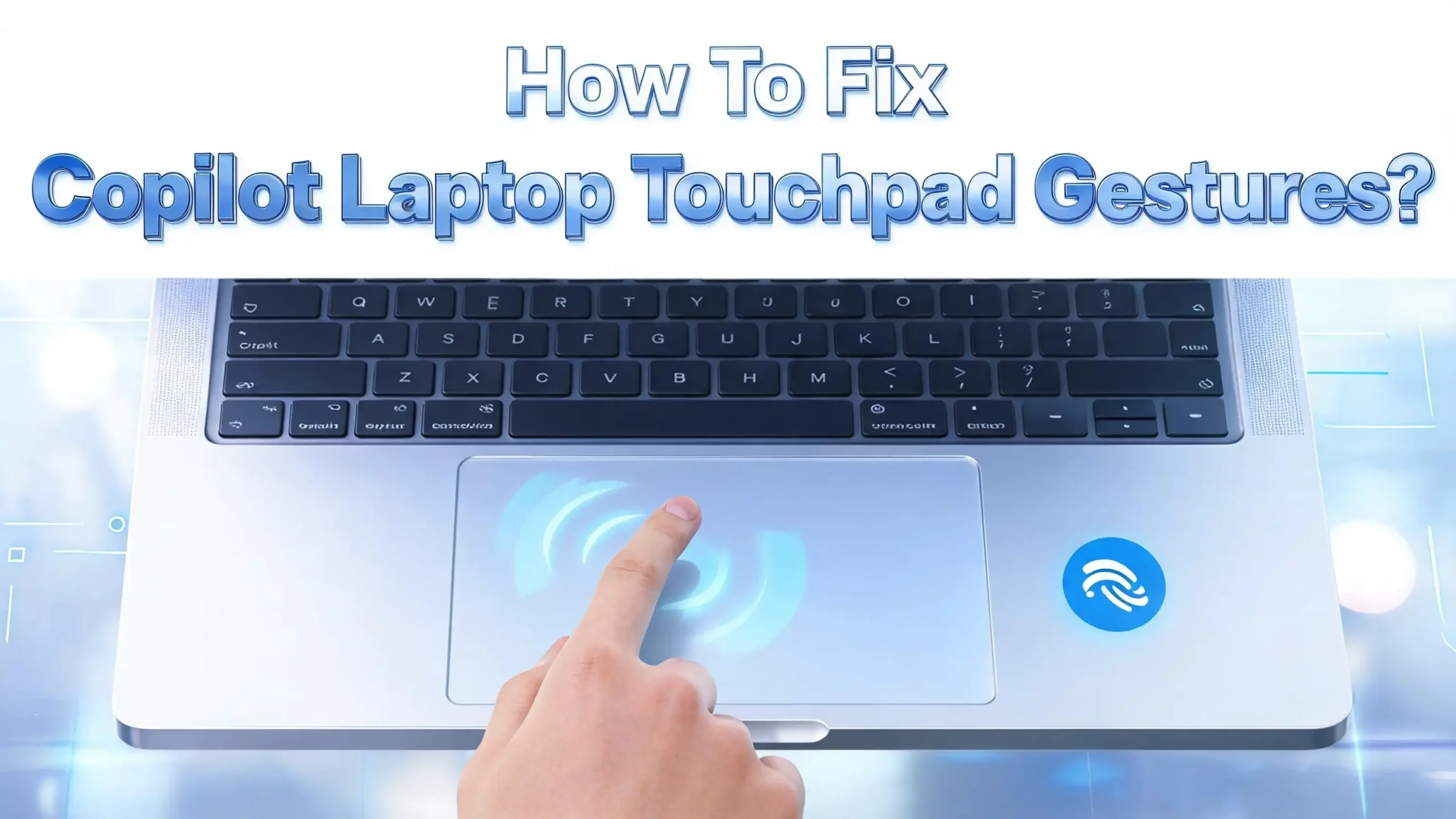
You just swiped three fingers up on your Copilot laptop touchpad, and nothing happened. The gesture that used to show all open windows now does absolutely nothing. You try a two finger scroll, and the page stays frozen in place. Sound familiar? You are not alone. Thousands of Copilot laptop users deal with broken or unresponsive touchpad gestures every single day.
Touchpad gestures are one of the most important features on any modern laptop. They let you scroll, zoom, switch apps, and access desktops without ever touching a mouse. When they stop working on your Copilot laptop, your entire workflow slows down.
The good news is that most touchpad gesture problems have simple fixes. This guide walks you through every proven solution from quick settings checks to driver reinstalls and registry edits. By the end, you will know exactly how to get your Copilot laptop touchpad gestures back to full working order.
Key Takeaways
- Check your touchpad settings first. Many gesture problems start with a simple toggle that got switched off. Open Settings, go to Bluetooth & devices, then Touchpad, and confirm that all gesture options are enabled. This one step fixes the issue for a surprising number of users.
- Update or reinstall your touchpad driver. Outdated or corrupted drivers are the most common cause of broken gestures on Copilot laptops. Use Device Manager or Windows Update to install the latest driver for your touchpad hardware.
- Your touchpad must be a Precision Touchpad. Windows 11 advanced gestures like three finger and four finger swipes only work on Precision Touchpads. If your laptop has an older touchpad type, those gesture settings will not appear at all.
- A full touchpad settings reset can fix hidden conflicts. Windows 11 lets you reset all touchpad settings and gestures to their factory defaults. This clears any broken configurations without affecting the rest of your system.
- Run the Hardware and Devices troubleshooter. Windows has a built in diagnostic tool that scans for touchpad hardware problems and applies automatic fixes. You can launch it with a single command in the Run dialog.
- BIOS settings and Windows updates both matter. A disabled touchpad in BIOS or a recent Windows update that overwrote your driver can silently break all gestures. Check both of these if other solutions do not work.
Verify That Touchpad Gestures Are Enabled in Settings
The first thing you should do is check whether your touchpad gestures are actually turned on. Windows 11 gives you individual controls for each type of gesture, and a single toggle in the wrong position can disable everything.
Open the Settings app by pressing Windows + I on your keyboard. Click on Bluetooth & devices in the left panel. Then click on Touchpad on the right side. You will see a master toggle at the top that turns the entire touchpad on or off. Make sure this toggle is set to On.
Below the main toggle, you will find sections for Taps, Scroll & zoom, Three finger gestures, and Four finger gestures. Expand each section and verify that every option is enabled. Pay special attention to the three finger and four finger gesture dropdowns. These should be set to actions like “Switch apps” or “Switch desktops” rather than “Nothing.”
Sometimes a Windows update or a third party application changes these settings without your knowledge. A quick check here saves you hours of troubleshooting. If the settings look correct but gestures still do not work, move on to the next solutions. If you do not see the gesture options at all, your touchpad may not be recognized as a Precision Touchpad, which we cover later in this guide.
Update Your Touchpad Driver Through Device Manager
An outdated or corrupted touchpad driver is the single most common reason for broken gestures on Copilot laptops. Drivers act as the communication bridge between your hardware and Windows. When that bridge breaks, gestures stop responding.
To update your driver, right click the Start button and select Device Manager. Look for your touchpad under two possible categories: Mice and other pointing devices or Human Interface Devices. Right click on your touchpad device and select Update driver. Choose Search automatically for drivers and let Windows find the latest version.
If Windows says your driver is already up to date, you can still try a manual approach. Visit your laptop manufacturer’s support website, enter your exact model number, and download the latest touchpad driver directly. This often gets you a newer driver than what Windows Update provides.
Pro tip: After updating the driver, restart your laptop completely. Some driver changes do not take effect until after a full reboot. If the update did not fix the problem, try the reinstall method described in the next section. A fresh driver installation removes corrupted files that an update might leave behind.
Reinstall the Touchpad Driver Completely
Sometimes updating is not enough. Corrupted driver files can persist even after an update, and the only way to clear them is a full reinstall. This forces Windows to download and install a clean copy of the driver from scratch.
Open Device Manager again by right clicking the Start button. Find your touchpad under Mice and other pointing devices or Human Interface Devices. Right click on the touchpad device and select Uninstall device. A dialog box will appear. Check the box that says “Attempt to remove the driver for this device” if it is available. Click Uninstall.
Your touchpad will stop working temporarily. Do not panic. Restart your laptop. When Windows boots up, it will automatically detect the touchpad hardware and install a fresh driver. After the restart, go back to Settings and check if your gesture options have returned.
If Windows does not install the driver automatically, connect an external mouse, open Windows Update, and click Check for updates. You can also look under Advanced options and then Optional updates for any pending driver installations. This method has a high success rate because it eliminates any corrupted files from the previous installation.
Check If Your Laptop Has a Precision Touchpad
Not all touchpads are created equal. Windows 11 advanced gestures, including three finger swipes, four finger taps, and custom gesture configurations, only work on Precision Touchpads. If your Copilot laptop uses an older or non precision touchpad, those gesture options simply will not appear in Settings.
To check your touchpad type, open Settings and go to Bluetooth & devices then Touchpad. If you see a message that says “Your PC has a precision touchpad,” you are good. Full gesture support is available, and the problem lies elsewhere.
If that message is missing, your touchpad does not meet the Precision Touchpad standard. In this case, your gesture options will be limited. Some manufacturers provide their own touchpad software, like Synaptics or ELAN, that offers gesture functionality outside of the Windows settings. Check your laptop manufacturer’s website for any proprietary touchpad utilities.
You can also look in Device Manager for your touchpad model. A Precision Touchpad will typically show as “HID compliant touchpad” or carry a brand name like Synaptics or ELAN with Precision Touchpad support. Knowing your touchpad type prevents you from chasing fixes that will never work on your specific hardware.
Reset Touchpad Settings to Factory Defaults
If your gestures broke after you changed some settings or installed new software, a full reset of your touchpad configuration can fix the problem instantly. This returns every touchpad setting and gesture assignment to its original default state.
Open Settings by pressing Windows + I. Go to Bluetooth & devices and click on Touchpad. Click on the Touchpad section at the top to expand it. You will see a Reset button at the bottom. Before you can click Reset, you must first turn off the touchpad toggle. The Reset button stays grayed out while the touchpad is active.
Turn the touchpad toggle off, then click Reset. Windows will automatically turn the touchpad back on with all settings restored to their defaults. Every gesture assignment, sensitivity level, scroll direction, and tap behavior goes back to the factory configuration.
This is a safe and quick fix that does not affect any other part of your system. It only resets touchpad related settings. After the reset, you can customize your gestures again from the same Settings page. If the problem persists after a reset, the issue is likely deeper than a configuration conflict.
Run the Hardware and Devices Troubleshooter
Windows includes a built in troubleshooter that can detect and fix hardware problems automatically. This tool scans your touchpad hardware, checks for driver issues, and applies fixes without manual intervention.
To launch it, press Windows + R to open the Run dialog. Type the following command and press Enter: msdt.exe -id DeviceDiagnostic. This opens the Hardware and Devices troubleshooter directly. Click Next and let it scan your system.
The troubleshooter will identify any problems with your touchpad hardware or driver configuration. If it finds issues, it will offer to apply fixes automatically. Accept all recommended fixes and restart your laptop afterward.
This method works well for problems caused by misconfigured hardware settings or minor driver conflicts. It is quick, safe, and requires no technical knowledge. If the troubleshooter reports that it found and fixed issues, test your gestures immediately after the restart. Many users find that this simple step resolves their touchpad gesture problems entirely.
Check for Windows Updates That Affect Touchpad Drivers
Windows updates sometimes replace working touchpad drivers with generic versions. A recent update might have overwritten your manufacturer’s driver with a Microsoft default driver that does not support all gesture features.
Open Settings and go to Windows Update. Click Check for updates and install any available updates. After installing updates, also check Advanced options and then Optional updates. Touchpad driver updates often appear in the optional updates section rather than the main update list.
If your gestures stopped working right after a Windows update, you may need to roll back the driver. Open Device Manager, find your touchpad, right click it, and select Properties. Click the Driver tab and then click Roll Back Driver if the button is available. This returns you to the previous working driver version.
Rolling back is only possible if Windows kept a copy of the previous driver. If the button is grayed out, you will need to download the correct driver from your laptop manufacturer’s website and install it manually. Always check the release notes of recent Windows updates to see if touchpad related changes were included.
Verify Touchpad Settings in Your Laptop BIOS
Your laptop’s BIOS contains hardware level settings that Windows cannot override. If the touchpad is disabled in BIOS, no amount of driver updates or settings changes will fix your gesture problems.
To access BIOS, restart your laptop and press the BIOS key during startup. The key varies by manufacturer. Common keys include F2, F10, Delete, or Esc. Check your laptop’s documentation if you are unsure which key to press.
Once inside BIOS, look for a section related to Advanced settings, Devices, or Internal Pointing Device. Find the touchpad option and make sure it is set to Enabled. Save your changes and exit BIOS. Your laptop will restart with the touchpad hardware fully activated.
BIOS level touchpad disabling is rare but does happen. It can occur after a BIOS update, a hardware reset, or accidental changes. Some laptops also have a physical function key combination, like Fn + F6 or Fn + F9, that toggles the touchpad on and off. Try pressing this key combination if you notice a touchpad icon on one of your function keys.
Disable Conflicting Third Party Software
External mouse software, touchpad utilities, and certain system optimization tools can interfere with your Copilot laptop’s touchpad gestures. These programs sometimes override the default Windows touchpad driver and disable native gesture support.
Common culprits include Synaptics custom software, Logitech Options, Razer Synapse, and third party mouse enhancement tools. Open Task Manager by pressing Ctrl + Shift + Esc and check the Startup tab. Disable any mouse or touchpad related programs temporarily. Restart your laptop and test your gestures.
If gestures start working after you disabled a specific program, that program was causing the conflict. You can either keep it disabled, update it to the latest version, or adjust its settings to stop it from overriding Windows touchpad behavior.
You should also check for virtual touchpad drivers installed by remote desktop applications or virtualization software. These virtual devices can confuse Windows and prevent it from sending gesture data to the correct hardware driver. Remove any virtual touchpad entries from Device Manager if you find them under Mice and other pointing devices.
Customize Three Finger and Four Finger Gesture Actions
After you fix your gesture issues, you should know how to customize them for maximum productivity. Windows 11 lets you assign specific actions to three finger and four finger swipes and taps on Copilot laptops with Precision Touchpads.
Open Settings, go to Bluetooth & devices, and click Touchpad. Scroll down to find Three finger gestures and Four finger gestures. Expand each section to see the available options.
For three finger swipes, you can choose from options like Switch apps and show desktop, Switch desktops and show desktop, or Change audio and volume. For three finger taps, you can set the action to open Search, Notification center, Play/Pause media, or act as a Middle mouse button.
Four finger gestures offer similar options. You can assign four finger swipes to switch desktops and four finger taps to open specific features. Each dropdown menu gives you several preset actions, and you can also choose Custom to create your own gesture assignments.
Spending a few minutes here can dramatically improve how you interact with your Copilot laptop. Set the gestures that match your daily workflow and you will save time on every task. If you ever want to undo your custom settings, use the Reset button described earlier in this guide.
Use System File Checker to Repair Corrupted System Files
Corrupted Windows system files can break touchpad functionality in unexpected ways. The System File Checker (SFC) tool scans and repairs damaged system files that might be preventing your touchpad gestures from working.
Open Command Prompt as Administrator. Right click the Start button and select Terminal (Admin) or Command Prompt (Admin). Type the following command and press Enter: sfc /scannow. The scan takes several minutes to complete. Do not close the window until it finishes.
If SFC finds corrupted files, it will attempt to repair them automatically. After the scan completes, restart your laptop and test your touchpad gestures. If SFC reports that it found issues but could not fix all of them, run the DISM command first: DISM /Online /Cleanup-Image /RestoreHealth. Wait for this to finish, then run sfc /scannow again.
System file corruption can happen after a failed update, a sudden power loss, or malware activity. The SFC and DISM combination repairs the underlying system infrastructure that your touchpad driver depends on. This fix addresses problems that driver updates and settings changes cannot reach.
Perform a Clean Boot to Isolate the Problem
If none of the previous solutions work, a clean boot helps you identify exactly what is causing the conflict. A clean boot starts Windows with only essential Microsoft services, disabling all third party software.
Press Windows + R, type msconfig, and press Enter. In the System Configuration window, click the Services tab. Check the box that says Hide all Microsoft services, then click Disable all. Next, click the Startup tab and select Open Task Manager. Disable all startup items in Task Manager.
Close Task Manager and click OK in System Configuration. Restart your laptop. In this clean boot state, test your touchpad gestures. If gestures work normally, a third party service or startup program is causing the conflict.
To find the specific culprit, re enable services and startup items in small groups. Restart after each group and test your gestures. When gestures break again, the last group you enabled contains the problematic software. Narrow it down further until you find the exact program. Once identified, you can update, reconfigure, or remove that software permanently.
Remember to return your System Configuration settings back to normal after troubleshooting. Go back to msconfig, select Normal startup on the General tab, and restart your laptop.
Contact Your Laptop Manufacturer for Advanced Support
If you have tried every solution in this guide and your Copilot laptop touchpad gestures still do not work, the problem might be hardware related. A faulty touchpad sensor, a loose ribbon cable, or a hardware defect can prevent gestures from registering properly.
Contact your laptop manufacturer’s support team directly. Provide them with your laptop model, the Windows version you are running, and a description of everything you have already tried. This information helps them skip basic troubleshooting and focus on deeper diagnostic steps.
Most Copilot laptop manufacturers, including Microsoft Surface, Dell, HP, Lenovo, and ASUS, offer online support portals, live chat, and phone support. If your laptop is still under warranty, hardware repairs or replacements will typically be covered at no cost.
Before contacting support, run a built in hardware diagnostic if your laptop offers one. Many manufacturers include diagnostic tools accessible from the BIOS or boot menu. A hardware diagnostic report gives the support team concrete data to work with and speeds up the resolution process. Touchpad hardware failures are uncommon but do happen, and professional repair is the only solution in those cases.
Frequently Asked Questions
Why did my Copilot laptop touchpad gestures suddenly stop working?
The most common causes are a Windows update that replaced your touchpad driver, a settings change, or a third party software conflict. Start by checking your touchpad settings under Bluetooth & devices in the Settings app. Then update or reinstall your touchpad driver through Device Manager. These two steps resolve the majority of sudden gesture failures on Copilot laptops.
How do I know if my laptop has a Precision Touchpad?
Open Settings, go to Bluetooth & devices, and click Touchpad. If your touchpad is a Precision Touchpad, Windows will display a message confirming this at the top of the touchpad settings page. Precision Touchpads support all advanced gestures including three finger and four finger swipes and taps. Without a Precision Touchpad, many gesture options will be missing.
Can I use touchpad gestures with an external mouse connected?
Yes, but you need to enable this in your settings. Go to Settings, then Bluetooth & devices, then Touchpad. Expand the top Touchpad section and make sure the option “Leave touchpad on when a mouse is connected” is checked. If this setting is off, Windows disables the touchpad entirely whenever it detects an external mouse, which also disables all gestures.
What should I do if the touchpad driver keeps reverting after updates?
Some Windows updates overwrite manufacturer drivers with generic Microsoft versions. To prevent this, download the latest driver from your laptop manufacturer’s website and install it manually. You can also use Group Policy or registry settings to block Windows Update from replacing specific drivers, though this requires advanced configuration.
Will resetting touchpad settings delete my other Windows settings?
No. The touchpad reset only affects touchpad related settings and gesture assignments. It does not change any other Windows configurations, installed programs, or personal files. After the reset, your touchpad returns to its factory default behavior, and you can customize the gestures again from the same Settings page.
How do I enable touchpad gestures if the options are grayed out?
Grayed out gesture options usually mean the touchpad driver is not installed correctly or the touchpad is not recognized as a Precision Touchpad. Try reinstalling the touchpad driver through Device Manager. If the options remain grayed out, download and install the correct driver from your laptop manufacturer’s support page. A proper driver installation should restore full access to all gesture settings.

Hi, I’m Simmy — the founder and voice behind AI Gadgets Insight. I’m a tech enthusiast who loves exploring the latest AI gadgets, smart devices, and innovative tech products. I started this blog to help people make smarter tech choices with honest reviews, easy-to-follow comparisons, and practical buying guides.