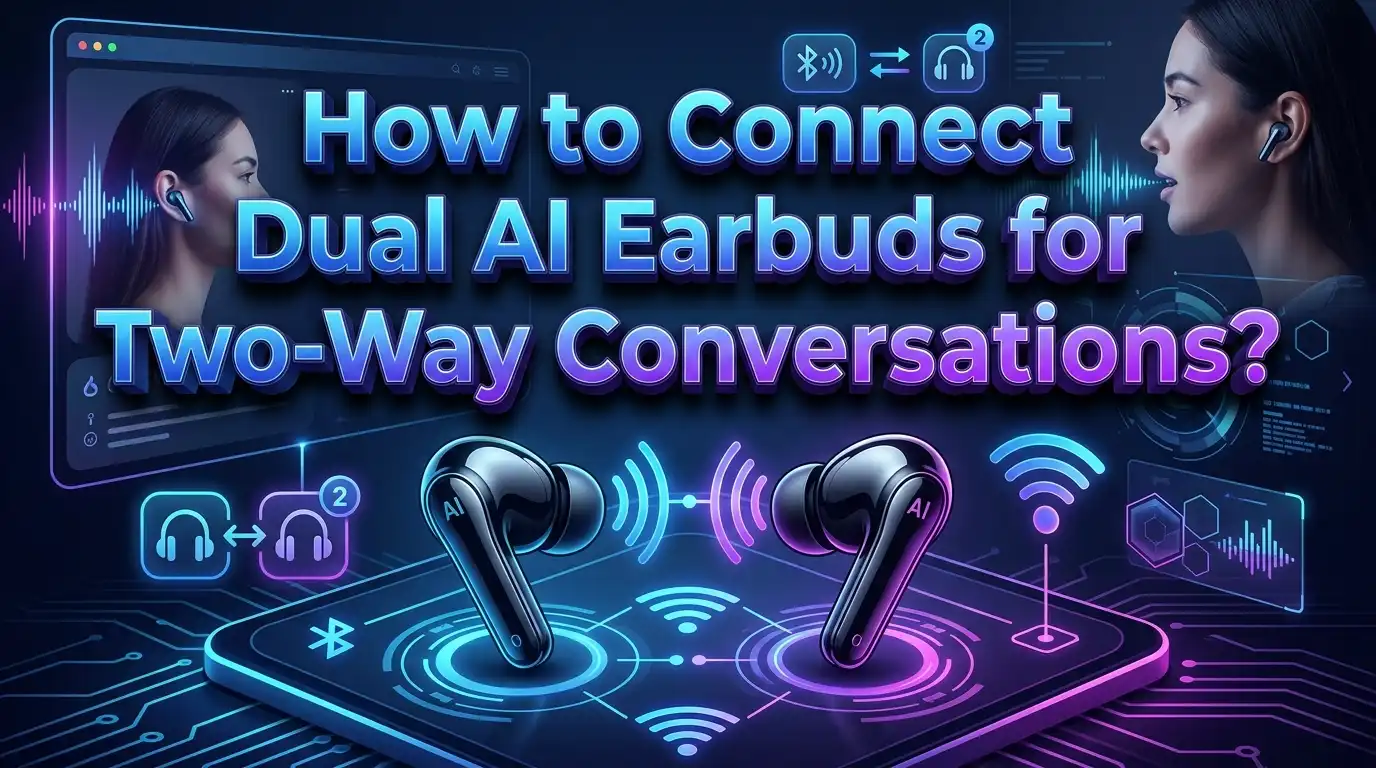
How to Connect Dual AI Earbuds for Two Way Conversations?
If your dual AI earbuds refuse to work the way you expected, you are not alone. Many people pair the earbuds to the phone, hear normal audio, and then get stuck when the two way conversation feature does not start.
The good news is that the fix is usually simple. Most dual conversation earbuds need the right app, the right permissions, the right language setup, and the right conversation mode before they can translate both speakers correctly.
This guide explains the full process in clear steps. You will learn how to connect both earbuds, choose the correct mode, improve voice pickup, reduce delay, and fix the most common mistakes.
In a Nutshell
- Charge both earbuds first and install the official app before pairing. Many connection problems happen because users pair through the phone settings only and skip the companion app. Several setup guides show that Bluetooth pairing is only one part of the full setup.
- Give the app every needed permission at the start. The most common ones are Bluetooth, microphone, location, and mobile data access. If one permission is blocked, the earbuds may connect for music but fail for live conversation. That is a very common hidden issue.
- Choose the correct conversation mode for your situation. Some earbuds offer one earbud per person mode. Others use one earbud plus phone speaker mode. Both work, but each has a different setup flow. Pros and cons matter here because the best mode depends on noise, privacy, and speed.
- Stay close to the phone and speak clearly. Official support pages keep repeating the same advice for a reason. The microphone must hear speech well. A noisy room, a distant phone, or two people talking at once can ruin the result. Better input gives better translation.
- Use online mode for best results and offline packs as backup. Cloud translation often gives better context and smoother conversation. Offline language packs help when travel or weak signal gets in the way. Pros and cons are simple. Online is usually smarter. Offline is usually safer when the network fails.
- If pairing fails, reset the connection path instead of repeating the same tap. Put both earbuds back in the case, reconnect through the app, check languages again, and restart the microphone path. Small resets fix many big headaches.
What Dual AI Earbuds Actually Do in Two Way Conversations
Dual AI earbuds are different from normal Bluetooth earbuds. A regular pair plays sound. A dual conversation pair captures speech, sends it to a translation engine, and returns translated audio to the listener. This happens in near real time, which is why the app, microphone, and network connection matter so much.
In many systems, each person uses one side of the setup. Sometimes each person wears one earbud. In other systems, one person wears the earbud while the second person speaks near the phone. The phone then acts like the second audio channel. That is why people often feel confused. The earbuds alone are only part of the system. The phone is often the real control center.
This also explains why music may work even when conversation mode does not. Music playback needs a simple Bluetooth link. Two way conversation needs speech pickup, app routing, language selection, and sometimes internet access. If one of those parts is missing, the earbuds seem connected but the translation loop breaks.
The main benefit is privacy and speed. You can hear the translated reply in your ear instead of staring at a phone screen. The main limit is that these earbuds still depend on clean voice input. They help a lot, but they still need good setup and good speaking habits.
What You Need Before You Start Connecting
Start with a full charge. Many earbuds enter pairing mode only when both sides have enough power and the charging case works properly. If one bud has low battery, the app may fail to detect dual mode even though one side appears connected.
Next, install the official app for your earbuds. This part is easy to skip, but it matters. Several support guides show that the app is where language settings, permissions, conversation mode, and activation steps happen. Pairing in the phone settings alone is often not enough.
You also need to update the phone basics. Turn on Bluetooth. Confirm mobile data or Wi Fi works. Make sure your phone system is current enough for the app and live translation features. Google states that translation with earbuds needs an eligible Android device, Google account access, and in many cases an internet connection.
Now check your environment. Use a quiet room for the first setup. Keep the phone close. Ask only one person to speak at a time. This may sound basic, but it saves time. A clean test environment tells you whether the problem is setup or background noise.
Pros of preparing first are fewer setup errors, faster pairing, and better first use results. Cons are only a small time cost up front. In practice, that small setup effort saves much more time later.
How to Pair Both Earbuds with Your Phone the Right Way
The safest first step is to place both earbuds in the case, open the lid, and let them enter pairing mode together. Many brands power on automatically when removed from the case, and some show a flashing light to confirm pairing mode.
After that, open the official app first if your model requires it. Some earbuds ask you to begin inside the app, then confirm the Bluetooth link in the phone settings, and then return to the app to finish the connection. This extra step often feels unnecessary, but it is how many dual translation systems bind the earbuds to the app correctly.
If your earbuds use a more open Android path, you may also start in the phone Bluetooth menu, connect the earbuds, and then launch the translation app. Google explains a similar flow for earbuds used with Google Translate, where the earbuds must already be connected before conversation mode begins.
Do not rush this stage. Wait until the app clearly shows that both earbuds are linked. If the app shows only one side, put both earbuds back in the case and repeat the process. A half connected setup is one of the top reasons dual mode fails later.
Pros of app first pairing are better feature detection and fewer missed settings. Cons are that the setup takes a little longer. Pros of phone first pairing are speed and familiarity. Cons are that some advanced translation features may not activate until the app takes control.
How to Set Permissions and Language Choices Without Missing a Critical Step
Once the earbuds connect, the next job is permissions. Many conversation failures are really permission failures. Support pages for translation earbuds mention Bluetooth, microphone, storage, wireless data, and location access during setup. If microphone or Bluetooth access is blocked, conversation mode may stay silent even though the earbuds seem connected.
Open the app settings and allow every permission the app requests for live conversation. This is especially important on Android phones that ask for each permission separately. Some apps also need background activity or battery optimization exceptions to keep the translation session active. While that detail varies by brand, the safe rule stays the same. If the app asks for access that supports audio routing or connectivity, allow it.
Then choose the languages carefully. Select your language on one side and the other speaker’s language on the other side. In dual ear mode, some systems assign one language to the left bud and the other language to the right bud. In phone plus earbud mode, the app may ask which language belongs to the bud wearer and which belongs to the phone speaker.
Check the languages one more time before testing. Google support also advises users to confirm both input and output languages if translations seem wrong. A wrong language choice can look like a connection issue when the real problem is simple mislabeling.
How to Use One Earbud Each for Face to Face Conversation
One of the most useful methods is the one earbud each setup. In this mode, each person wears one earbud and the app routes each translation to the other person. Scanmarker describes this as dual ear mode, where the app detects who is speaking and sends the translated result into the other person’s earbud.
To make it work, first confirm that both earbuds are active in the app. Then assign the correct language to each side. Give one earbud to the first speaker and the other earbud to the second speaker. Ask each person to speak one short sentence at a time during the first test. That makes it easier to spot routing problems early.
This method feels natural once it is running well. It gives both people privacy and keeps the sound close to the ear. It also reduces the need to pass the phone back and forth. That is why many travelers and language learners prefer it for steady one to one talk.
Pros are privacy, smoother rhythm, and a more natural back and forth flow. Cons are that both earbuds must stay connected well, and clean voice detection matters more. In a loud place, the app may struggle to decide who is speaking. If that happens, switch to a more controlled mode instead of forcing the dual ear method to work.
How to Use One Earbud Plus Phone Speaker Mode
The second common method is one earbud plus phone speaker mode. In this setup, one person wears the earbud and the other person speaks near the phone. The app translates the earbud wearer’s speech through the phone speaker, and it sends the phone speaker’s translated reply into the earbud. Google Pixel Buds and Scanmarker both describe this basic conversation flow in their own systems.
The setup is simple. Put the earbud in one ear. Open the app’s conversation screen. Choose each person’s language. Then speak from the earbud side, release or pause if your system needs it, and let the phone read the translation aloud. The second person then speaks near the phone microphone, and the translated response returns through the earbud.
This method works well when only one person wants private audio or when you do not want to hand over a second earbud. It is also easier for first time users because the phone screen shows what is happening. That makes troubleshooting faster.
Pros are simple setup, easier visual control, and fewer routing errors. Cons are lower privacy for the phone speaker, more dependence on the phone microphone, and less natural flow in very noisy places. If your first dual ear attempt fails, this is often the best fallback method.
How to Improve Accuracy, Speed, and Natural Flow
Good translation starts with good audio. Google support suggests staying close to the audio source, asking the speaker to talk louder and slower, and using a quiet environment with one person speaking at a time. Those tips may feel obvious, but they are some of the most effective fixes you can apply in seconds.
Keep sentences short during live talk. Short phrases give the engine less to guess and less to buffer. That reduces delay and makes the reply sound more natural. If people speak in long, fast bursts, the system has more room for mistakes. Simple speech beats perfect grammar in live translation.
Phone position matters too. Keep the phone between both speakers when you use phone plus earbud mode. In dual ear mode, keep the phone close enough to both people that the app can maintain a steady Bluetooth and data connection. If the phone sits in a bag or across the room, delay and dropouts become more likely.
Pros of slow and clear speech are better accuracy and faster correction when something goes wrong. Cons are that the talk may feel less spontaneous at first. That tradeoff is worth it during setup and in important conversations. Once the system proves stable, you can talk more naturally and see how much speed it can handle.
How to Fix Earbuds That Pair but Do Not Start the Conversation Feature
This is one of the most common problems. The earbuds connect for audio, but the translation screen does nothing. Start by checking the app permissions again. If the microphone is blocked, the system cannot capture speech. If Bluetooth access is limited, the earbuds may not route translated audio correctly.
Next, confirm that you opened the right mode. Many apps have separate screens for music, calls, recording, and conversation translation. If you stay in the wrong tab, the earbuds appear connected but the live talk feature never begins. Support guides for earbuds and Google Translate both show that conversation mode must be selected directly before translation starts.
If that still fails, reset the session. Put the earbuds back in the case, close the case, remove them again, and reconnect through the app. Then restart the phone app and return to the conversation screen. A clean restart often fixes a stuck audio route or a failed app handshake.
Do one change at a time. If you change Bluetooth, app settings, language settings, and phone audio output all at once, you will not know what fixed the issue. A calm reset path is faster than random tapping.
How to Fix Bad Audio, Wrong Language Output, and Mic Problems
If the audio is weak or incorrect, start with the language check. Google support specifically says to verify the selected input and output languages. The wrong language pair can produce strange or empty translations, even when the audio path is fine.
Then test microphone pickup. In phone plus earbud mode, let the second speaker stand closer to the phone and speak clearly. In one earbud each mode, reduce room noise and ask speakers to take turns. If multiple voices overlap, the system may capture mixed speech and return poor output.
If translated audio comes out of the wrong place, go back to the app conversation screen and restart the route. Some systems require a tap on the earbud icon or phone icon to control who is speaking and where the sound goes. That step is easy to miss.
Also inspect the simple physical issues. Clean the microphone openings. Refit the earbud. Keep the phone closer. Toggle the microphone off and on if your app allows it. Google includes that toggle as a troubleshooting step. Many audio problems are really capture problems, not translation problems.
Pros of this step by step audio check are speed and clarity. Cons are only that it feels repetitive. Still, these simple checks solve a large share of live conversation errors.
How to Handle Internet Needs, Offline Packs, and Updates
Most AI earbuds work best with an active internet connection because cloud translation can process context and return more natural output. Soundcore states that real time AI translation usually performs best with a stable connection. Google also notes that some translation features need internet access unless language packs are downloaded in advance.
That does not mean you are stuck without signal. Google Translate lets you download languages for offline use. You can open the Translate app, choose a language, and download it to the device before travel or a poor signal situation. This is a smart backup even if you expect to stay online.
Keep your app and language packs updated as well. Google provides options to update downloaded languages, and outdated packs can lower quality. In the same way, many earbud brands improve translation or connection behavior through app side updates over time.
Pros of online mode are better context, broader support, and stronger accuracy. Cons are dependence on signal and mobile data. Pros of offline packs are reliability during travel and faster access when signal is poor. Cons are that support can be more limited and less flexible. The best plan is simple. Use online mode first and keep offline packs ready as backup.
Best Practices for Daily Use So the Problem Does Not Come Back
Build a repeatable setup habit. Charge the earbuds, open the official app, confirm permissions, and check the language pair before every important conversation. This takes less than a minute once you are used to it, and it prevents most repeat issues.
Use the right mode for the setting. Choose one earbud each mode for private, calm, one to one talk. Choose phone plus earbud mode for first time use, louder spaces, or situations where only one person wants an earbud. The mode matters as much as the connection itself.
Keep expectations realistic. Live translation is fast, but it is not magic. Even official support pages remind users to speak slowly, stay in quiet places, and allow a little delay. If you treat the earbuds like a smart communication tool instead of perfect human interpretation, you will get better results and less frustration.
Finally, test before you need them. Run one short conversation at home before travel, class, or work use. That one small practice round can reveal a blocked permission, missing language pack, or unstable connection before it matters. That is the easiest problem solving tip in this entire guide.
FAQs
A few common questions come up again and again. The answers below can help if you want a quick fix without rereading the full guide.
Do both people need to wear an earbud?
No. Many systems support two methods. One method gives one earbud to each person. The other method lets one person wear the earbud while the second person speaks near the phone. Both methods are described in current support guides.
Why do my earbuds connect for music but not for translation?
Music uses a basic Bluetooth audio link. Translation needs more. It usually needs the official app, microphone permission, the correct conversation mode, and sometimes an internet connection. If one part is missing, music can work while conversation mode fails.
Can I use dual AI earbuds without internet?
Sometimes yes, but support varies. Google Translate allows downloaded language packs for offline use, and that helps in low signal situations. Still, many real time AI translation features work best online for stronger context and smoother replies.
What is the easiest setup for beginners?
Phone plus earbud mode is usually easiest because the phone screen shows the language pair, microphone controls, and translated text or speech. Dual ear mode feels more natural later, but it can be harder to debug on the first try.
What should I do first if live translation feels inaccurate?
Move to a quieter place, confirm both languages, keep the phone closer, and ask each speaker to talk slowly and one at a time. These are the first troubleshooting steps official help pages recommend, and they often solve the problem fast.

Hi, I’m Simmy — the founder and voice behind AI Gadgets Insight. I’m a tech enthusiast who loves exploring the latest AI gadgets, smart devices, and innovative tech products. I started this blog to help people make smarter tech choices with honest reviews, easy-to-follow comparisons, and practical buying guides.