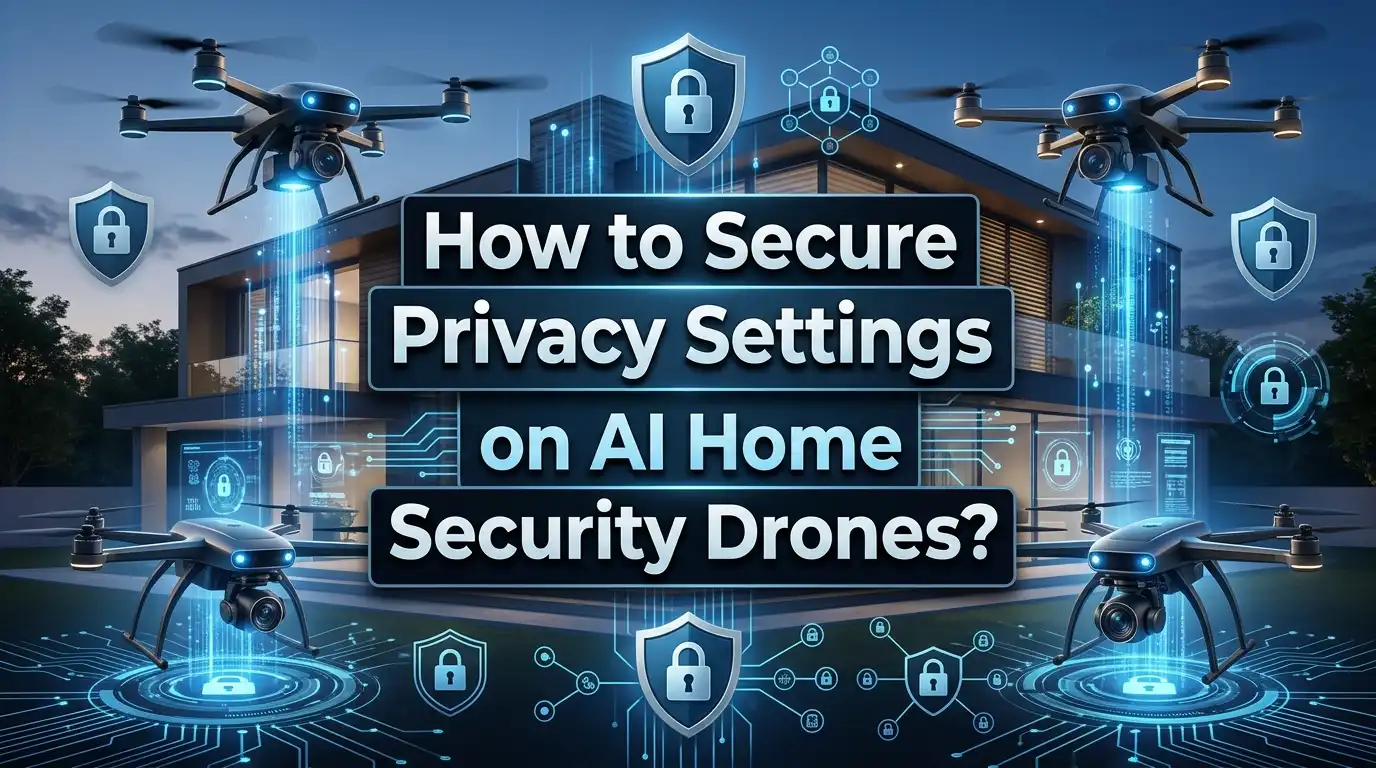
How to Secure Privacy Settings on AI Home Security Drones?
AI home security drones can give you a fast view of your home. They can patrol halls, check doors, and send alerts when they detect motion, sound, or unusual activity. That sounds useful, but it also creates a serious privacy job.
The FTC warns that connected cameras can be hacked if accounts, feeds, and networks are not secured. NIST also says many people keep using smart home devices for convenience even while feeling unsure about privacy and security.
This guide gives you a clear fix. You will learn how to lock down the account, limit cloud storage, control flight paths, reduce unnecessary data collection, and build a simple monthly privacy routine.
In a Nutshell
- Start with your account, not the camera. A strong password, an authenticator app, and device level screen lock stop many common account takeovers. Simple login steps create big protection.
- Put the drone on a separate smart device network. This reduces damage if one device gets hacked. NIST and the FTC both support network separation for connected home devices and cameras.
- Turn off features you do not need. If your drone can record audio, use facial recognition, or allow remote viewing all day, decide if each feature is truly useful. Less data collection means less privacy risk.
- Prefer local control when possible. EFF explains that local control and limited internet exposure reduce the amount of behavior data sent to outside companies. More local control usually means more privacy.
- Set clear no fly and no record zones. Bedrooms, bathrooms, work desks, and child play areas often need extra limits. A privacy safe path is often better than a full home patrol route.
- Review the legal side before outdoor use. If your drone flies outdoors and falls under FAA rules, Remote ID can broadcast identification and location information. You need to plan for both safety and privacy before you fly.
Know What Data Your Drone Collects
Before you change any setting, learn what the drone actually collects. Most AI home security drones can capture live video, recorded video, audio, motion events, flight maps, device logs, user account details, and sometimes AI labels such as person, pet, package, or unusual sound.
Some systems also store event times, room names, and the devices you use to log in. That means the privacy issue is bigger than the camera alone.
Open the app and read every privacy menu slowly. Look for data retention, voice capture, face or object recognition, remote access, cloud backup, shared access, and app analytics. If the app has a privacy dashboard, use it. If it does not, check the help page and user guide.
The FTC says buyers should confirm whether account data, live feeds, and archived video are encrypted. That advice fits drones very well because a mobile camera reveals more room details than a fixed unit.
Pros: this step gives you a full map of the risk. It also helps you find hidden settings that many users ignore.
Cons: setup menus can feel long, and some brands bury key options in submenus.
A good rule is this. If you do not know why the drone needs a feature, leave it off for now. Privacy works best when you reduce guesswork. Once you know the data path, every other privacy step becomes much easier.
Create a Privacy First Setup Plan
Do not unbox the drone and rush into patrol mode. Start with a home privacy plan. NIST says you should plan before you buy and make sure people in the home are comfortable with the device.
That matters even more with a flying indoor camera because it can move into spaces that feel more personal.
Write down three basic rules before first setup. First, decide where the drone may fly. Second, decide when recording is allowed. Third, decide who can view the feed. If children, guests, or roommates share the home, tell them these rules in plain language. Your privacy settings should match that agreement.
Now decide the purpose of the drone. If you only want it to check doors and windows while you are away, you do not need continuous indoor patrols. If you want a night check for one floor, you do not need full house mapping every hour. A narrow purpose creates safer settings.
Pros: a clear plan reduces over recording and cuts app clutter. It also lowers conflict inside the home.
Cons: this step takes a little time, and some people may want different comfort levels.
Mozilla has pointed out that flying indoor cameras raise special privacy concerns even when they include fixed paths and camera shielding at the dock. That is a strong reminder to set limits before convenience takes over. Good privacy starts before the first flight.
Lock Down the Main Account Before the First Flight
Your account is the master key. If the account is weak, every other privacy setting can fail. Start by changing any default login right away. Use a long unique password that you do not use anywhere else.
Then turn on two factor authentication with an authenticator app if the service supports it. The FTC, NIST, and Consumer Reports all recommend strong unique passwords and extra authentication for connected cameras and smart home tools.
Next, secure the phone or tablet that controls the drone. Use a screen lock, app lock if available, and biometric sign in only on your own device. Remove old phones and tablets from the trusted device list. Log out of every device you do not recognize.
Check for session management in the app. If you see active sessions, remote devices, or recent logins, review them once a week at first. Turn on login alerts if the service offers them. Fast alerts can stop quiet account abuse.
Pros: account hardening blocks common hacks and reduces the chance of silent spying through stolen credentials.
Cons: extra authentication adds one more step during sign in, and backup codes must be stored safely.
This one step solves many problems at once. It protects live viewing, stored clips, settings changes, and household permissions. If you do nothing else today, do this first.
Put the Drone on a Safer Home Network
A privacy safe drone needs a privacy safe network. The FTC says your router should use a strong password, firewall protection, current software, and modern wireless encryption.
It also suggests putting cameras on a separate network from computers and printers. NIST gives the same broad advice for smart home segmentation.
Create a separate network for smart devices if your router supports it. Many routers let you make a guest network or an IoT network. Put the drone there, along with other smart cameras and sensors.
Keep laptops, phones with banking apps, and work devices on your main network. This way, a weak smart device has fewer paths into your private files.
Change the router admin password too. Then check for automatic router updates. If your router supports device level internet rules, restrict the drone to the services it really needs. EFF also supports local control and tighter network rules for smart home privacy.
Pros: network separation reduces damage if one device is compromised. It also makes troubleshooting easier.
Cons: setup can feel technical, and some older routers offer limited controls.
This step matters more than most people think. Your drone may be smart, but your router decides how much of that smart behavior reaches the wider internet. A clean network boundary is one of the strongest privacy controls you can build at home.
Choose Local Storage or Shorter Cloud Retention
Now deal with storage. This is where many privacy leaks grow over time. If clips stay in the cloud for weeks or months, your home routine becomes a long data record. EFF argues that local control can reduce the amount of behavior data sent to third parties. The FTC also advises users to confirm encryption for archived videos and account data.
If your drone supports local storage, review how it works. Check whether clips stay on a memory card, local hub, or home server. Then confirm whether those clips are encrypted and whether the app still copies them to the cloud by default.
If cloud storage is required, set the shortest retention period that still fits your needs. Seven days is usually safer than thirty. Event based clips are safer than nonstop recording.
Also turn off cloud sharing features you do not use. Some apps create easy share links or long term archives that stay active longer than you expect. Delete old clips on a schedule.
Pros of local storage: better control, less outside data exposure, and fewer third party copies.
Cons of local storage: you must manage backups, and theft or hardware failure can erase evidence.
Pros of shorter cloud retention: easy access from anywhere and less manual work.
Cons of shorter cloud retention: your data still leaves home and may sit on company servers.
The best setting is the smallest useful setting. Keep only what helps you solve a real security need.
Turn Off Features You Do Not Truly Need
Many privacy problems are optional. Smart home apps often switch on extra features because they look helpful. That does not mean they fit your home.
NIST says to disable unused features and monitor privacy settings such as how long audio and video are saved or whether information is sent to the manufacturer.
Open the settings and look for microphone capture, continuous listening, voice control, face recognition, smart labels, cross device sharing, contact list access, location tracking, app analytics, crash reporting, and ad related data sharing.
Then turn off everything that does not help your main goal. If the drone only needs motion based alerts while you are away, you probably do not need indoor audio all day. If you never use voice commands, disable the microphone and assistant links.
Review mobile app permissions too. Many apps ask for contact access, photos, precise location, nearby devices, and background activity. Give only the minimum needed. A smaller permission set creates a smaller risk surface.
Pros: less data leaves the home, fewer background processes run, and alerts often become more accurate.
Cons: some convenience features stop working, and you may need to test which alerts still matter.
This method is simple and powerful. Every disabled feature is one less door into your private life. A privacy safe drone is rarely the most feature rich setup. It is the most intentional setup.
Build Safe Flight Paths and Private Zones
A fixed camera sees one slice of the home. A drone can see the whole layout. That is why flight path design is a privacy setting, not just a convenience setting. Mozilla notes that fixed flight paths and camera shielding at the dock help, but a flying camera still creates extra privacy concern inside the home.
Create a route that covers entry points first. Focus on doors, windows, garage access, and large common areas. Avoid bedrooms, bathrooms, changing areas, work screens, and places where children study or play unless there is a strong reason and full household consent.
If the app offers no fly zones or privacy zones, use them. If it allows room labels, keep the names neutral. “Hallway East” is better than “Baby Room.”
Test the path during the day and again at night. Watch what appears in the frame. You may find mirrors, family photos, computer screens, prescription labels, or paperwork that should stay out of view. Adjust height and angle until the route captures security areas without exposing too much of daily life.
Pros: fixed routes improve predictability, reduce surprise recording, and make the drone easier to trust.
Cons: narrower routes may miss some corners, and custom path setup takes patience.
A good route protects the home without touring the home. That single idea can save a lot of privacy trouble later. Your drone should watch for risk, not document your whole routine.
Limit Remote Viewing and Shared Access
Remote viewing is useful, but it is also a major privacy pressure point. The FTC says users should make sure remote feeds are encrypted and should lock down the devices and accounts that can view them. It also says some cameras offer different permission levels, which is ideal for shared access.
Start by asking a simple question. Do you need remote viewing all the time, or only while you travel? If the app lets you disable remote access, turn it off when you are home.
If you do need remote access, limit it to one or two trusted devices. Remove browser access if you never use it. Shared family access should use separate accounts, not one shared password.
Assign clear roles. One person can have full admin rights. Others can have view only access. Temporary house sitters should get time limited access that you remove right after the trip.
Consumer Reports also advises changing passwords and revoking access when someone moves out or when living situations change. That applies directly to drones.
Pros: limited access lowers misuse risk and gives you a clear log of who did what.
Cons: separate roles require a bit more setup, and some apps offer weak permission controls.
Shared access should be precise, short, and easy to remove. If your app cannot support that, keep the viewer list very small. Convenience should never outrank visibility into who can watch your home.
Protect Live Feeds and App Sessions
A live feed feels temporary, but it is still sensitive data. The FTC advises users to confirm that login pages and livestreams stay under secure web connections and encryption.
That matters for mobile apps too. If the service offers end to end encryption or feed encryption controls, turn them on and test them.
Avoid watching your drone feed on public Wi Fi. If you must check a feed while traveling, use your mobile connection or a trusted private network. Keep the drone app updated, and install it only from the official app store for your device.
Check whether the system supports trusted device approval, login history, or new device verification. These small tools help catch account misuse early. Mozilla also notes that some flying indoor camera systems added stronger sign in controls after public privacy criticism. That shows how important session protection has become.
Pros: feed protection makes remote checks safer and reduces the chance of silent viewing by strangers.
Cons: stronger encryption and session checks may add a few extra taps.
Treat the live feed like a front door key. It reveals who is home, what rooms look like, and what your routine is. That is too much to leave open through weak sessions or careless device use.
Manage Microphones, Speakers, and AI Alerts Carefully
Video gets most of the attention, but audio can expose even more private details. A drone microphone may capture family talks, health topics, financial issues, and private work calls.
If the device also has a speaker, two way audio can create another path for misuse. That is why you should review microphone and audio settings with extra care.
If your security plan does not depend on sound, turn off audio recording. If you need sound alerts, choose narrow triggers such as loud crash detection instead of constant audio capture. Then test false alerts.
AI labels can also create privacy issues. Person detected, child detected, crying detected, or unusual sound labels may look useful, but they can build a rich behavior profile over time.
NIST says users should monitor privacy settings and adjust storage and data sharing to their comfort level. That guidance fits audio and AI labels very well.
Pros of reduced audio use: less private speech is recorded, fewer false alerts, and smaller data volume.
Cons: you may miss useful sound evidence during a real event.
Pros of limited AI labels: fewer behavioral inferences and cleaner alerts.
Cons: you lose some search and automation features.
Keep only the signals that truly help you act. Good privacy does not mean zero function. It means the drone collects enough to protect the home and no more than that.
Keep Firmware Current and Plan for Resets
Old software creates easy openings. The FTC says camera makers release updates to fix bugs and security holes, and NIST recommends automatic updates whenever possible. Consumer Reports also stresses firmware updates for camera protection.
Turn on automatic updates for the drone, app, hub, and router. Then check once a month that updates are still working. If the product is old and no longer receives security updates, start planning a safer replacement. An unsupported flying camera should not stay inside a private home for long.
Also plan for resets and ownership changes. If you sell the drone, return it, move homes, or change household members, remove saved maps, stored clips, shared viewers, trusted devices, and linked cloud accounts.
Then perform a factory reset. If a roommate moves out or a relationship ends, rotate passwords and review access the same day. Consumer Reports specifically advises changing camera passwords when someone moves out.
Pros: regular updates fix known flaws, and clean resets stop old access from lingering.
Cons: updates can change menus, and resets require careful reconfiguration.
Privacy is not a one time setup. It is a maintenance habit. A secure drone today can become a weak point six months later if software, access lists, and household conditions change without review.
Follow the Legal Rules and Run a Monthly Privacy Audit
Privacy is not only a settings issue. It is also a legal and social issue. If your drone flies outdoors, local rules may apply, and FAA rules may apply too. The FAA says Remote ID allows a drone in flight to broadcast identification and location information that other parties can receive.
This matters for privacy because outdoor use can reveal where the control point is and where the drone is moving. So before you fly outside, decide whether outdoor patrols are worth the extra exposure. Also be mindful of neighbors.
Cameras and microphones should not point into another home or private yard without a clear legal basis. Indoor safety does not excuse outdoor overreach.
Now build a simple monthly audit. Review these items on the same day each month. Check who has access. Check storage length. Check microphone status. Check remote viewing. Check app permissions. Check updates. Check flight paths. Check whether any room now needs to become a no record zone. NIST research shows that people often feel unsure about what to do with smart home privacy. A repeatable checklist solves that problem.
Pros: a monthly audit catches slow privacy drift before it becomes a major issue.
Cons: it takes fifteen minutes of discipline.
FAQs
Is local storage always better than cloud storage for a home security drone
Local storage is often better for privacy because fewer copies of your footage leave the home. It also gives you more control over deletion. Still, it needs good encryption, secure backups, and physical protection. Cloud storage can be easier to manage, but it creates more exposure outside your home.
Should I turn off the microphone on my AI home security drone
If audio is not central to your security goal, turning it off is usually the safer choice. Audio can capture very private details that video may miss. If you keep it on, use narrow sound alerts and short retention periods.
Can I let family members share one login
That is not the best method. Separate accounts are safer because you can assign roles, track access, and remove one person without changing everything. Shared logins create confusion and reduce accountability.
Do I need to worry about privacy if my drone only flies indoors
Yes. Indoor drones can map rooms, capture family routines, record conversations, and expose sensitive areas such as desks, medicine cabinets, and child spaces. Indoor use may feel private, but it often creates the most detailed record of daily life.
How often should I review privacy settings
A monthly review is a strong habit. You should also review settings after app updates, household changes, router changes, and travel periods. Privacy settings often drift over time as new features appear or old devices stay trusted longer than they should.

Hi, I’m Simmy — the founder and voice behind AI Gadgets Insight. I’m a tech enthusiast who loves exploring the latest AI gadgets, smart devices, and innovative tech products. I started this blog to help people make smarter tech choices with honest reviews, easy-to-follow comparisons, and practical buying guides.