How To Reboot A Frozen AI Assistant?
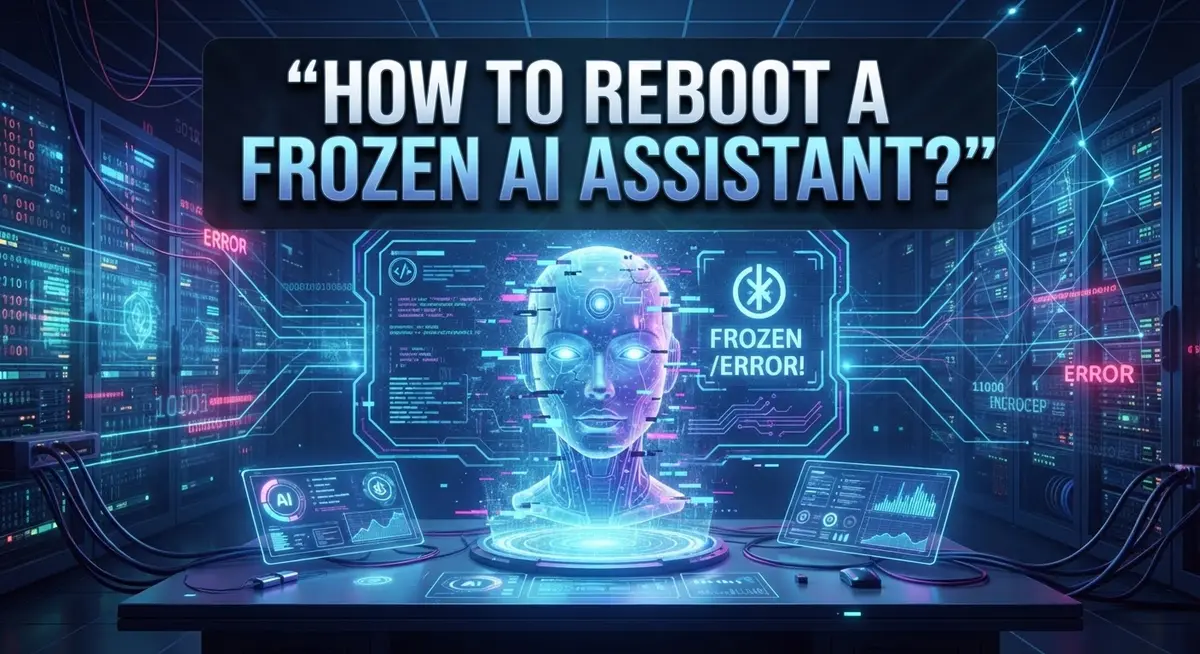
A frozen AI assistant can stop your workflow completely. One moment it’s responding, and the next it’s stuck, silent, or spinning endlessly. It’s frustrating, but it’s also fixable.
Whether your AI assistant is unresponsive on your phone, browser, or desktop app, there are clear steps you can take to get it running again.
Freezes usually fall into two categories: a soft lock (where the app stops responding but the system is fine) or a hard lock (where the issue goes deeper into the system level). Knowing the difference helps you choose the right fix fast.
This guide walks you through everything you need to know. You will learn how to identify why your AI assistant froze, how to perform a basic restart, and how to force a reboot when nothing else works.
You will also find tips on clearing cache, resetting context windows, and checking API connectivity. Plus, we cover the most common mistakes people make that cause freezes in the first place.
Let’s get your AI assistant back up and running.
In a Nutshell
Here is a quick summary of what you need to know:
-
Identify the type of freeze first. A soft lock means the app is unresponsive but your device is fine. A hard lock means the issue is at the system level.
-
Try a force restart on your device. Hold the power button for 5 to 15 seconds. On mobile, press volume up, then volume down, then hold the power button until the logo appears.
-
Clear your cache and cookies if the AI assistant freezes in a browser. You can also try switching to a different browser or disabling extensions.
-
Check API connectivity and reset the context window. A broken API connection or an overloaded context is a very common cause of freezing.
-
Use the “Instance Restart” option inside the AI assistant app when available. This triggers an automated restart without a full device reboot.
-
Keep your software updated and review app permissions regularly to prevent future freezes before they happen.
Why Does an AI Assistant Freeze in the First Place?
AI assistants freeze for several clear reasons. Understanding these causes helps you fix the problem faster and prevent it from happening again.
Memory and processing overload is the most common culprit. AI assistants process large amounts of data during conversations. When your context window fills up or the system runs too many tasks at once, the assistant stops responding. This is especially true on older devices or slower internet connections.
API connectivity issues cause freezes too. Your AI assistant needs to connect to servers to function. If your internet drops, the connection times out, or the API service experiences problems, the app becomes unresponsive. You might see a blank screen or a spinning loading indicator that never stops.
Cache and cookie buildup creates performance problems over time. Your browser or app stores data from previous sessions. Too much stored data slows everything down and can trigger freezes when the system tries to load old information.
Software bugs and outdated versions also lead to freezes. Older app versions may have glitches that newer updates fix. Running incompatible software versions between your device and the AI assistant causes conflicts.
Insufficient device resources matter as well. Running an AI assistant on an underpowered laptop or phone with limited RAM and storage space strains the system. Your device simply cannot handle the processing demands.
Browser extensions and conflicting programs can interfere with AI assistant performance. Some extensions block certain functions or consume system resources, causing the assistant to freeze or crash.
Permission issues prevent the AI assistant from accessing needed features. If you accidentally denied the app important permissions, it cannot work properly and may freeze during normal operations.
Soft Lock vs. Hard Lock: Identifying the Type of Freeze
A soft lock and a hard lock create very different problems. Understanding which one you have saves time and frustration.
A soft lock happens when your AI assistant stops responding, but your device works fine. You can still use your phone or computer normally. The app simply won’t accept commands or show new responses. Soft locks usually mean the application itself has crashed or become unresponsive. Your system is healthy. Only the AI assistant app needs attention.
A hard lock affects your entire device. Your phone or computer freezes completely. You cannot tap the screen, click the mouse, or press keys. Nothing responds at all. Hard locks indicate a system level problem, not just an application issue. Your device’s processor or memory is overwhelmed.
Here’s how to identify which freeze you have. Try clicking elsewhere on your screen or pressing the home button. If other apps respond and work normally, you have a soft lock. If absolutely nothing responds, you have a hard lock.
Soft locks usually need an app restart or cache clearing. Hard locks require a device restart using the power button method.
The distinction matters because soft locks have faster fixes. You can often restart just the AI assistant app without losing your entire workflow. Hard locks demand a full device restart, which takes longer but solves system level problems.
Check your device responsiveness first. This one simple test tells you exactly what type of freeze you’re dealing with. From there, you can follow the right recovery steps for your specific situation. Knowing the difference prevents you from trying the wrong solution.
Quick Fixes to Try Before a Full Reboot
When your AI assistant freezes, you don’t always need a full reboot. Try these quick fixes first to get things working again.
Start by closing the application completely. Force quit the app from your device settings or task manager. Wait about 10 seconds, then reopen it. This simple step fixes many temporary freezes because it clears the app’s active memory.
Disable browser extensions if you use a web based AI assistant. Extensions can conflict with how the app runs. Turn them off one by one to find the culprit. Once you identify the problem extension, you can keep it disabled or remove it entirely.
Switch to a different browser or device. If your AI assistant freezes in Chrome, try Firefox or Safari instead. This tells you whether the issue is specific to your browser or a broader problem. Testing on another device works the same way and helps narrow down the cause.
Check your internet connection. A weak or unstable connection causes the AI assistant to appear frozen. Run a speed test or try connecting to a different network. Restart your router by unplugging it for 30 seconds.
Reset your context window. AI assistants sometimes struggle when conversations get too long. Start a fresh conversation instead of continuing an old one. This reduces the processing load on the system.
Verify your API connectivity if applicable. Check whether the service status page shows any outages. If the API is down, waiting is your only option.
These quick fixes resolve most freezes in minutes. Only proceed to a full reboot if none of these solutions work.
How To Reboot a Frozen AI Assistant at the Application Level
When your AI assistant freezes at the application level, you need to restart just the app itself, not your entire device. This approach works well for soft locks where the app stops responding but your device functions normally.
Start by locating the application settings or menu. Most AI assistants have a dedicated settings area you can access from the main interface. Look for an option labeled “Instance Restart” or “Reset Application.” This button triggers an automated restart process without losing your device settings.
Next, confirm your instance URL if the app requests it. Your instance URL is the web address or server location where your AI assistant runs. Providing the correct URL helps the app reconnect properly to its backend systems. Double check this information before proceeding.
Once you confirm the URL, initiate the restart process. The app will close and reload automatically. This usually takes between 10 to 30 seconds depending on your internet connection and device speed. Wait for the application to fully load before attempting to use it again.
If the restart option isn’t visible in your app, try these alternatives. Open your device’s task manager or application switcher and force quit the AI assistant completely. Then relaunch the app fresh from your home screen or app drawer. This manual restart accomplishes the same goal as an automated restart button.
Clear your cache and cookies after restarting to remove temporary files that might cause future freezes. Most applications store these files in their settings menu under “Storage” or “Data Management.”
Test your AI assistant with a simple prompt after restarting. A short, basic question helps you verify the app responds normally. If freezing continues, you may need to move toward device level solutions or check your API connectivity.
How To Force Restart an AI Assistant at the Device Level
A device level force restart works differently from an application restart. This method forces your entire device to shut down and restart, which clears all running processes including the frozen AI assistant.
Start by locating your device’s power button. On most smartphones, hold the power button or side button for 5 to 15 seconds. Your device will show a power menu with options like “Power Off” or “Restart.” Select the restart option if available. If only “Power Off” appears, select that first, wait 30 seconds, then power your device back on.
For devices using specific button combinations, the process differs. Hold the volume up button, then press volume down, then hold the power button until you see your device’s logo appear. This forces a restart even if your screen is unresponsive.
Wait for your device to fully restart before using your AI assistant again. This process takes 1 to 3 minutes depending on your device type. Your AI assistant should load fresh when you open it after the restart completes.
This method works best for hard locks where your entire device becomes unresponsive. A device level restart clears memory, closes all background processes, and resets your system state. It’s more powerful than an app restart but takes longer.
Avoid force restarting too frequently. Repeated force restarts can damage your device’s file system over time. Use this method only when your AI assistant remains frozen after trying application level fixes. If your device freezes regularly, investigate underlying causes like insufficient storage space or outdated software instead of relying on repeated restarts.
How To Reset the Context Window and API Connection
When your AI assistant freezes, the context window and API connection often cause the problem. These two components work together to keep your assistant responsive and functional.
The context window is the memory space your AI assistant uses to track your conversation. When this window fills up, the assistant struggles to process new requests. Long conversations create this issue naturally over time. Resetting the context window clears old conversation data and gives your assistant fresh space to work.
To reset your context window, locate your application settings or preferences menu. Look for options labeled “Clear Conversation History” or “Reset Context.” Select this option to remove stored conversation data. Your assistant will restart with a blank slate and should respond normally again.
The API connection links your assistant to the servers that power it. A broken API connection makes your assistant appear frozen even when the app itself works fine. Check your internet connection first. A weak WiFi signal or unstable mobile data disrupts this connection quickly.
Next, verify your instance URL in the application settings. This URL tells your assistant where to send requests. If this URL is incorrect or outdated, your assistant cannot communicate with its servers. Confirm the URL matches what your service provider specifies.
If problems persist, try disabling browser extensions temporarily. Extensions can block API requests without showing obvious errors. Switch to a different browser to test whether extensions cause the freeze.
Finally, restart your application after making these changes. Give your assistant a simple test prompt like “Hello” to confirm the API connection works. This quick check shows whether both your context window and API connection are functioning properly again.
Common Mistakes That Cause AI Assistants to Freeze Again
Running your AI assistant on underpowered devices is one of the biggest mistakes that causes freezing to happen again and again. Laptops with limited RAM or older processors struggle to handle the computational demands of modern AI systems. Your device needs enough memory to store the conversation context and process responses simultaneously.
Skipping security protocols during restart creates vulnerabilities that lead to freezes later. Always verify your instance URL before restarting. This simple step prevents your assistant from connecting to wrong servers or malicious endpoints.
Ignoring context and token costs drains your system resources quickly. Each conversation uses tokens, which are small units of text data. When you exceed your token limit, your assistant freezes because it runs out of processing capacity. Monitor your conversation length and start fresh when needed.
Failing to review app permissions regularly allows background processes to consume excessive resources. Check which permissions your AI assistant has access to. Disable unnecessary permissions like location or camera access if your assistant doesn’t need them.
Not updating your software leaves your system vulnerable to bugs that cause freezing. Updates fix performance issues and add stability improvements. Set your applications and operating system to update automatically.
Using too many browser extensions simultaneously slows down your AI assistant’s performance. Extensions consume memory and interfere with API connections. Disable extensions you don’t actively use before launching your assistant.
Restarting your assistant repeatedly without addressing the root cause wastes time and damages your device. Identify why freezing happens first. Is it a connection issue? A memory problem? A software bug? Fix the actual problem instead of restarting repeatedly.
How To Prevent Your AI Assistant From Freezing in the Future
Preventing your AI assistant from freezing requires consistent maintenance and smart usage habits. The most important step is keeping your software updated. Updates fix bugs that cause freezing and improve system stability.
Monitor your device’s resources regularly. Check how much RAM and storage space you have available. AI assistants need adequate memory to function smoothly. Close unnecessary applications running in the background. Too many open programs drain your system’s power and slow down your assistant.
Clear your cache and cookies frequently. These files accumulate over time and create performance issues. Most applications have a built in cache clearing option in their settings menu.
Manage your browser extensions carefully. Each extension uses system resources and can interfere with your AI assistant’s operation. Disable extensions you don’t actively use. Test your assistant’s performance after removing extensions to identify problem causes.
Review your application permissions on a regular basis. Some permissions allow background processes to run constantly, consuming valuable resources. Grant only the permissions your assistant truly needs to function.
Keep your device’s operating system current. Security patches and system updates prevent freezing caused by outdated code. Set your device to install updates automatically when possible.
Avoid overloading your context window. Long conversations with extensive information drain your system faster. Start fresh conversations periodically to reset your assistant’s memory space.
Check your internet connection stability. A weak or unstable connection causes your AI assistant to freeze while waiting for server responses. Use a wired connection when possible for better reliability.
Finally, restart your application weekly even if it runs smoothly. This simple habit clears temporary memory and prevents gradual performance degradation. These preventive steps significantly reduce freezing incidents.
Final Thoughts
Rebooting a frozen AI assistant does not have to be a stressful experience. With the right steps, you can restore full functionality quickly and confidently.
Start with the simplest fix first. Check your API status, reset your context window, and verify your instance URL before jumping to more advanced solutions.
If those steps do not work, move to a force restart. Hold the power button for 5 to 15 seconds on most devices. On mobile, use the volume up, volume down, then hold power sequence until the logo appears.
Application-level freezes and device-level freezes need different approaches. Understanding which type you are dealing with saves you significant time and frustration.
Clearing your cache, switching browsers, and disabling extensions are fast wins that solve many common freezing problems. These small actions often fix issues that seem complicated at first.
The mistakes section of this guide is just as important as the fix steps. Avoiding underpowered devices, skipping security protocols, and ignoring software updates keeps your assistant running smoothly long term.
Prevention is always easier than recovery. Consistent maintenance habits reduce how often you need to perform a full reboot.
Review your permissions, manage your extensions, and keep your software updated regularly. These habits protect your system from the most common causes of freezing.
Every AI assistant behaves slightly differently depending on your device and platform. The core troubleshooting principles in this guide apply broadly across most systems.
Stay patient during the process. Most frozen AI assistants respond well to these structured steps. You now have the knowledge to handle freezes efficiently every single time they occur.
Frequently Asked Questions
What causes an AI assistant to freeze?
Freezing happens for two main reasons. Soft locks make your assistant unresponsive but don’t crash the system. Hard locks stop everything at the system level. Your device might freeze because the API connection drops, your context window fills up, or your system runs low on resources. Browser extensions and outdated software also trigger freezes regularly.
How do I know if my AI assistant is truly frozen?
Try sending a simple message first. Wait 10 to 15 seconds for a response. If nothing happens, your assistant is likely frozen. You can also check if other applications work normally. If your entire device responds slowly, you have a device level freeze. If only the AI app doesn’t respond, it’s an application level freeze.
What’s the fastest way to restart a frozen AI assistant?
Open your AI assistant application and look for an “Instance Restart” action. Enter your instance URL and confirm. The system will restart automatically. This works for most application level freezes. If that doesn’t work, switch to your browser’s refresh button or close and reopen the application completely.
When should I do a force restart instead?
Use a force restart when the application restart doesn’t work. Hold your device’s power button for 5 to 15 seconds until you see the startup logo. On mobile devices, press Volume Up, then Volume Down, then hold the Power button. Force restarts solve hard locks that freeze your entire system.
How long should I wait before trying again?
Wait at least 30 seconds after restarting before reopening your AI assistant. This gives your system time to clear background processes. If freezing happens again immediately, check your API status and verify your app permissions are correct.

Hi, I’m Simmy — the founder and voice behind AI Gadgets Insight. I’m a tech enthusiast who loves exploring the latest AI gadgets, smart devices, and innovative tech products. I started this blog to help people make smarter tech choices with honest reviews, easy-to-follow comparisons, and practical buying guides.