How to Fix AI Smart Displays Hallucinating Calendars?
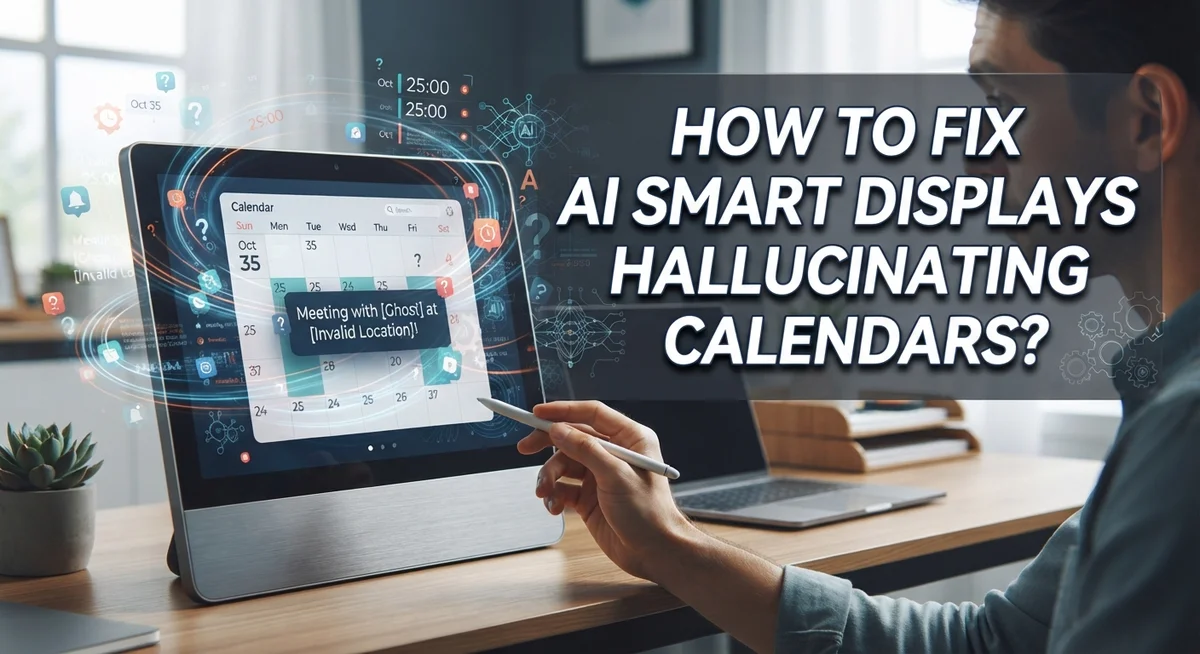
Your smart display just told you a meeting is on Tuesday. You check your phone. It is actually Thursday. This mix up is not a glitch in the traditional sense. It is called an AI hallucination.
Smart displays sometimes generate calendar events that do not exist. They mix up dates and days. They create false entries out of thin air. This happens because the AI model behind the screen lacks a solid link to real calendar data.
This guide walks you through simple steps to stop your smart display from making up calendar events. We will show you how a grounded calendar layer solves the issue in minutes, with no complex retraining involved.
By the end, your smart display will show real events. No more fake meetings. No more wrong dates. Just a calendar you can actually trust.
In a Nutshell
Add a grounded calendar layer to your system. This simple fix takes about five minutes. You don’t need to retrain any models.
Cross-check every date your smart display shows. Use a trusted external calendar source to confirm accuracy.
Verify events before you finalize any schedule. This step catches fake meetings or wrong date pairings early.
Turn on voice assistant calendar functions. Tools like Google Assistant or Gemini often pull more reliable data.
Skip the temperature setting myth. Lowering AI temperature makes responses more careful, but it won’t eliminate hallucinations completely.
Keep a backup calendar open while you plan. This habit gives you a quick reference point at all times.
What Causes AI Smart Displays to Hallucinate Calendar Data
AI smart displays hallucinate calendar data because their underlying systems lack a grounded connection to real calendar information. When an AI model generates responses, it predicts the next most likely words based on patterns it learned during training. This prediction process works well for many tasks, but fails badly with calendar data.
Your smart display doesn’t actually “know” what today’s date is or which day of the week it falls on. Instead, it guesses based on statistical patterns. If your display says a meeting is on Tuesday when it’s actually on Thursday, that’s a hallucination in action.
The core problem is simple: AI models lack integration with a grounded calendar layer. A grounded layer means the system connects to an actual, real time calendar source instead of just predicting dates. Without this connection, the AI generates plausible sounding but completely false information.
Another factor is how AI models work internally. They process information statistically rather than logically. Your display doesn’t verify “is this date correct?” It just outputs what seems most likely based on training data. This leads to incorrect date to day pairings, fabricated events, and scheduling chaos.
Temperature settings don’t solve this problem either. Some people believe lowering the temperature makes AI more accurate. This is false. Temperature controls how creative the AI becomes, not whether it hallucinates. A lower temperature makes the system more conservative, but it still generates false calendar data.
The real issue is architectural, not behavioral. Your smart display needs actual calendar data flowing into its decision making process. Without this grounding, even the most advanced AI models will confidently tell you false information about your schedule.
Understanding this root cause helps you see why quick fixes matter. You’re not fighting a glitch. You’re working around a fundamental gap in how AI systems currently handle calendar information.
Signs Your Smart Display Is Showing Hallucinated Dates or Events
Your smart display may be hallucinating calendar data in several obvious ways. Watch for these red flags to catch the problem early.
Impossible date-day pairings are the most common sign. Your device might say “Monday, July 15th” when July 15th actually falls on a Wednesday. This mismatch happens frequently with hallucinating systems. Check your phone or wall calendar to verify.
Events that don’t exist are another major indicator. Your smart display creates meetings, birthdays, or reminders you never entered. These fabricated events feel real because the device presents them with confidence. You might see “Team meeting at 3 PM” that you never scheduled.
Duplicate or overlapping events suggest hallucination is happening. Your display shows the same appointment multiple times or stacks conflicting events in the same time slot. Real calendar data doesn’t do this.
Pay attention to excessive clicking or confusion when you ask follow-up questions. If you ask “What day is my dentist appointment?” and the device gives contradictory answers, hallucination is likely occurring. Consistent, grounded systems provide the same answer every time.
Missing or altered event details matter too. Your smart display might show an event exists but change the time, location, or attendees. The core information gets scrambled or invented.
Dates that jump randomly indicate problems. If yesterday’s date was correct but today’s date is wrong, something broke in the system’s calendar layer. Real systems maintain consistent date tracking.
The key is comparing what your display shows against a reliable external source. Keep your phone calendar or paper planner nearby when using your smart display. Cross-check important dates immediately. Don’t assume your device is correct just because it sounds confident.
These signs appear because your device lacks proper calendar grounding. Recognition is your first step toward fixing the problem.
Step-by-Step Fix: Adding a Grounded Calendar Layer
A grounded calendar layer acts as a truth anchor for your smart display. This layer connects your AI system directly to reliable calendar data instead of letting it guess or fabricate information.
Here’s how to add one in practical steps:
Step 1: Identify Your Calendar Source
First, pick a single reliable calendar as your reference. This could be your phone’s calendar app, a web based calendar service, or your computer’s built in calendar. The key is choosing one source you trust completely. Write down which calendar you’re using.
Step 2: Enable Direct Integration
Most smart displays let you connect external calendars through their settings menu. Look for options labeled “Calendar Settings” or “Connected Services.” Follow the prompts to link your chosen calendar source directly to your display. This creates the grounding layer your AI needs.
Step 3: Set Your Display to Check First
Configure your smart display to pull calendar information from this source before generating any responses. Many devices have a priority setting for data sources. Make sure your external calendar ranks highest in this order.
Step 4: Test the Connection
Ask your smart display simple calendar questions. Does it show today’s correct date? Can it list tomorrow’s events accurately? Compare every answer against your reference calendar. If answers match, the grounding layer is working.
Step 5: Verify Regularly
Check your smart display’s calendar output against your reference source at least once weekly. This catches any new hallucinations quickly. If mismatches appear, reconnect your calendar source or restart your device.
This process takes about five minutes and requires no model retraining or technical coding. The grounded layer simply tells your AI system to use real data instead of inventing it. Your smart display will become far more reliable for scheduling tasks.
Integrating Voice Assistant Calendar Functions for Accuracy
Your voice assistant can become a powerful tool for keeping your smart display calendar accurate. The key is connecting your voice commands directly to verified calendar data instead of letting the AI generate answers from memory alone.
Start by activating your voice assistant’s calendar function through your smart display settings. Most modern voice assistants have built-in calendar apps that connect to your actual digital calendars. When you ask your display about upcoming events, the voice assistant should pull information from these real sources rather than guessing.
Here’s the practical approach: Use your voice to ask specific questions instead of vague ones. Say “What time is my Tuesday meeting?” rather than “Do I have plans?” Specific questions force the system to search actual calendar data. The voice assistant then reads the real event details back to you.
Next, set up voice commands that require calendar verification. Train yourself to say things like “Show me today’s confirmed events” or “Read my calendar for this week.” These commands work better because they push the system toward checking actual sources.
You can also use voice to update your calendar in real time. Tell your assistant to add events directly to your calendar through voice. This creates an immediate link between what you’re saying and what gets stored. Your smart display then reads from this verified information.
Finally, use voice commands to cross-check information. Ask your assistant to confirm event details twice. Say “Confirm my 3 PM appointment” and listen for the specific information it retrieves. If your display hesitates or gives different answers, that’s a sign it’s hallucinating.
The goal is simple: make your voice assistant the middleman between you and your real calendar data. This prevents your smart display from filling gaps with false information.
Best Practices to Keep Calendar Data Reliable Going Forward
Going forward, you need a system that keeps your calendar data reliable and stops hallucinations before they happen. This means creating habits and processes that work with your smart display, not against it.
Start by keeping a reference calendar open during all planning sessions. This single step catches errors instantly. When your smart display suggests a date or event, you glance at your real calendar immediately. You verify the information matches. This takes seconds but prevents major scheduling mistakes.
Never rely on just one source for important dates. Always cross-check calendar events against at least two reliable sources before finalizing schedules. Your phone calendar, a wall calendar, or a shared family calendar all work. The key is having multiple reference points. If all sources agree, you can trust the information.
Integrate voice assistant calendar functions into your daily routine. These functions connect directly to your actual calendar data instead of relying on AI generation. When you need to check something, use voice commands that pull from your real calendar. This bypasses hallucination risks entirely.
Lower your expectations for AI date accuracy. Adjust your temperature settings to make your smart display more conservative, but understand this doesn’t eliminate hallucinations. It just reduces risky outputs. You still need verification steps in place.
Create a simple weekly verification habit. Every Sunday, ask your smart display three basic calendar questions and check the answers against your reference source. This catches problems early before they affect your schedule.
Build redundancy into important events. For meetings, appointments, or deadlines that matter, set reminders on multiple devices. Use your phone, your smart display, and your calendar app simultaneously. If one source has an error, the others catch it.
These practices work because they remove trust from AI alone. You become the final decision maker. Your smart display becomes a helpful tool, not your only source of truth.
Common Mistakes That Make Calendar Hallucinations Worse
Many people accidentally make calendar hallucinations worse. Understanding these mistakes helps you stop them before they happen.
Trusting AI date-day pairings without verification is the biggest error. Your smart display might confidently state that March 15th falls on a Wednesday when it actually falls on a Thursday. You accept this information and build your schedule around it. Later, you discover the mistake. Always verify dates against a real calendar source before acting on them.
Assuming temperature adjustments fix hallucinations is another common trap. Some users lower their AI temperature settings thinking this solves the problem. Lower temperatures do make AI more conservative, but they don’t eliminate hallucinations entirely. The AI still generates false calendar data. Temperature settings are not a cure for this issue.
Relying on a single AI source for calendar data creates serious problems. You ask your smart display one question, get an answer, and move forward. What if that answer was wrong? You had no backup information to catch the error. Always use multiple reliable sources to cross-check important calendar information.
Ignoring the grounded calendar layer gap means you’re missing the real solution. Your smart display lacks direct connection to actual calendar data. This gap is why hallucinations happen in the first place. The fix isn’t complicated. You need to add a grounded calendar layer that pulls real data from your actual calendar system.
Forgetting to verify before finalizing schedules causes cascading problems. One small calendar mistake grows into bigger issues as your schedule builds on false information. Stop and verify important dates before you finalize anything.
These mistakes are preventable. Stay alert, cross-check information, and use multiple sources to keep your calendar accurate.
Troubleshooting Persistent Calendar Errors After Applying Fixes
When calendar errors persist after you’ve applied initial fixes, the problem usually points to incomplete implementation of the grounded calendar layer. This layer acts as a truth source that your smart display references before generating any calendar information.
Start by checking whether your grounded calendar layer is actually connected to a live external calendar source. Many users add the layer but forget to link it to their primary calendar system. Verify the connection is active by asking your smart display a simple date question and checking if it pulls from your actual calendar data.
Next, examine your smart display’s refresh rate. Sometimes the system caches old hallucinated data instead of pulling fresh information. Force a complete refresh by restarting your device. Unplug it for 30 seconds, then plug it back in. This clears temporary memory and forces the system to rebuild its calendar reference layer from scratch.
Check your calendar permissions settings. Your smart display needs explicit access to read your calendar data. If permissions are restricted or expired, the system reverts to generating responses without grounded data, which causes hallucinations to return. Review and re-authorize these permissions in your device settings.
Test with specific, narrow questions rather than broad requests. Instead of asking “What’s my schedule this week?” ask “What time is my Tuesday meeting?” Specific queries force the system to cross-reference actual calendar entries instead of generating plausible but false information.
If errors still continue after these steps, document exactly which types of calendar information cause problems. Note whether hallucinations happen with dates, times, event names, or location details. This pattern helps identify whether the issue lies in data synchronization, display formatting, or the grounding layer itself. Share this information with your device manufacturer’s support team for targeted troubleshooting.
Final Thoughts
AI smart displays can make calendar mistakes. But these errors are fixable. The fix does not require a new device or a complex setup.
A grounded calendar layer solves most hallucination problems. This small addition takes minutes to set up. It connects your display to real, accurate calendar data.
Detection tools now catch hallucinations about 79% of the time. This means most errors get flagged before they cause real trouble. Still, no system catches everything.
You play a key role in keeping your calendar accurate. Simple habits make a big difference. Checking dates twice takes seconds but saves hours of confusion.
Think of your smart display as a helpful assistant, not a perfect one. It can suggest events and remind you of tasks. But final accuracy checks stay in your hands.
Technology keeps improving every month. New updates aim to reduce hallucinations further. Grounded data sources will likely become standard soon.
Until then, stay alert and verify important dates. This simple approach prevents most scheduling disasters. A missed birthday or wrong meeting time is easy to avoid.
Small changes create big results. Adding a grounded calendar layer, checking sources, and staying cautious work together. These steps build a reliable system you can trust.
Calendar hallucinations feel frustrating at first. But they are a solvable problem, not a permanent flaw. With the right setup, your smart display becomes genuinely useful again.
Keep testing your system after each fix. Watch for patterns in errors. This helps you spot new issues early.
Your calendar should work for you, not against you. With grounded data and smart habits, it finally can. Trust builds over time, one accurate date at a time.
Frequently Asked Questions
Why does my smart display show dates that don’t match the actual calendar?
AI systems generate false calendar data when they lack a connection to real calendar information. Your smart display pulls from learned patterns instead of live data sources. This creates mismatches between what the AI predicts and what actually exists on your calendar.
The core issue is missing integration with a grounded calendar layer. Without this connection, the AI essentially guesses at dates and events.
Can I fix calendar hallucinations without technical expertise?
Yes. Adding a grounded calendar layer takes about five minutes and requires no model retraining. You simply connect your smart display to an external calendar source that provides real, current data.
The fix works because your device now references actual calendar information instead of relying on AI predictions alone. This eliminates most hallucinations immediately.
What should I do when my smart display gives me conflicting calendar information?
Always verify important dates against a reliable external source. Keep your reference calendar open while planning sessions. Cross-check any date-day pairings the AI provides before you finalize schedules.
This habit prevents cascading errors that compound over time. Never trust a single AI source for calendar accuracy, especially for important events.
How accurate are current hallucination detection tools?
New detection algorithms identify calendar hallucinations approximately 79% of the time. This means some false information still slips through. You remain the final checkpoint for accuracy.
Detection tools work best alongside your verification habits. Together, they catch most problems before they affect your schedule.

Hi, I’m Simmy — the founder and voice behind AI Gadgets Insight. I’m a tech enthusiast who loves exploring the latest AI gadgets, smart devices, and innovative tech products. I started this blog to help people make smarter tech choices with honest reviews, easy-to-follow comparisons, and practical buying guides.