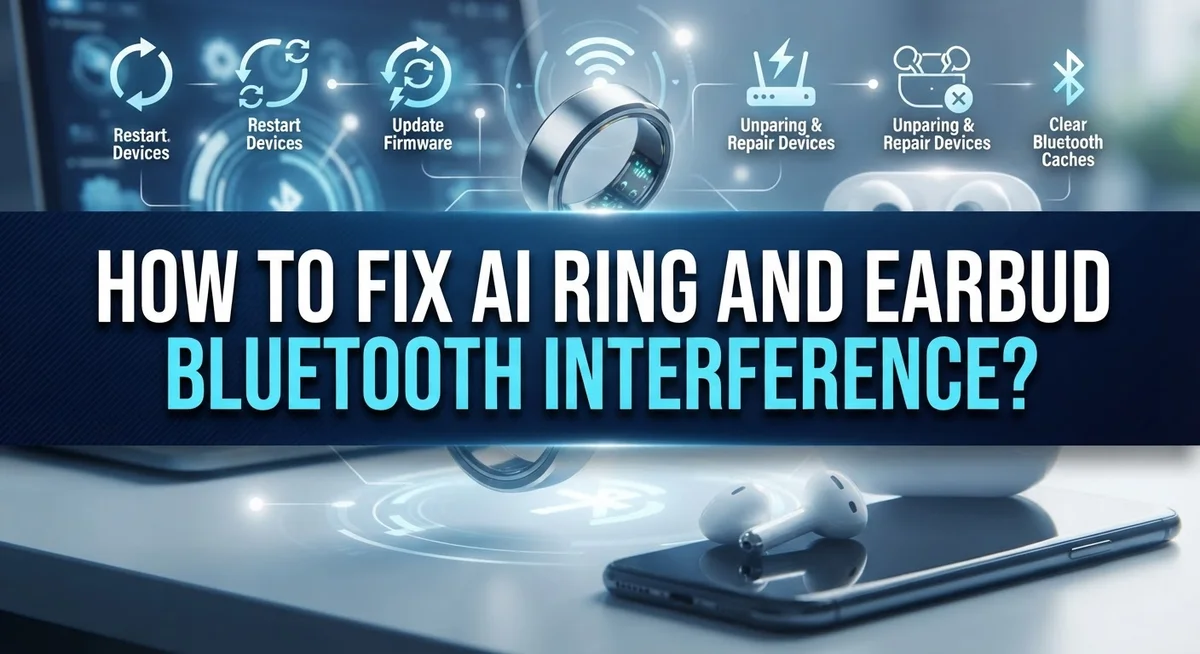
How to Fix AI Ring and Earbud Bluetooth Interference?
Your smart ring feels laggy. Your earbuds crackle or drop sound mid call. You are not imagining it.
Bluetooth interference is more common than most people think. It happens when your wireless signal fights for space with other devices around you.
AI rings and earbuds both rely on the same 2.4 GHz frequency band. So do WiFi routers, microwaves, and many USB 3.0 devices. When too many signals crowd this space, your connection suffers.
The good news? You can fix this problem without buying new gear. Most interference issues come from simple things like device placement or forgotten WiFi settings.
In this guide, we will show you exactly why this interference happens. You will learn which devices cause the most trouble and why.
By the end, you will know how to stop dropped connections. You will also understand how to keep your AI ring and earbuds working smoothly, even in busy wireless environments.
In a Nutshell
Move devices closer together. Keep your AI ring or earbuds within 3 feet of your phone during pairing. This simple step solves many connection issues.
Switch your WiFi to 5 GHz. Your router shares the same 2.4 GHz band as Bluetooth. Changing the band or channel reduces conflicts instantly.
Keep USB 3.0 devices far away. These gadgets create strong interference. Place them at least 6 feet from your earbuds or ring.
Power cycle your devices. Turn off your phone and earbuds for 30 seconds. Then restart both for a clean connection.
Avoid physical barriers. Don’t hide your devices behind walls or metal cabinets. Clear line of sight helps signals travel better.
Limit nearby Bluetooth devices. Too many active connections cause confusion. Unpair devices you’re not using right now.
Understanding Bluetooth Interference and the 2.4 GHz Band
Bluetooth devices operate on the 2.4 GHz frequency band. This same band is shared by WiFi routers, microwaves, cordless phones, and USB 3.0 devices. When multiple technologies use the same frequency, they can interfere with each other.
Your AI ring and earbuds send wireless signals through this crowded band. Think of it like a busy radio station. When too many broadcasts happen at once, the signal becomes weak or cuts out entirely.
The 2.4 GHz band has limited space for wireless signals. Unlike the 5 GHz band, which offers more channels, the 2.4 GHz band gets congested quickly. This is why your connection sometimes drops or lags.
WiFi routers cause the most common interference problems. They constantly transmit data across the same frequency your Bluetooth devices use. Microwaves also emit strong signals in this range, especially when heating food. USB 3.0 devices like external hard drives and hubs create electromagnetic noise that disrupts Bluetooth signals.
Distance matters significantly. Bluetooth signals weaken as they travel farther from your phone or ring. When interference sources are nearby, they overpower the weaker Bluetooth signal. Your device then struggles to maintain a stable connection.
Physical barriers make interference worse. Walls, metal cabinets, and dense furniture block Bluetooth signals. They also reflect and amplify interference from other devices.
Understanding these basics helps you identify why your AI ring and earbuds disconnect. The problem isn’t faulty equipment. Instead, your devices are competing for wireless space with other electronics in your home. Once you recognize these interference sources, you can take specific steps to reduce them and restore stable connections.
Identifying Common Sources of Signal Disruption
Several devices in your home compete for the same wireless space as your AI ring and earbuds. Knowing what causes signal disruption helps you fix the problem faster.
WiFi routers are the biggest culprits. Your router broadcasts signals on the 2.4 GHz band, the exact frequency your Bluetooth devices use. When your router sends data, it creates noise that drowns out your ring or earbud signals.
Microwave ovens also interfere with Bluetooth. They operate on the same frequency and emit strong electromagnetic waves during cooking. If your connection drops while someone heats food, this is likely the cause.
USB 3.0 devices create significant interference too. External hard drives, USB hubs, and wireless adapters with USB 3.0 standards emit radiation that disrupts Bluetooth signals. Keep these gadgets at least 6 feet away from your devices.
Other Bluetooth devices in your home add to the problem. Multiple active connections compete for bandwidth. If you have wireless headphones, speakers, smartwatches, and your AI ring all running simultaneously, they interfere with each other.
Cordless phones and baby monitors also use the 2.4 GHz band. These devices can disrupt your Bluetooth connection without you realizing it.
Physical barriers make interference worse. Walls, metal cabinets, and dense materials block Bluetooth signals and force your devices to work harder. This weakens the connection and makes interference more noticeable.
Distance problems amplify these issues. Bluetooth signals weaken as they travel farther from your phone. When interference exists and your device is far away, the signal cannot compete with the noise.
Identifying which source disrupts your connection is the first step toward a stable link. Pay attention to when disconnections happen and what devices are nearby.
Step-by-Step Fixes for AI Ring and Earbud Interference
Your AI ring and earbuds stop working together when signals collide in the same wireless space. The 2.4 GHz band carries traffic from WiFi, microwaves, USB devices, and multiple Bluetooth gadgets at once. This crowded band creates conflicts that drop your connection.
Start by moving your devices closer. Keep your ring and earbuds within 3 feet of your phone when you first pair them. Bluetooth works best at short distances. Once paired, maintain at least arm’s length distance for stable operation.
Next, check your WiFi router settings. Switch your router to the 5 GHz band if your device supports it. This move takes your WiFi off the crowded 2.4 GHz channel where Bluetooth operates. If 5 GHz isn’t available, change your WiFi channel to channel 1, 6, or 11. These channels overlap less with Bluetooth frequencies.
Relocate USB 3.0 devices immediately. These cables and hubs emit strong interference. Move them at least 6 feet away from your ring and earbuds. USB 3.0 operates on higher frequencies that bleed into Bluetooth’s space.
Power cycle both your phone and your Bluetooth devices. Turn everything off for 30 seconds, then restart. This reset clears connection memory and forces fresh pairing signals.
Remove physical barriers between your devices. Don’t place your ring behind walls, metal cabinets, or thick furniture. These materials block wireless signals and worsen interference.
Disable multipoint connectivity if your earbuds support it. When multiple devices connect simultaneously, your Bluetooth gadget splits its attention. Turning off this feature stabilizes your primary connection.
Finally, unpair any unnecessary Bluetooth devices from your phone. Each active connection competes for bandwidth. Fewer devices mean stronger signals for your AI ring and earbuds.
Optimizing Device Placement and Pairing Distance
Proper device placement is one of the most practical ways to stop Bluetooth interference. Your AI ring and earbuds work best when they stay close to your phone during the initial pairing process.
Keep your devices within 3 feet of each other when you first connect them. This short distance helps establish a strong bond between your phone and your Bluetooth accessories. Once pairing completes, you can move slightly farther apart, but staying within 10 feet maintains the best connection quality.
Position your phone, ring, and earbuds in open spaces. Avoid placing them behind walls, metal cabinets, or inside drawers. Metal and dense materials block Bluetooth signals and force them to bounce around your home, creating weak spots.
Maintain at least 4 to 5 feet of distance between your Bluetooth devices and known interference sources. Move your ring away from WiFi routers, microwaves, and USB 3.0 hubs. This separation reduces the chance of signal collision in the 2.4 GHz band.
When pairing multiple devices, keep only the device you want to connect nearby. Remove or move other Bluetooth devices to different rooms temporarily. This prevents your ring or earbuds from accidentally connecting to the wrong phone or speaker.
Test different locations in your home to find the best signal strength. Some rooms have more interference than others. A bedroom corner might work better than a kitchen near your router.
Elevation also matters. Keep your devices at roughly the same height as your phone. Placing your ring on a low table while your phone sits high on a shelf can weaken the connection. Simple repositioning often solves connection problems without any technical adjustments.
Adjusting Router and WiFi Settings to Reduce Conflicts
Your WiFi router and settings play a major role in Bluetooth interference. The good news is that you can adjust both to reduce conflicts with your AI ring and earbuds.
Switch to the 5 GHz band. Most modern routers support dual band technology. Your 2.4 GHz band is shared by WiFi, Bluetooth, microwaves, and cordless phones. Moving your router to 5 GHz frees up space for your Bluetooth devices. Check your router’s admin panel to enable this setting.
Change your WiFi channel. If you must use 2.4 GHz, switch to a different channel. Channels 1, 6, and 11 overlap the least with each other. Use a WiFi analyzer app to see which channels nearby networks use. Pick a channel with the least activity.
Move your router away from interference sources. Keep your router at least 4 to 5 feet from microwaves, USB 3.0 devices, and other Bluetooth equipment. Walls and metal cabinets block signals, so place your router in an open, central location.
Reduce WiFi transmit power if needed. Some routers let you lower the transmit power. This sounds counterintuitive, but lower power can reduce overall interference in your space. Your devices stay close anyway, so full power is unnecessary.
Restart your router regularly. Power cycle your router every few weeks. This clears memory and helps it operate more efficiently. Unplug it for 30 seconds, then plug it back in.
Disable features you don’t use. Turn off WPS (WiFi Protected Setup) and other legacy features. These older technologies cause extra interference. Your router’s security settings should handle device connections just fine without them.
Managing Multiple Bluetooth Devices for Stable Connections
When you use multiple Bluetooth devices at the same time, they compete for the same wireless space. This competition causes connection drops, delays, and frustration. Learning to manage them properly keeps everything working smoothly.
The key is limiting active devices in your immediate area. Only keep the devices you actively use turned on and connected. If you have wireless headphones, a smartwatch, and your ring all searching for a connection simultaneously, they interfere with each other. Turn off devices you’re not using right now.
Prioritize which device connects first. When pairing a new device, disconnect or move other Bluetooth gadgets away temporarily. This helps your phone focus on one connection at a time. Once pairing is complete, you can bring other devices back into range.
Keep your primary devices closest to your phone. If your ring and earbuds are both important, position them within 3 feet of your phone during use. Devices farther away struggle to maintain stable connections when multiple devices compete for bandwidth.
Disable multipoint connectivity if you experience problems. Some earbuds let you connect to multiple devices simultaneously. This feature is convenient but creates interference issues. Turning it off forces your devices to maintain single, stronger connections.
Space out your devices physically. Arrange your ring, earbuds, and phone in different locations rather than clustering them together. This reduces the electromagnetic noise they create around each other.
Test your setup by using one device at a time. Gradually add devices back while monitoring connection stability. This approach helps you identify exactly which combinations cause problems in your specific environment.
Troubleshooting Persistent Connectivity Issues
When your AI ring and earbuds keep losing connection, the problem usually stems from one of three sources: interference, distance, or software glitches. Let’s fix this step by step.
First, perform a hard reset on both devices. Power off your ring completely and leave it off for 30 seconds. Do the same with your earbuds. This clears temporary connection errors that cause dropouts.
Next, check what’s nearby. USB 3.0 devices emit strong signals on the 2.4 GHz band. Move any USB 3.0 hubs, external hard drives, or wireless mice at least 6 feet away from your devices. Microwaves also interfere heavily when running.
Your phone needs attention too. Go into Bluetooth settings and forget all previous pairings of your ring and earbuds. Then restart your phone completely before re pairing them fresh. This removes corrupted connection data.
Location matters significantly. Move to an open room away from walls and metal cabinets. Walls block Bluetooth signals and bounce interference around. Test your connection in different spots to find the strongest area.
If problems persist, disable multipoint connectivity on your earbuds. This feature lets one device connect to multiple phones simultaneously, but it often causes instability. Turning it off forces a single, stronger connection.
Finally, check your WiFi router settings. If you’re using 2.4 GHz WiFi, switch to a different channel in your router settings. Channels 1, 6, and 11 work best because they don’t overlap. Better yet, use 5 GHz if your devices support it.
These steps address the most common causes of persistent connectivity issues. Most people see improvement after the power cycle and location change alone.
Avoiding Common Mistakes That Worsen Interference
Many people make simple mistakes that actually make Bluetooth interference worse. Understanding what not to do helps you keep your AI ring and earbuds working smoothly.
The biggest mistake is hiding your devices behind physical barriers. Walls, metal cabinets, and thick furniture block Bluetooth signals. Your ring and earbuds need a clear path to your phone. Keep them in open spaces where signals travel freely without obstruction.
Another common error is keeping devices too far apart during the initial pairing process. Many users try to pair their ring or earbuds from across the room. This causes weak connections right from the start. Stay within 3 feet of your phone when pairing new devices. This ensures a strong initial bond between your devices.
People often forget to restart their router when experiencing connection problems. Your WiFi router needs regular power cycles just like your phone does. A simple restart can clear interference issues you didn’t even know existed.
Leaving too many Bluetooth devices active simultaneously creates chaos in your wireless space. Each active device competes for bandwidth on the same 2.4 GHz frequency. Before troubleshooting, turn off Bluetooth devices you’re not currently using.
Many users also fail to check for USB 3.0 devices nearby. These cables and hubs emit significant interference. Keep them at least 6 feet away from your ring and earbuds.
Finally, avoid assuming your phone’s Bluetooth settings are correct. Stale device pairings and outdated connections cause problems. Periodically unpair devices you no longer use. This keeps your phone’s Bluetooth memory clean and reduces confusion about which device connects.
These mistakes are easy to fix once you recognize them.
Final Thoughts
Bluetooth interference feels frustrating, but it’s fixable. Your AI ring and earbuds just need some breathing room from competing signals.
Most connection problems come down to simple physics. Too many devices share the same 2.4 GHz frequency, and that creates chaos.
Start with the basics every time. Check your device placement first. Then look at what’s running nearby.
Small changes make a big difference. Switch your WiFi to 5 GHz if possible. Move USB 3.0 devices further away. Keep your ring and earbuds close during pairing.
Remember that walls and metal cabinets block signals badly. Your devices need clear space to communicate properly.
Power cycling remains your best friend. A simple 30 second reset solves many stubborn connection issues. Don’t skip this step when problems arise.
Multipoint connectivity sounds helpful but often causes trouble. Turn it off if you notice frequent dropouts or wrong device pairings.
Think of your wireless space like a crowded room. Fewer active devices mean clearer communication between your ring and earbuds.
Patience helps too. Sometimes you need to try multiple fixes before finding what works. Test one change at a time to see real results.
Your daily habits matter more than fancy technology. Simple positioning and mindful device management prevent most interference problems.
Keep these solutions in mind as you use your devices daily. Consistent habits prevent future headaches better than any single fix.
Bluetooth technology keeps improving, but basic troubleshooting stays the same. Master these fundamentals now, and you will handle future connectivity challenges with confidence.
Your AI ring and earbuds can work together smoothly. Apply these practical steps, and enjoy reliable, uninterrupted connections every single day.
Frequently Asked Questions
Why do my earbuds connect to the wrong device?
Your earbuds pair with whichever device is closest and actively searching. Unpair any devices you don’t use regularly from your earbuds’ memory. When pairing, keep only your primary phone nearby. Other devices in the room confuse your earbuds about where to connect.
What causes my connection to cut out randomly?
USB 3.0 devices create strong interference on the 2.4 GHz band. Move these devices at least 6 feet away from your ring and earbuds. Also check if multipoint connectivity is enabled. This feature lets your earbuds jump between devices, which often causes dropouts instead of helping.
Should I use 2.4 GHz or 5 GHz WiFi?
Switch your router to 5 GHz if your devices support it. The 2.4 GHz band is crowded with microwaves, cordless phones, and other Bluetooth gadgets. Your WiFi and Bluetooth both fight for space on 2.4 GHz. Using 5 GHz for WiFi frees up room for Bluetooth to work smoothly.
How close should my devices be during pairing?
Keep your AI ring or earbuds within 3 feet of your phone when pairing for the first time. This distance ensures a strong initial connection. Once paired, you can move farther apart, but stay within 30 feet for normal use. Walls and metal objects reduce this range significantly.
Why do resets actually work?
Power cycling clears temporary connection errors and refreshes your device’s memory. Turn off your earbuds and ring completely for 30 seconds. Restart your phone’s Bluetooth entirely. This simple step fixes most interference problems because it forces your devices to renegotiate their connection fresh.

Hi, I’m Simmy — the founder and voice behind AI Gadgets Insight. I’m a tech enthusiast who loves exploring the latest AI gadgets, smart devices, and innovative tech products. I started this blog to help people make smarter tech choices with honest reviews, easy-to-follow comparisons, and practical buying guides.