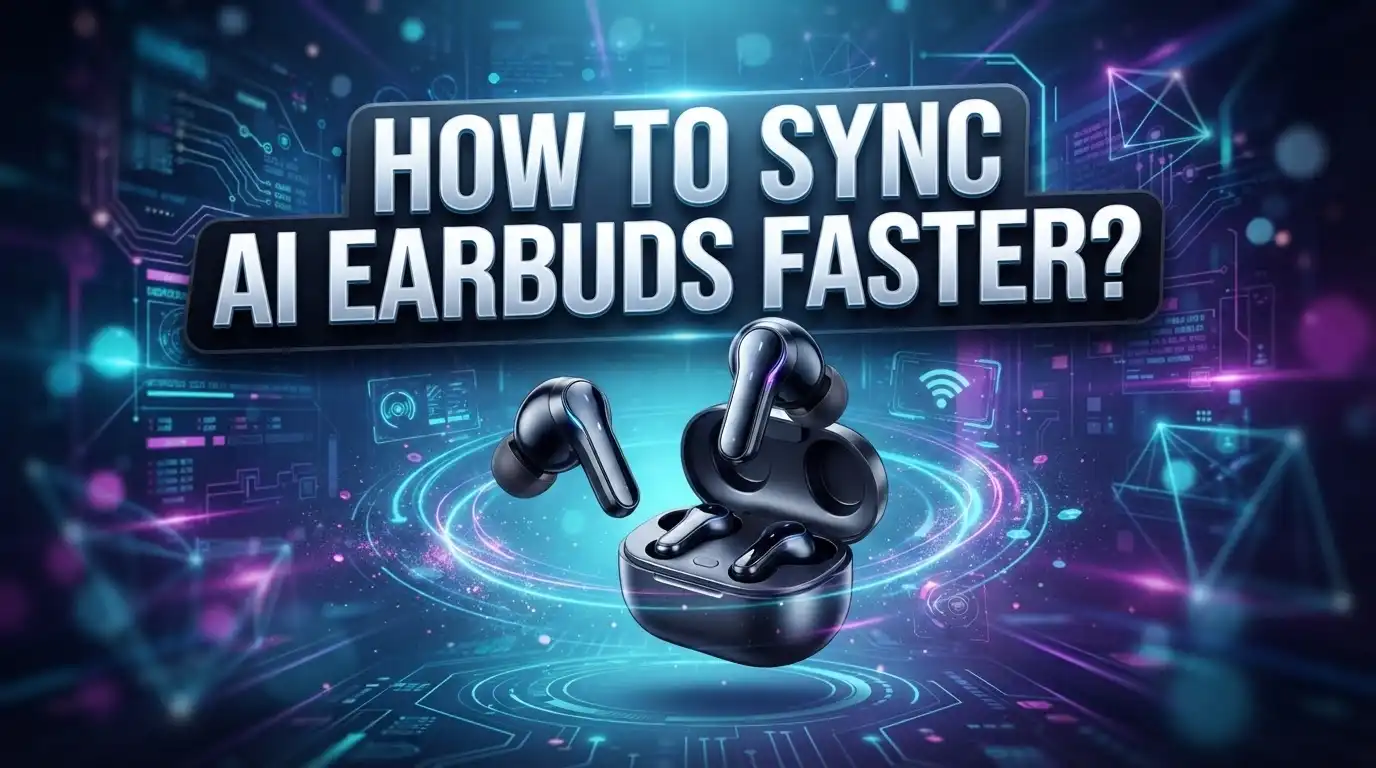
How To Sync AI Earbuds Faster?
Struggling to get your AI earbuds connected quickly? You are not alone. Many people waste several minutes fumbling through settings when the process can actually take as little as five minutes.
AI earbuds use Bluetooth to pair with your devices, whether that is a phone, tablet, or PC. Some advanced models even have built-in 4G connectivity, so they work completely on their own without a phone nearby.
The problem is that most people follow unclear instructions and end up skipping important steps. Small mistakes, like not putting both earbuds into pairing mode at the same time, can cause the whole process to fail.
This guide will walk you through everything you need to know to sync your AI earbuds faster and more reliably.
In a Nutshell
- Place your earbuds in pairing mode first before opening your device’s Bluetooth settings. Skipping this step is the most common reason syncing fails.
- Open Bluetooth settings on your phone, tablet, or PC and select your earbuds from the list of available devices. The full process takes about 5 minutes.
- Always open the companion app after connecting. Many people skip this step, but the app is essential for features like AI translation and language settings.
- Some AI earbuds have built-in 4G connectivity, so you do not always need a phone nearby to use them.
- Avoid following unclear or incomplete instructions online. Poor guidance is the biggest cause of slow or failed pairing sessions.
- If pairing fails, try a reset or clear the Bluetooth cache on your device. This fixes most connection issues quickly.
The key takeaway is simple. Follow the correct steps in order, do not skip the app setup, and your AI earbuds will sync fast and reliably every time.
What Does Syncing AI Earbuds Actually Mean?
AI earbuds syncing means connecting your earbuds to your device using Bluetooth technology. This connection allows your earbuds to communicate with your phone, tablet, or computer.
When you sync AI earbuds, you establish a wireless link between two devices. Your earbuds send audio signals to your device, and your device sends commands back to the earbuds. This two way communication happens instantly.
Syncing is different from simple pairing. Pairing is the first time you connect two devices together. Syncing refers to keeping those devices connected and working together smoothly over time.
Many AI earbuds include translation features built into their software. When you sync them, you activate access to these translation tools. The earbuds can then translate conversations in real time during calls or meetings.
Some AI earbuds models operate independently with built in 4G connectivity. These earbuds do not need your phone nearby to function. They can connect directly to the internet, which means you can use translation features without any other device.
The companion app plays an important role in syncing. After your earbuds connect via Bluetooth, you open the app on your device. Inside the app, you select your preferred language pairs for translation. You also adjust settings like volume, microphone sensitivity, and audio preferences through this app.
Full setup typically takes about five minutes. The actual Bluetooth connection happens in seconds. Most of the time goes to opening your app and configuring your language settings.
Syncing ensures your earbuds work at their best. A proper sync means faster response times, better audio quality, and access to all AI powered features. Without syncing through the companion app, you only get basic audio playback. You miss out on translation capabilities and advanced settings that make AI earbuds valuable.
How To Put Your AI Earbuds Into Pairing Mode
Putting your AI earbuds into pairing mode is the first step. This action tells your earbuds they are ready to connect to a device. Most models enter pairing mode automatically when you first turn them on. Check your earbud manual to confirm this for your specific model.
Some earbuds require you to hold a button for a few seconds. The button is usually on the charging case or on one earbud itself. Hold it until you see a light flash, typically blue or white. This light indicates pairing mode is active.
Make sure both earbuds are in pairing mode together. Many people forget this step and only sync one earbud. Check that both earbuds show the same light pattern. If they do not match, place them back in the case and restart the process.
The light pattern tells you important information. A steady or blinking light usually means pairing mode is on. A different pattern might mean the earbuds are already connected to another device. If this happens, you need to disconnect them first before trying again.
Keep your earbuds close to your device during this process. Bluetooth works best within 10 to 30 feet of your phone or computer. Staying near your device prevents connection drops and speeds up the pairing.
Leave your earbuds in pairing mode until your device finds them. This usually takes 10 to 30 seconds. Do not turn them off or move them away during this time. Once your device shows the earbuds in the available devices list, you can proceed to the next step of selecting them and completing the connection.
Step-by-Step: How To Sync AI Earbuds to Any Device
The syncing process works the same way across iPhones, Android phones, tablets, and computers. Each device uses Bluetooth technology to find and connect with your earbuds. The steps remain consistent no matter which gadget you use.
Start by checking your earbud’s manual to find the pairing button location. Most models have a small button on the side or back of each earbud. Press and hold this button until you see a light flash, usually blue or red. This light tells you the earbuds are ready to connect.
Open your device’s Bluetooth settings next. On phones, you’ll find this in the main settings menu. On computers, look in system preferences or settings. Your device will show a list of nearby Bluetooth devices within seconds.
Look for your earbud model name in the list and tap or click it to connect. Your device will confirm the pairing once the connection is complete. This happens quickly, usually in under 30 seconds.
After Bluetooth connects, download and open the companion app on your device. This app unlocks AI features like real time translation and audio customization. Many people skip this step and miss important setup options.
Inside the app, select your preferred language pair if translation is available. Configure any other settings you need, like microphone sensitivity or noise cancellation levels. Some apps let you adjust these features before your first use.
Test the connection by playing audio through your earbuds. Speak into the microphone to verify it works properly. Make sure both earbuds are working together before you finish setup.
The entire process takes about five minutes from start to finish. If anything feels unclear, refer to your manual or the app’s help section. Most issues resolve quickly with these straightforward steps.
How To Complete App Setup After Bluetooth Connection
After your earbuds connect via Bluetooth, the real setup begins in the companion app. This step makes sure all features work properly and your earbuds know what language you want to use.
Open the companion app on your device right after Bluetooth connection succeeds. The app icon usually appears on your home screen or in your app drawer. If you haven’t downloaded it yet, search for your earbud brand name in your device’s app store.
The app will ask you to select your language pair if your earbuds have translation features. This means choosing the language you speak and the language you want to hear translated. Pick both languages carefully because this affects how your earbuds understand and respond to you.
Grant the app permission to access your device’s microphone and audio settings. Your earbuds need these permissions to capture your voice and play sound. Without these approvals, translation and audio features won’t work correctly.
Look for a “Settings” or “Preferences” section inside the app. Here you can adjust volume levels, notification sounds, and how your earbuds behave during calls. Some apps let you customize which ear plays which audio stream.
Test the connection by playing a short audio clip through the app. You should hear sound in both earbuds at equal volume. If one earbud sounds quieter, use the app’s balance slider to fix this.
Some apps show firmware updates available for your earbuds. Install these updates when prompted because they improve performance and add new features. Updates typically download and install automatically while your earbuds stay connected.
Once you finish these steps, your earbuds are fully set up and ready to use. The entire app setup usually takes just a few minutes. You can now enjoy translation features, adjust settings anytime, and get the most from your AI earbuds.
Tips To Speed Up the Syncing Process
Clear your device’s Bluetooth cache before you start. Most phones and computers store old pairing data. This old information can slow down the connection or cause conflicts. Go to your device settings and forget any previous earbud connections. This takes just 30 seconds but makes a huge difference in sync speed.
Position your earbuds within 10 feet of your device. Bluetooth signals travel best at close range. The farther away your earbuds are, the longer the pairing takes. Keep them on the same table or desk as your phone or computer during the entire process.
Make sure your device’s Bluetooth is completely off, then turn it back on. This refreshes your device’s Bluetooth radio and helps it find your earbuds faster. Wait a few seconds after turning it off before turning it back on.
Check that your earbud battery is fully charged. Low battery can cause slow syncing or failed connections. A fully charged earbud responds to pairing requests much quicker.
Avoid syncing near other wireless devices. Microwaves, WiFi routers, and other Bluetooth devices create interference. This interference slows down your connection speed. Move to a different room if possible.
Follow the exact sequence every time. Sync in the same order: earbud pairing mode first, then device Bluetooth search, then app download. Skipping steps or doing them out of order adds extra time.
Update your device’s operating system beforehand. Older software sometimes has Bluetooth bugs. A recent update often fixes these issues and speeds up pairing.
Close other apps running on your device. Background apps use Bluetooth resources. Closing them frees up your device’s processing power for faster syncing.
These simple steps typically cut your sync time in half.
Common Mistakes That Slow Down AI Earbud Syncing
Many people skip important steps when syncing AI earbuds, which causes delays. Understanding these mistakes helps you avoid them.
Not putting both earbuds in pairing mode is the most common error. You must place both earbuds in the case or charging dock, then press and hold the pairing button until lights flash. Some users only activate one earbud, which creates connection problems.
Failing to clear your device’s Bluetooth cache slows everything down. Your phone or computer stores old pairing information from previous connections. This old data can interfere with new syncing attempts. Go into your device settings and forget the earbud model from your Bluetooth history before starting fresh.
Skipping the app setup after Bluetooth connects wastes valuable time later. Many people think the job is done once Bluetooth shows “connected.” However, the companion app contains critical settings and language preferences. Without completing app setup, you miss translation features and audio optimization.
Starting the sync process near other wireless devices creates interference. Microwaves, WiFi routers, and multiple Bluetooth devices confuse your earbud’s connection. Move at least 10 feet away from these sources before syncing.
Trying to sync with low earbud battery causes repeated failures. Always charge your earbuds fully before attempting any pairing. Low battery triggers disconnections midway through setup, forcing you to restart everything.
Following unclear or outdated online instructions leads people in circles. Many websites contain confusing steps or outdated information. Stick to your earbud manual or the official companion app’s built in guidance instead.
Rushing through the sequence without following the exact order creates problems too. Always activate pairing mode first, then search on your device, then open the app. This consistent order prevents confusion and failed connections that require multiple restart attempts.
Troubleshooting: What To Do When AI Earbuds Won’t Sync
When your AI earbuds won’t sync, stay calm. Most connection problems have simple fixes. Start by checking the basics first.
Reset your earbuds completely. Most models have a reset button on the case or charging pod. Hold it for 10 to 15 seconds until you see a light flash. This clears old pairing data that might block new connections. Wait a few seconds, then try syncing again.
Next, clear your device’s Bluetooth cache. On phones and computers, old pairing information sometimes prevents new connections. Go to your device settings and “forget” the earbuds from your Bluetooth list. This removes the old connection data completely.
Check your earbud battery level. Low power causes sync failures and slow connections. Charge your earbuds fully before attempting to pair them again. Many people overlook this simple step.
Restart your device’s Bluetooth radio. Turn Bluetooth completely off in your settings. Wait 10 seconds, then turn it back on. This refreshes your device’s wireless system and often fixes stubborn connection issues.
Make sure both earbuds enter pairing mode together. Many models require you to hold a button on each earbud at the same time. Check your manual for the exact method. One earbud in pairing mode while the other isn’t causes immediate failure.
Move away from interference sources. Microwaves, WiFi routers, and other Bluetooth devices create wireless noise. Sync in a clear area at least 10 feet from these devices.
If problems continue, try a full factory reset on your earbuds. This removes all settings and returns them to original condition. Consult your user manual for the specific reset process for your model.
Finally, reinstall your companion app. Corrupted app files sometimes block syncing. Delete the app completely, restart your device, then download it fresh from your app store.
Final Thoughts
Syncing AI earbuds faster comes down to a few consistent habits. Follow the right sequence every time, keep your battery charged, and stay away from wireless interference.
The whole process should take about five minutes when you do it correctly. Pairing mode first, then Bluetooth search, then app setup. That order matters more than most people realize.
Skipping the companion app setup is one of the biggest time-wasters. Your earbuds may connect to Bluetooth quickly, but the app unlocks features like language translation settings and audio preferences. Always complete that final step.
If you travel or attend multilingual meetings, taking time to set up your language pairs in the app saves you a lot of frustration later. Good translation only works when the app is properly configured from the start.
Some AI earbuds come with built-in 4G connectivity, which means you do not always need a phone nearby. Knowing whether your model supports standalone use helps you plan smarter and sync faster in different situations.
Connecting to an iPhone is simple. Open your iPhone Bluetooth settings, put your earbuds into pairing mode, and select them from the available devices list. No complicated steps needed.
Consistency is the real secret here. Every time you follow the same steps in the same order, your brain and your devices both work more efficiently.
Keep your instructions clear and saved somewhere easy to find. Following vague or poorly written guides is one of the most common reasons people struggle with syncing.
With the right habits in place, AI earbud syncing becomes fast and almost automatic. You spend less time troubleshooting and more time enjoying your audio experience. That is exactly where your focus should be.
Frequently Asked Questions
Why does my pairing take longer than five minutes?
Several factors slow down the sync process. Your device’s Bluetooth cache may hold old pairing data that interferes with new connections. Low battery on your earbuds forces the system to work harder. Wireless interference from nearby routers or microwaves also causes delays.
Clear your device’s Bluetooth cache before syncing. Charge your earbuds fully. Move away from other wireless devices. These simple steps usually cut your sync time in half.
Do I need my phone to use AI earbuds?
Not always. Some AI earbud models include built in 4G connectivity. These earbuds work independently without a phone nearby. You can still make calls, access translation features, and listen to music.
However, most models require your phone for setup and full features. Check your specific model’s specs to confirm its connectivity options.
What’s the fastest way to set up language pairs?
Open your companion app immediately after Bluetooth syncing completes. Don’t skip this step. The app lets you choose your language pair for translation features in just a few taps.
Setting up languages in the app takes two minutes but saves you lots of time later. You won’t need to adjust settings during important meetings or travel moments.
Why should both earbuds enter pairing mode together?
One earbud alone cannot sync properly. Your device needs both earbuds in pairing mode simultaneously. This ensures they communicate with each other and your phone or computer at the same time.
If only one earbud syncs, your audio cuts out and the process fails. Always place both earbuds in their case, then activate pairing mode together.
Can I sync faster on iPhone versus Android?
The process is essentially identical on both platforms. Both use standard Bluetooth pairing. Both benefit from the same companion app setup. Speed depends on your technique, not your device type.
Follow the same steps regardless of your phone. Consistency matters more than your operating system.

Hi, I’m Simmy — the founder and voice behind AI Gadgets Insight. I’m a tech enthusiast who loves exploring the latest AI gadgets, smart devices, and innovative tech products. I started this blog to help people make smarter tech choices with honest reviews, easy-to-follow comparisons, and practical buying guides.