How To Stop AI Cameras From Recognizing Pets?
Most modern security cameras use AI to detect motion and identify what caused it. This includes people, vehicles, and yes, your pets. The result? A flood of unnecessary notifications that can make you ignore your alerts altogether.
That is a real problem. If you start ignoring alerts, you could miss something important, like an actual intruder.
The good news is that most camera systems let you control exactly what triggers a notification. You can usually turn off pet detection without affecting alerts for people or vehicles.
This article will walk you through how AI pet detection works, why cameras recognize animals in the first place, and the steps you can take to stop your camera from flagging your pets. You will also learn what to watch out for along the way.
In a Nutshell
- AI cameras use machine learning to identify motion sources, including pets, people, and vehicles. This is why your camera “knows” a cat from a person.
- Pet detection is usually a toggle setting inside your camera’s app. You can turn it off without replacing or adjusting the hardware.
- Most systems let you disable animal alerts separately from human or intruder detection, so your security stays active.
- The main steps are simple: open your app settings, find the detection or notification section, and uncheck the animal or pet detection option.
- Watch out for all-or-nothing systems. Some camera setups do not allow you to disable only pet alerts. Turning off pet detection on these may silence every notification.
- Cameras typically detect a “pet” as a general category. They cannot identify your specific dog or cat as an individual animal.
What Is AI Pet Detection and How Does It Work?
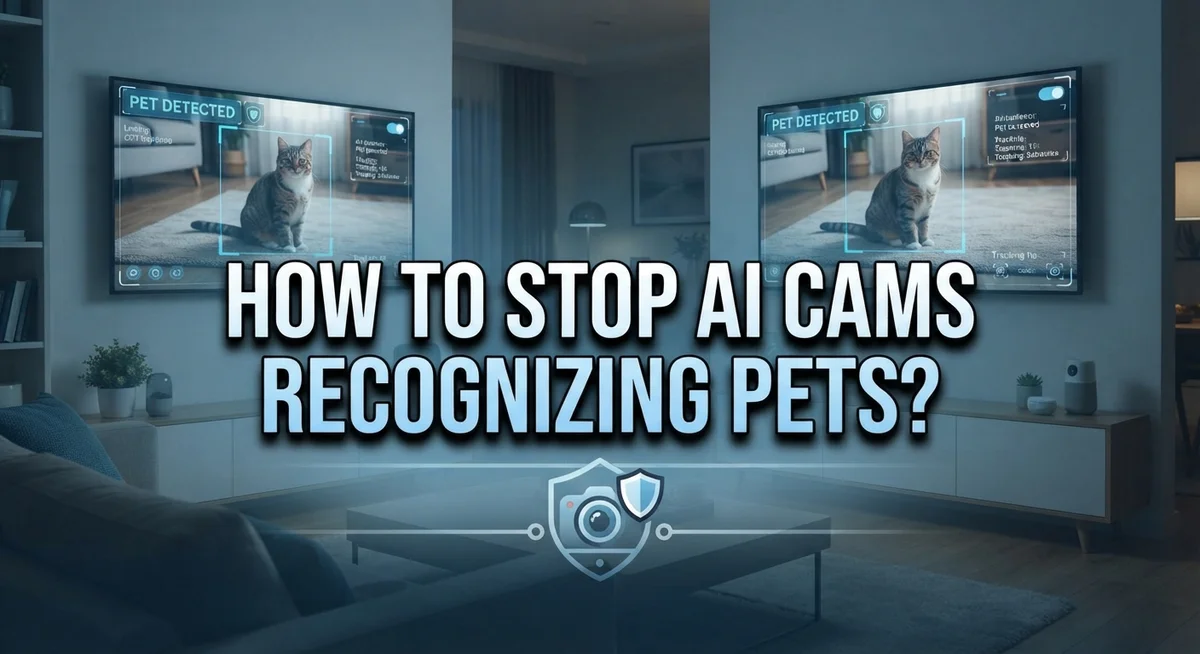
AI pet detection is a smart feature built into modern security cameras. It uses machine learning to recognize when motion comes from an animal instead of a person. The camera’s software analyzes video frames and identifies patterns that match pet behavior.
Here’s how it works in practice. Your camera constantly scans for movement. When motion happens, the AI examines the shape, size, and movement pattern of what caused it. If the software recognizes these characteristics as belonging to a pet, it labels that motion as “animal activity.” The system then filters out a notification based on your settings.
Pet detection runs alongside other detection types. Your camera can spot humans, intruders, vehicles, and pets all at the same time. Each detection category works independently. This means you can receive alerts for people while ignoring alerts for your dog running across the yard.
The technology isn’t perfect. Most systems detect pets as a general category rather than identifying specific animals. Your camera knows “a pet walked by” but cannot tell if it was your dog, cat, or a raccoon. The AI looks for common pet characteristics like size, gait, and movement speed.
Why cameras do this matters. Without pet detection, your phone would buzz constantly. Every time your pet moves, you get an alert. This creates alert fatigue. You start ignoring notifications, which defeats the purpose of security monitoring. Pet detection solves this problem by reducing false alarms while keeping real security threats active.
Understanding this foundation helps you make smart choices about disabling the feature when needed.
Why You Might Want to Disable Pet Recognition on Your Camera
You might want to disable pet recognition on your camera for several practical reasons. The most common reason is notification overload. When your cat jumps on the couch or your dog runs across the yard, your phone receives alerts. These constant notifications become annoying fast.
Pet detection exists to reduce false alarms. However, some people find that the feature itself creates the problem it tries to solve. If you work from home or spend time indoors, constant pet alerts can interrupt your day.
Privacy is another consideration. Some users simply don’t want their camera tracking every movement their pets make. You might feel uncomfortable with continuous monitoring of your home’s activity, even when it’s just animals moving around.
Security priorities matter too. If you live in a quiet area with few strangers passing by, pet alerts might genuinely be useful. But in busy neighborhoods or near parks, pet detection helps you focus only on human activity that actually threatens your home.
Battery concerns apply to wireless cameras. Each alert notification drains battery power slightly. Disabling pet recognition means fewer notifications and longer battery life between charges.
Cost savings add up over time. Some camera systems charge subscription fees for advanced features. If pet detection doesn’t serve your needs, disabling it might let you use a basic plan instead.
You might also disable pet recognition temporarily. During vacations or when you’re away longer, you want maximum security alerts. Turning off pet detection ensures you catch any unusual human activity.
Finally, some people simply prefer simpler settings. Fewer notification types mean easier management and less confusion about what triggered each alert.
How to Access Pet Detection Settings in Your Camera App
Most security camera apps store pet detection settings in similar locations, though the exact path varies by brand. Start by opening your camera’s mobile app and look for a settings icon, usually found in the top corner or bottom menu.
Once inside settings, search for a section labeled “Detection,” “Alerts,” “Notifications,” or “Smart Detection.” This is where pet recognition controls live. Some apps group all detection options together, while others separate them into subsections.
Look for a toggle or checkbox specifically for “Animal Detection,” “Pet Detection,” or “Pets.” This switch controls whether your camera identifies and filters out pet movement. When enabled, it prevents alerts from triggering. When disabled, your camera stops filtering animals.
Before you disable it, check if your system uses an all-or-nothing approach. Some cameras require you to keep all detection types active together. If you turn off pet detection, you might accidentally disable person detection or other alerts too. Read any warning messages that appear when you toggle settings.
Take a screenshot of the original settings first. This helps you remember what was on or off if you need to restore them later.
If you cannot find pet detection in the main app settings, check for a separate “Camera Settings” or “Device Settings” menu. Some brands hide these controls deeper in the interface. You might also need to access settings directly from the camera itself using a physical button or separate web portal.
Test your changes by having someone walk past your camera. Verify that person alerts still work while pet alerts are disabled. This confirms your settings applied correctly and your security remains active where it matters most.
Step-by-Step: Turning Off AI Pet Recognition
Open your camera app and locate the main menu. Look for a settings icon, usually found in the top corner or bottom navigation bar. Tap it to access your account or device settings.
Find the detection settings section. Most apps organize this under “Detection,” “Alerts,” “Notifications,” or “Smart Detection.” The exact label depends on your camera brand, but these terms appear consistently across systems.
Search specifically for animal or pet detection options. You’ll see a toggle switch or checkbox labeled “Animal Detection,” “Pet Detection,” or “Pets.” This control manages whether your camera ignores motion from animals.
Click or tap the toggle to turn it off. The switch should change color or position to show it’s disabled. Some apps require you to confirm this change by tapping a save or apply button.
Check if your system uses an all-or-nothing approach before disabling. Some cameras require all detection types to stay active together. If you turn off pet detection, you might lose notifications for humans and intruders too. Read any warning messages carefully.
Take a screenshot of your original settings before making changes. This helps you remember what was enabled if you need to restore settings later.
Exit the settings menu and return to your camera preview. Verify the change took effect by checking the app’s main screen. Many apps display which detection features are currently active.
Test your new settings by moving around near the camera. You should receive notifications for your movement but not for your pet’s activity. If alerts still come through for animal motion, return to settings and confirm the toggle is truly off.
How Disabling Pet Detection Affects Other Alert Types
When you disable pet detection, the impact on other alert types depends entirely on your camera system. Some systems work independently, meaning you can turn off pet alerts while keeping person detection and motion alerts fully active. Other systems use a linked approach where disabling one detection type affects the entire alert structure.
Check your camera’s alert architecture first. Many modern systems let you customize each detection type separately. You can disable animals while keeping intruder detection, door/window sensors, and sound alerts running normally. This gives you the control you need without losing security coverage.
However, older or budget camera systems sometimes require all detections to be on or off together. If your system uses this all-or-nothing setup, disabling pet detection might disable all notifications. You would need to turn off the entire detection feature, not just the animal portion. This is a significant limitation worth knowing before you make changes.
Test your specific system before relying on it. Open your settings and look for whether each detection type has its own toggle. If they do, you have flexibility. If they share one master switch, you know the limitation upfront.
Person detection and motion detection usually remain separate from pet detection in quality systems. Sound alerts and line crossing detection also typically work independently. The key is checking your app’s settings layout to understand how your camera handles multiple detection types.
Before disabling anything, take screenshots of your current settings. This helps you restore the exact configuration if needed. Then disable pet detection and test the system by moving around your monitored area. Verify that other alerts still trigger properly before considering the change permanent.
Using Activity Zones to Limit Unwanted Pet Alerts
Activity zones let you control where your camera watches for pets. Instead of monitoring your entire property, you focus detection on specific areas that matter most to you.
How activity zones work is simple. You draw virtual boundaries on your camera’s live view. The camera only sends alerts for motion inside these zones. Motion outside the zones gets ignored completely.
This approach stops pet alerts in rooms where your animals spend time. If your dog sleeps in the living room, you can exclude that area from detection. Your cat’s favorite hallway can be off limits too. Meanwhile, your front door and entryway stay fully monitored.
Setting up activity zones takes just a few minutes. Open your camera app and find the detection settings. Look for options labeled “Activity Zones,” “Custom Detection Areas,” or “Detection Regions.” Tap to enter zone editing mode. Your camera shows a live preview or floor plan view.
Draw rectangles or shapes around the areas you want to monitor. You can create multiple zones if needed. Save your changes and test the new setup.
Important considerations matter here. Not all camera systems support activity zones. Budget models often lack this feature. Check your camera’s manual or app to confirm availability before expecting this option.
Activity zones work best when combined with other settings. You might disable pet detection entirely in some zones while keeping it active in others. This gives you maximum flexibility.
Test your zones by walking through monitored and excluded areas. Watch for alerts on your phone. Adjust the boundaries if needed. Proper zone placement prevents missed alerts while cutting down on false pet notifications significantly.
Common Mistakes to Avoid When Adjusting Pet Detection Settings
Many people make mistakes when adjusting pet detection settings. Understanding these errors helps you avoid frustration and keep your camera working the way you want.
The biggest mistake is assuming all detection types work independently. Many camera systems use an all or nothing approach. This means disabling pet detection might also turn off person alerts or motion detection. You should check your camera’s manual or settings menu first. Look for whether each detection option has its own separate toggle switch.
Another common error is not taking screenshots before making changes. Write down or photograph your original settings before you adjust anything. This step saves you time if something goes wrong. You can quickly restore your camera to its previous state without guessing.
People often disable pet detection without testing the results. After you make changes, move around near your camera and check what happens. Does it still alert you to people? Does it ignore your pets? Testing takes five minutes but prevents bigger problems later.
Some users forget to check app specific settings locations. Different camera brands store pet detection options in different places. One app might put it under “Detection Settings” while another uses “Smart Alerts.” Spend time exploring your app’s menu structure completely.
Never assume your camera distinguishes between individual pets. Most systems only detect the general “pet” category, not specific animals. If you have multiple pets, the camera treats them all the same way.
Finally, avoid making multiple changes at once. Adjust one setting, test it, then move to the next one. This approach helps you understand exactly which setting caused which result. You’ll have better control over your camera’s behavior and fewer surprises.
Troubleshooting: Pet Alerts Still Triggering After Disabling Detection
Pet alerts keep triggering even after you disable detection? This happens more often than you think. The issue usually stems from a few specific causes that are easy to fix.
First, check whether your camera system uses separate detection settings. Some systems require you to disable pet detection in multiple locations. You might turn off pet alerts in one menu, but the setting exists in another area too. Open your app and search for “pet,” “animal,” or “detection” in every settings section you can find.
Next, verify that your change actually saved. Close the app completely and reopen it. Sometimes settings don’t stick without a full app restart. You should also restart your camera device itself by unplugging it for 30 seconds.
Another common reason involves activity zones. If you set up zones to monitor certain areas, pet detection might still work outside those zones. Review your zone settings to ensure they cover all spaces where false alerts occur.
Check whether your system has a “smart alerts” or “intelligent filtering” toggle. These features sometimes override individual detection settings. Disabling this master toggle might be necessary before pet detection actually turns off.
Finally, examine your notification settings separately from detection settings. Your camera might still detect pets but not send alerts if you adjust notifications correctly. Look for a “notify me about” section in your app.
If alerts persist after these steps, your system might use an all or nothing approach. Some cameras cannot disable pet detection without disabling all motion alerts. In this case, you’ll need to use activity zones to exclude pet areas instead.
Final Thoughts
Managing AI camera pet detection is simpler than most people expect. The key is knowing where to look and what each setting actually controls.
Start by accessing your camera’s main app settings. Look for an option labeled “animal identification” or “animal detection.” Uncheck or disable that option to stop the camera from flagging your pets as motion events.
Always check the specific location of these settings in your app. Different systems place them in different menus. Some cameras have the animal detection checkbox directly above the camera preview screen.
Keep in mind that pet detection usually works alongside human and intruder detection. Disabling it should not affect person alerts in most systems. However, some camera systems use an all-or-nothing approach to alerts, so disabling one category may disable all of them.
Test your settings after every change. Walk through the monitored area yourself and let your pet move around. Confirm that person alerts still trigger while pet alerts stay quiet.
Most AI camera systems detect a general “pet” category, not individual animals. Your camera cannot tell your dog from a neighbor’s cat. It simply identifies the shape and movement pattern as an animal.
Combining detection settings with activity zones gives you the most control. This two-layer approach filters out false alerts more effectively than either method alone.
If alerts keep appearing after changes, verify that your settings actually saved. Some apps require you to tap a confirm or save button before changes take effect.
Patience and testing are your best tools here. Small adjustments made one at a time will help you find the right balance for your home setup.
Frequently Asked Questions
Will disabling pet detection stop all my camera alerts?
No, disabling pet detection should only stop alerts from animal movement. Your camera will still detect people and intruders. However, some camera systems use an all-or-nothing approach where you cannot disable individual detection types separately. Check your app settings to see if detection options work independently or together.
How do I know if my camera distinguishes between different pets?
Most AI camera systems detect a general “pet” category rather than identifying specific animals. Your camera cannot tell your dog from your neighbor’s cat. It simply recognizes motion patterns typical of animals. If you need to identify which pet triggered an alert, you’ll need to review the video footage instead of relying on detection labels.
Where should I look for pet detection settings in my app?
Pet detection settings are usually in your camera’s main app menu, but the exact location varies by system. Look for sections labeled “Detection,” “Alerts,” “Smart Detection,” or “Intelligent Filtering.” Some apps hide these options under “Camera Settings” or “Notification Preferences.” Check your app’s help section if you cannot find them quickly.
What should I do if pet alerts keep triggering after I disable detection?
First, verify that your changes actually saved by checking the settings again. Next, examine your notification settings separately from detection settings, as they work independently. Also check whether activity zones are enabled, since these can override detection settings. If alerts still persist, your system likely uses an all-or-nothing detection approach.
Can I disable pet detection for one camera but keep it on another?
Yes, most systems let you adjust detection settings for each camera individually. Access each camera’s specific settings through your app and toggle pet detection on or off as needed. This gives you flexibility to disable pet alerts in high-traffic pet areas while keeping detection active in other zones.

Hi, I’m Simmy — the founder and voice behind AI Gadgets Insight. I’m a tech enthusiast who loves exploring the latest AI gadgets, smart devices, and innovative tech products. I started this blog to help people make smarter tech choices with honest reviews, easy-to-follow comparisons, and practical buying guides.